You may have heard of the Sugar Tax……introducing the Burger Tax! 🍔💷.
I’ve created a solution using the Starling Bank developer API and an Azure Function that “taxes” me whenever I buy junk food (specifically McDonalds!), moving 20% of the transaction into a Savings Space within my Starling Bank account.
I’ve put together a video that walks through the solution end-to-end.
The code for the Azure Function is available here.
I’m currently in the process of writing an Azure Function that I’ll be using with a Starling Bank webhook to “tax” myself every time I purchase junk food…..more on that in a future post though!
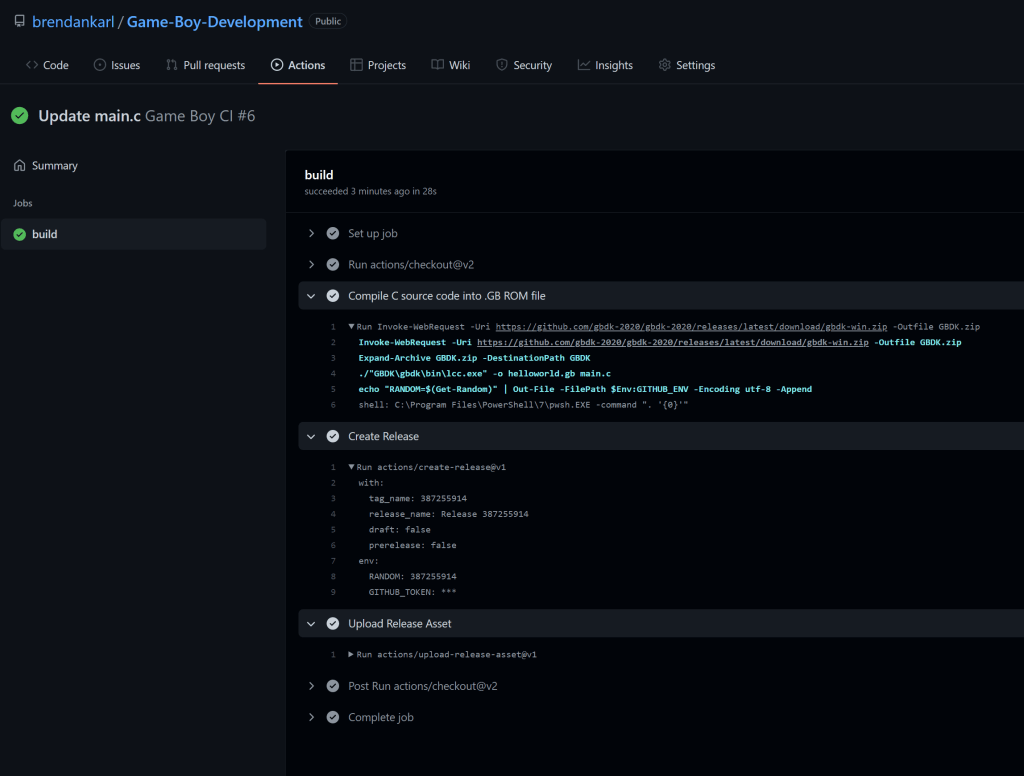
I love automating things and that coupled with getting bored of using the Azure Portal led me to taking a closer look at the Azure CLI, to automate the creation and configuration of the Function App.
The Azure CLI can be installed on Windows, macOS and Linux. I installed it on Ubuntu which runs on my Windows 11 device using Windows Subsystem for Linux (WSL). I wanted to experience it on a non-Windows platform, which is why I used the convoluted approach of running it on Linux on Windows 😀. Installation was straightforward and required a single command:
curl -L https://aka.ms/InstallAzureCli | bash
My aim was to use the Azure CLI to create an Azure Function App that runs on Windows with the PowerShell runtime based in the UK South region, I also wanted to add a key/value pair to the Application Settings which I will use to store my Personal Access Token from Starling. The PAT will be used to connect to my bank account and “tax” fast food purchases! I could/should have used Azure Key Vault for this but didn’t want to introduce extra complexity into a hobby project.
After logging into my Azure subscription using az login from Ubuntu I ran the following to declare the appname and region variables. I’m lazy and use appname for the Resource Group, Storage Account and Function App name. I used the Bash function $RANDOM to append a random number to the app name, which was useful during testing, so I didn’t have to update the app name manually after each run of the script (and there were many as I got to grips with the syntax of the Azure CLI!)
appname=burgertax$RANDOM
region=uksouth
I then created a Resource Group to house the Function App, located in the UK South region and named burgertax (appended with a random number).
az group create --name $appname --location $region
Once the Resource Group had been created, I created a Storage Account which is used to host the content of the Function App.
The next thing on my list to experiment with was creating a webhook and getting this to call an Azure Function to “do something”………which I’m yet to decide exactly what 😀. It’s possible to create a webhook to fire for three specific event types (or any combination of the three) with Starling Bank:
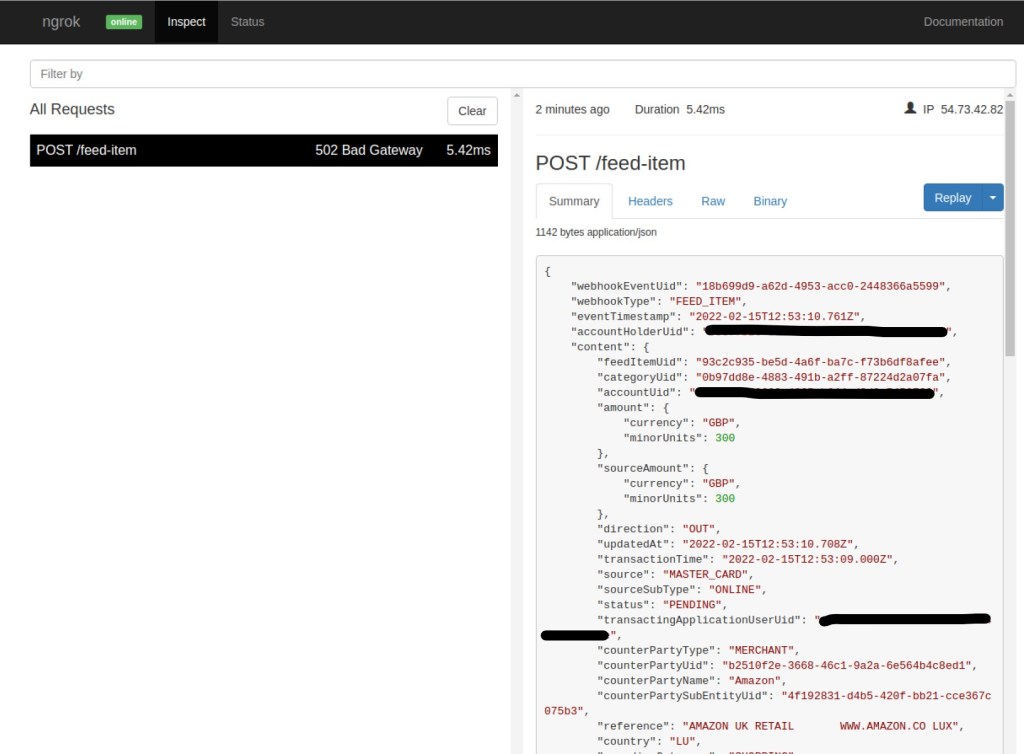
Before I started jumping into creating an Azure Function to “do something” based upon a webhook call from my Starling Bank account, I needed to see what these calls look like, so that I could figure out the data I had to play with. This is where I had the bright idea of using ngrok. My theory was that I could publish an endpoint on my local machine, publish this to the Internet and configure the Starling Bank webhook to call this public URL and then inspect the request made. I’ve previously written about ngrok here.
This is how I did it:
Step 1 – Configure ngrok
I downloaded the ngrok agent from here and copied it to my Raspberry Pi (you can also run on Windows, macOS and other variants of Linux).
I also created a free account with ngrok as this unlocks some additional features, this provides an Authtoken to authenticate your ngrok agent.
I then ran the following to register my Authtoken from the directory that ngrok had been copied to (this isn’t my Authtoken BTW)
Once that completed, I then created a tunnel:
ngrok http 80
Once this command had run, it provided the external URLs that the local port (80) has been exposed to (by default it will create HTTP and HTTPS endpoint if the command above is run). It’s then as simple as configuring the webhook to call the HTTPS endpoint that has been exposed.
Step 2 – Configure the Starling Bank Webhook
I logged into my developer account and created the webhook, I called this ngrok and in the Payload URL entered the public endpoint HTTPS exposed by ngrok. I selected Feed Item as I’m only interested in data generated by purchases and then hit Create V2 Webhook.
Step 3 – Create a Transaction
To get the webhook to fire so that I could inspect it using ngrok I needed to spend some money 💷! I headed over to Amazon and bought something using my Starling Bank account.
Step 4 – Inspecting the Webhook Call
I then flipped back over to my Raspberry Pi and launched the Web Interface for ngrok – which by default is http://127.0.0.1:4040.
From here I could see the call made by the webhook, this had failed because I didn’t have anything listening on port 80, which is fine – all I wanted was to inspect the webhook call to see the JSON included. Which I could in all its glory:
Now that I know what is included, I’m going to create an Azure Function that the webhook will call (instead of the current ngrok black hole) to do something with the transaction data……I am tempted to “tax” myself when I buy fast food by transferring a percentage of the transaction to a savings “space” within my account. I should be able to use the counterPartyName and amount to do this.
I recently posted about my experiences with the Starling Bank developer API’s and shared some Python that I’d written to retrieve my bank balance and most recent transaction.
I’ve played around with creating Alexa skills before……my most useful was a skill that told me when my rubbish (garbage) 🗑️ was next going to be collected and which colour bin I needed to put out, a real lifesaver!
I decided to have a go at creating an Alexa skill that leveraged the code I’d written to check my bank balance and retrieve my most recent transaction. It was a success and here it is in action!
Rather than write a step-by-step blog post that describes how to do it, I thought I’d put together a walkthrough video, here it is in all its glory.
The AWS Lambda function used by the Alexa Skill (that I demo’d in the video) can be found on GitHub.
I recently opened an account with Starling Bank, they are a UK based challenger bank. I had read “Banking On It: How I Disrupted an Industry” by their founder Anne Boden (a fantastic book BTW!) and was really intrigued as to how they would stack up against my current “traditional” bank…..anyway, this isn’t a blog about finance! I noticed that they had an API available, which was the perfect excuse for me to geek out 😀.
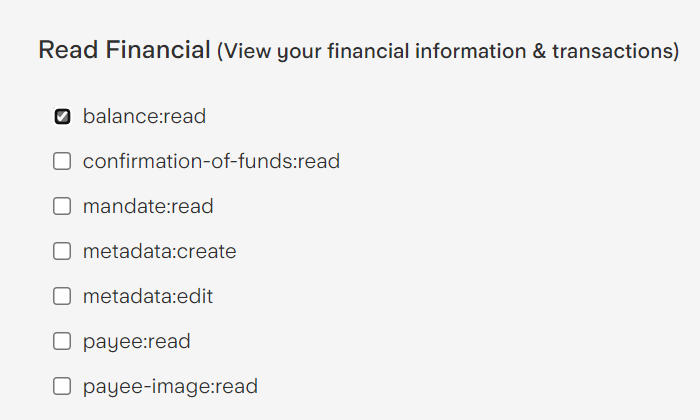
It was straightforward to get started, all I had to do was create a developer account and link this to my Starling bank account, which took me less than 5 minutes. Once I’d done this I headed over to the “Getting Started” page within their developer site and create a Personal Access Token (PAT) that could be used to access my account – as I wasn’t planning to create any apps that access anything other than my own personal account, I didn’t need to bother registering an app. When creating a PAT you can specify the scope – for example you may only want the PAT to be able to read your balance (wouldn’t it be nice if you could write to the balance 💵???).
As I wasn’t entirely sure what I was going to do with this newfound access to my bank account, I selected everything.
The API and documentation provided by Starling is superb, there’s even a Sandbox to play around in. I played around with the API for a couple of hours and managed to create some Python code to print my balance and details of my most recent transaction.
I put together the Python code below, which does the following:
Imports the required modules – requests is used to make the calls to the API and datetime is used to calculate dates within the get_transactions() function.
Stores the Personal Access Token in the PAT variable (breaking every single security best practice in one fell swoop)
Defines four functions:
get_account()– Retrieves the unique identifier of a bank account, as a user can have more than one account it’s important that the correct account is selected. As I have a single account, I just return what’s at index 0. This function is used by the get_balance() and get_transactions()functions.
get_default_category() – This retrieves the default category for an account, this is required for the get_transactions() function. An account can have multiple categories defined; new categories are created when additional spaces are added to an account. A space is akin to a virtual account within an account, for example you could create a space specifically for holiday savings – a really cool feature and something that was new to me.
get_balance()– Returns the current balance of the account – I used the “effectiveBalance” which considers pending transactions so is more accurate than the alternative “clearedBalance”, which does not.
get_transactions() – Returns details of the most recent transaction within a specific date range, this takes a single argument (days). Which is the number of days from today to look backwards.
Here’s the functions in action! The call to get_balance demonstrates how rich I am! For get_transactions() I passed the argument 30, which will return the most recent transaction in the previous 30 days. Including who the transaction was with, the direction (money in/out) and the amount.
As I continue to experiment with the API, I’m tempted to write an Alexa skill that I can use to query my account 🤔.
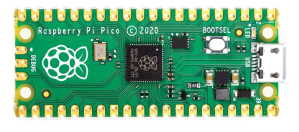
In my continued mission to purchase every device that the Raspberry Pi Foundation releases, I acquired a Raspberry Pi Pico shortly before the holiday season 😀.
The Pico is a super-cheap (£3.60) microcontroller that is programmable with MicroPython (a scaled down version of Python) and C, you can find out more about it here.
I splashed the cash and spent £11 on a Maker Pi Pico, which is a Pico that is pre-soldered onto a maker board that has an LED indicator for each GPIO pin, 3 programmable pushbuttons, an RGB LED, buzzer, stereo 3.5mm audio jack, micro-SD card slot, ESP-01 socket and 6 Grove ports.
To program the device using MicroPython you need to install MicroPython on the Pico (full instructions here) and then install the Thonny Python IDE on the device you’d like to do development on (Windows, Mac or Linux), I may add that if you wanted to do development on a Raspberry Pi and you are running Raspberry Pi OS, this step isn’t required as Thonny comes pre-installed. A step-by-step guide on how to use Thonny with a Pico is available here.
The biggest mistake I made was to use a cheap USB cable that didn’t support data, I was scratching my head for a while figuring out why my Windows 11 machine couldn’t see the Pico (it presents itself as a mass storage device) until I tried another cable, which worked like a charm.
After playing around with some of the sample Python scripts for the Maker Pi Pico, I thought I’d go all 1980s and try to re-create a super-basic graphic equalizer. If you don’t have a clue what I’m talking about check out this YouTube video for a demo – https://www.youtube.com/watch?v=GlgVoYH6bPo.
I put together the script below (also available on GitHub here). Which does the following:
Turns off the LEDs attached to the GPIO pins 0-15
Generates a random number between 0-15
Lights up each LED in order e.g. if 4 is the random number generated it will turn on the LED for GPIO 0, 1, 2, 3 and then 4
Turns off each LED in reverse order, therefore 4, 3, 2, 1 and then 0
Repeats step 2
I’m sure that there are far more practical applications for a Pico, but this kept me amused for a short while.
import machine
import utime
import random
for i in range(15):
machine.Pin(i,machine.Pin.OUT)
for i in range(15):
machine.Pin(i).value(0)
def lightup(id):
for i in range(id):
machine.Pin(i).value(1)
utime.sleep(0.01)
for i in reversed(range(id)):
machine.Pin(i).value(0)
utime.sleep(0.01)
while True:
randnum = random.randint(0,15)
lightup(randnum)
utime.sleep(0.15)
This is something that I’ve been meaning to do for a while, a few folks in my team recently shared their home office setup on LinkedIn which motivated me to actually do it.
I’ll update this any time that I make any major changes. It will be interesting for me to look back as my setup continues to evolve. I really wish that I’d documented how my home office setup has evolved over time, my first home office setup was back in 2005 in the heady days of Windows XP!
I’ve recently upgraded my Surface Book 2 to Windows 11, one of the first things I took for a test spin was Windows Subsystem for Linux GUI (WSLg) which provides the ability to run Linux GUI apps directly on Windows!
It took me around 5 minutes to get WSLg up and running (including a reboot) using this step-by-step guide, I opted to use the Ubuntu Linux distro (which is the default). One of the first things that I did was to install Microsoft Edge for Linux, instructions on how to do this can be found here.
One of the cool things about WSLg is that Linux apps that have been installed appear in the Start Menu!
This got me thinking…..could I spin up an emulator for the greatest computer of all time – the Amstrad CPC 6128 (my very first computer) within Edge? It turns out I could using http://crocods.org/web 😀. So here we have an Amstrad CPC 6128 running within Edge on Linux on Windows 11.
Check out my BASIC skills!
If you are interested in finding out how WSLg works under the hood, I’d recommend checking out this blog post.
I’ve had a Raspberry Pi since it launched back in 2012, I was that excited when mine arrived that I even Tweeted about it 😀.
Over the years I’ve used them for all kinds of things, ranging from testing my Internet connection, which I blogged about here to playing my favourite video games from the 90s using RetroPie, what better use of a Pi than winding back the years and playing Sonic the Hedgehog and Mario like it’s 1992 again!
I thought I’d share a few of my Tips and Tricks for using a Raspberry Pi.
Running a Headless Raspberry Pi
I run all my Pi’s headless (not attached to a monitor, keyboard, and mouse) I use SSH and VNC to access my various Pi’s over the network which works well. One small annoyance I had was the need to manually configure the Wifi and SSH whenever I setup a new Pi (or re-image an existing Pi – as I tend to break them!), which meant I had to connect the Pi to a monitor and keyboard to perform the initial configuration prior to going headless.
I recently became aware that the Raspberry Pi Imager (a tool that can be used to write OS images to an SD card for the Pi) has a hidden advanced options menu that you can use to configure elements of the OS. All you need to do after launching Raspberry Pi Imager is hit CTRL+SHIFT+X (on Windows) to launch the advanced options menu, whatever you configure here gets applied to Raspberry Pi OS when it’s written to the SD card – neat eh!
In the example below, I did the following:
Set the hostname to mypi
Enabled SSH and set the password for the default pi user
Configured it to connect to a Wifi network (QWERTY in this example)
You can also do other things such as disabling overscan and setting the locale. Once you’ve finished editing the configuration, hit save, then when you write Raspberry Pi OS to the SD card it will pre-configure the OS with the settings specified. This has saved me a ton of time (and fiddling around with cables!). The oly thing I have to do manually now is to configure VNC, although I can do this via SSH using raspi-config.
Exposing a Pi to the Internet
I built a rudimentary surveillance camera for my house using the Pi Camera and this script sample which creates a basic web server and streams footage from the Pi Camera.
I didn’t use this to monitor my house for burglars…..it’s main purpose was to help me keep an eye on my cat 😸. The one problem was that it was only accessible from within my home network, which wasn’t really that useful when I was out and about. I did some research and came across ngrok, which makes it super simple to expose a Raspberry Pi to the Internet without doing anything too risky such as configuring port forwarding on your router. This enabled me to keep tabs on my cat wherever I was in the world (as long as I had an Internet connection).
ngrok support Mac OS, Windows, Linux and FreeBSD and it’s super simple to setup and free to use (with some restrictions), here is a guide on how to expose a local web server to the Internet – it’s literally a single command!
ngrok http 80
Once this command is run, it will provide the external URLs that the local port (80) has been exposed to (by default it will create HTTP and HTTPS endpoint if the command above is run). It’s then as simple as connecting to one of the public URLs which will then route traffic to the port exposed on the Pi.
Below you can see this in action….I’ve obscured the publicly accessible URLs (“Forwarding”) as these contain my public IP address.
There is also a local web management interface that can be accessed locally from the device which allows you to inspect requests, review the configuration and also metrics.
Obviously, this is a great tool for testing and playing around with, it’s definitely not something I’d use in production 😀.
Using PowerShell on the Pi
Yes, you read that correctly – you can run PowerShell on the Pi! As somebody who comes from a Windows background who loves PowerShell I was over the moon when PowerShell went cross-platform. I couldn’t ever imagine a day that PowerShell would be available on the Pi – kudos to whoever pushed for making it a cross-platform tool.
As much as I like Python, I have far more experience with PowerShell and sometimes it’s simpler to run a PowerShell command using my muscle memory than spending time researching how to do the equivalent using Python.
PowerShell is super-simple to install on Raspberry Pi OS, this guide steps through the process. I also create a symbolic link so that I don’t have to type the full path to the pwsh (PowerShell) binary when using it (this is also covered in the guide).
Once you’ve done that, you are good to go:
As a side note, I can also highly recommend Visual Studio Code I write all my Python and PowerShell scripts on the Pi using this.
One of my colleagues mentioned to me that data from MyAnalytics (which is feature of Viva Insights within Microsoft 365) is now accessible via the Beta endpoint of the Microsoft Graph. If you aren’t familiar, you can find out more about MyAnalytics here.
I was particularly excited as MyAnalytics has a wealth of Microsoft 365 usage data, which it analyzes to provide users with personalised insights based on their work patterns and behaviours, for example:
Clicking Learn more on each card provides additional guidance:
I was really interested to examine the data returned by the Beta Graph endpoint for MyAnalytics. Looking at the documentation, it provides two key pieces of functionality:
Listing a users activity statistics (the interesting bit – which I’m going to focus on here!)
Activity statistics returns statistics on the following data points for the previous week (Monday to Sunday) for a user. It’s currently not possible to specify a particular week to query, it will simply return data from the previous week.
If I take emails as an example, this returns the following properties:
…and here are the returned properties for meetings:
Productivity and self-improvement are two areas of immense interest to me, using the MyAnalytics data returned from the Graph I could envisage creating some custom reports to track my work patterns over time and then act on this – for example, the data could highlight that I’ve spent more time working outside of working hours recently or that I’m starting to attend more recurring meetings.
As a side note: Outlook settings are used to determine a user’s working hours.
The next step for me was to create a Python Web app (using Flask) to retrieve a subset of this information from the Graph (I always love to overcomplicate things!).
This script could be tweaked to perform other Graph queries if needed
import uuid
import json
import flask
from flask_oauthlib.client import OAuth
CLIENT_ID = ''
CLIENT_SECRET = ''
REDIRECT_URI = 'http://localhost:5000/login/authorized'
AUTHORITY_URL = 'https://login.microsoftonline.com/organizations'
AUTH_ENDPOINT = '/oauth2/v2.0/authorize'
TOKEN_ENDPOINT = '/oauth2/v2.0/token'
RESOURCE = 'https://graph.microsoft.com/'
API_VERSION = 'beta'
SCOPES = ['Analytics.Read']
APP = flask.Flask(__name__)
APP.secret_key = 'development'
OAUTH = OAuth(APP)
MSGRAPH = OAUTH.remote_app(
'microsoft', consumer_key=CLIENT_ID, consumer_secret=CLIENT_SECRET,
request_token_params={'scope': SCOPES},
base_url=RESOURCE + API_VERSION + '/',
request_token_url=None, access_token_method='POST',
access_token_url=AUTHORITY_URL + TOKEN_ENDPOINT,
authorize_url=AUTHORITY_URL + AUTH_ENDPOINT)
@APP.route('/')
def login():
"""Prompt user to authenticate."""
flask.session['state'] = str(uuid.uuid4())
return MSGRAPH.authorize(callback=REDIRECT_URI, state=flask.session['state'])
@APP.route('/login/authorized')
def authorized():
"""Handler for the application's Redirect Uri."""
if str(flask.session['state']) != str(flask.request.args['state']):
raise Exception('state returned to redirect URL does not match!')
response = MSGRAPH.authorized_response()
flask.session['access_token'] = response['access_token']
return flask.redirect('/graphcall')
@APP.route('/graphcall')
def graphcall():
"""Confirm user authentication by calling Graph and displaying some data."""
endpoint = 'me/analytics/activityStatistics'
headers = {'SdkVersion': 'sample-python-flask',
'x-client-SKU': 'sample-python-flask',
'client-request-id': str(uuid.uuid4()),
'return-client-request-id': 'true'}
graphdata = MSGRAPH.get(endpoint, headers=headers).data
data = str(graphdata).replace("'",'"')
datadict = json.loads(data)
summary = []
i = 0
while i < 5:
if datadict["value"][i]["activity"] == "Focus":
i += 1
else:
summary.append("Activity Type: " + datadict["value"][i]["activity"] + " / Date: " + datadict["value"][i]["startDate"] + " / After Hours " + datadict["value"][i]["afterHours"])
i += 1
return str(summary)
@MSGRAPH.tokengetter
def get_token():
"""Called by flask_oauthlib.client to retrieve current access token."""
return (flask.session.get('access_token'), '')
if __name__ == '__main__':
APP.run()
This script (Flask Web app) does the following:
Prompts the user to authenticate to a M365 tenant (and requests access to the ‘Analytics.Read’ and ‘User.Read’ scopes in the Graph)
Queries the me/analytics/activityStatistics endpoint
Returns the following information for each activity type for the first day in the reporting period (excluding Focus)
Date (“startDate”)
Activity Type (“activity”)
Time spent after hours on the activity (afterHours)
If you take a closer look at the script, you’ll see it takes the raw JSON output from the Graph, converts this to a Python dictionary and then iterates through the first day of the weeks data for each activity type (excluding Focus) and outputs this as a string – it’s certainly not pretty, but this is more of a proof of concept to get me started 😀.
Before running this script, you’ll need to do a few things:
Once authenticated, you should see the following screen – which is requesting specific permission to the users data.
Once you’ve clicked Accept, the delightful screen below should be displayed which includes the raw output. The test tenant I used to create the script has no usage hence the important data (After Hours) reports zero, in a real-world scenario this would be a cumulative value in seconds spent on each activity after hours.
I’ll likely write more about this as my experimentation continues…