• Using OCI AI to convert speech to text ๐Ÿ“–

    In my continued journey to play around with the AI services within OCI (you can read about them here), next up on my list is OCI Speech ๐ŸŽค.

    Here is a high-level overview of what it offers (taken from https://www.oracle.com/uk/artificial-intelligence/speech/):

    OCI Speech is an AI service that applies automatic speech recognition technology to transform audio-based content into text. Developers can easily make API calls to integrate OCI Speechโ€™s pretrained models into their applications. OCI Speech can be used for accurate, text-normalized, time-stamped transcription via the console and REST APIs as well as command-line interfaces or SDKs. You can also use OCI Speech in an OCI Data Science notebook session. With OCI Speech, you can filter profanities, get confidence scores for both single words and complete transcriptions, and more.

    As an experiment I took one of my recent YouTube videos and submitted this to OCI Speech for transcription, the high-levels steps to do this were:

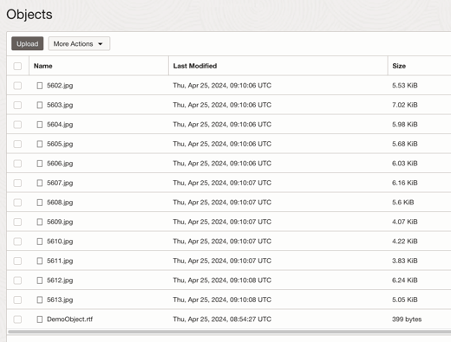
    1. Upload the video to an OCI Object Storage bucket
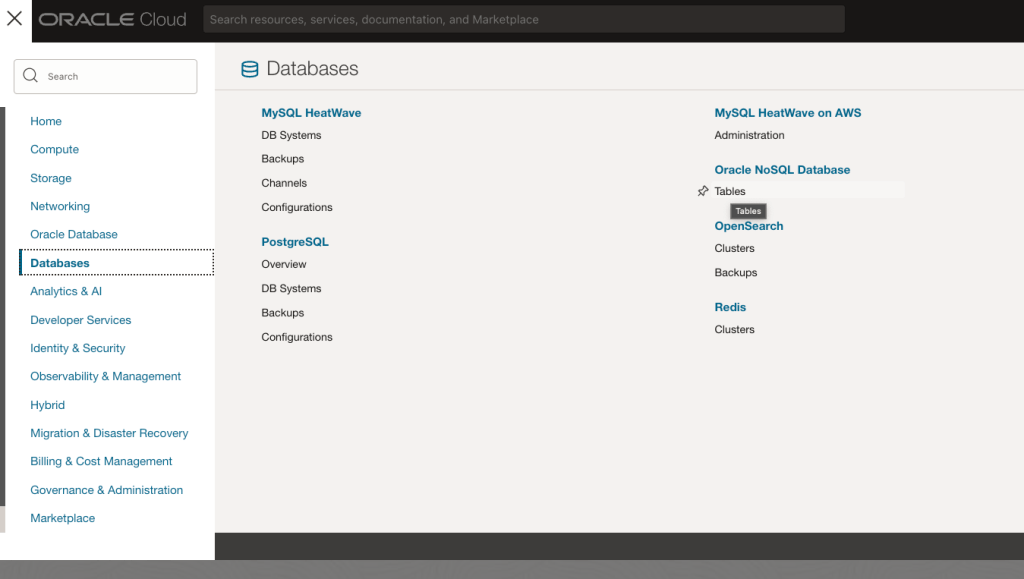
    2. Within the OCI Console, navigate to Analytics & AI > Speech > Create Job, I then entered the following:

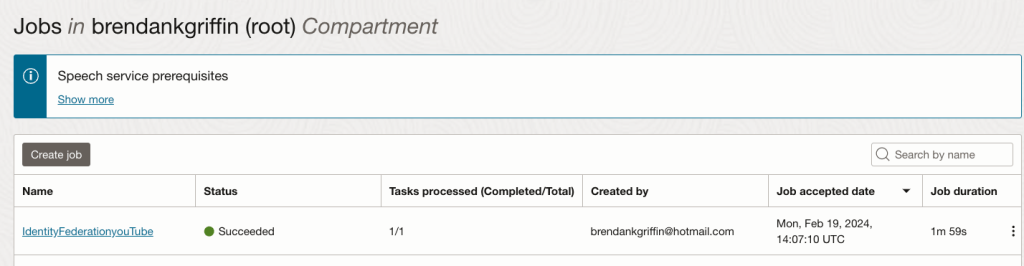
    This created a transcripton job named IdentityFederationYouTube, configured it to use the Object Storage bucket named videos and to store the transcription output in the same bucket – on the next screen we’ll select the video to transcribe from the bucket.

    I left all other settings as default, one really interesting feature is the ability to detect profanity, if you select Add filter, you can configure the transcription job to detect and act upon profanity by either masking, removing or simply tagging it within the output transcription. I didn’t bother using this although I’m sure that I’ll have a lot of fun playing with it in the future ๐Ÿ˜†.

    On the next screen I chose the video to transcribe and selected Submit.

    NOTE: As my Object Storage bucket contained a single video file this was the only option that I had, it is possible to submit multiple videos within a single transcription job.

    In under 2 minutes the transcription job was complete, for reference the video that was transcribed was 7 minutes long:

    Clicking into the job provides additional details, I did this and scrolled down to the Tasks section, from here it was possible to download the transcription, which is in JSON format directly (Download JSON). I could also have gone directly to the Object Storage bucket, it was a nice touch that I could do it here though, far less clicking around ๐Ÿ˜€.

    I downloaded the JSON file and fired up Visual Studio Code to analyse the JSON using Python.

    First things first, I wanted to see the transcription itself so I could see how good a job it had done with my Yorkshire accent.

    To do this I ran the following Python:

    import json
    # Open the transcription JSON output file
    filepath = "/users/bkgriffi/Downloads/transcript.json" # Location of the transcription output JSON file
    transcriptsource = open(filepath)
    # Read the transcription
    transcriptJSON = json.load(transcriptsource)
    transcriptJSON["transcriptions"][0]["transcription"] # This is looking at the output of the first transciption within the output, denoted by 0. If transcribing multiple videos within a single job, this would need to be updated accordingly.
    for word in transcriptJSON["transcriptions"][0]["tokens"]:
        if word["confidence"] < '0.70':
            if word["token"] not in ('.',','):
                print(word["token"] + " - " + "Confidence: " + word["confidence"] + " at: " + word["startTime"])


    It didn’t do too bad a job at all!

    I opened the JSON directly and could see some other really useful information, in addition to the transcription it also provides it’s confidence of each word detected. I put together the following script that outputs all of the words that were detected that had a confidence level of less than 70% and the timestamp that they occurred within the video.

    for word in transcriptJSON["transcriptions"][0]["tokens"]:
        if word["confidence"] < '0.70': # Only display words with a detection confidence of less than 70%
            if word["token"] not in ('.',','): # Exclude full stops and commas
                print(word["token"] + " - " + "Confidence: " + word["confidence"] + " at: " + word["startTime"])
    

    Looking at the output, it appears to have mostly been confident! There’s only a couple of words that I can see there that appear to have been detected incorrectly.

    The script I wrote can be found on GitHub here.

  • Cataloging my video game collection using the OCI AI Vision Service ๐ŸŽฎ

    One of my hobbies is collecting video games, specifically retro games from the 80s and 90s.

    I’ve previously used Azure Cognitive services (now Azure AI Services) to catalog my video game collection and wrote about it here ๐Ÿ•น๏ธ, as I’ve been playing around with OCI recently I thought it would a great idea to try and replicate this approach using the OCI AI Vision service – specifically the OCR capabilities that can extract text from an image.

    Before I go any further, here is a little background to my specific scenario:

    My games collection has grown over the years and itโ€™s difficult for me to track what I own. On more than one occasion Iโ€™ve bought a game, later to realise that I already owned it ๐Ÿคฆโ€โ™‚๏ธ. I had a brainwave (or more specifically an excuse to tinker)โ€ฆโ€ฆ..why donโ€™t I keep a digital list of the games that I have!

    My plan was to take photos of my collection, pass these photos to the OCI AI Vision service to extract the text from the photos and then write this to a file, which Iโ€™ll then eventually put into a database or more likely Excel!

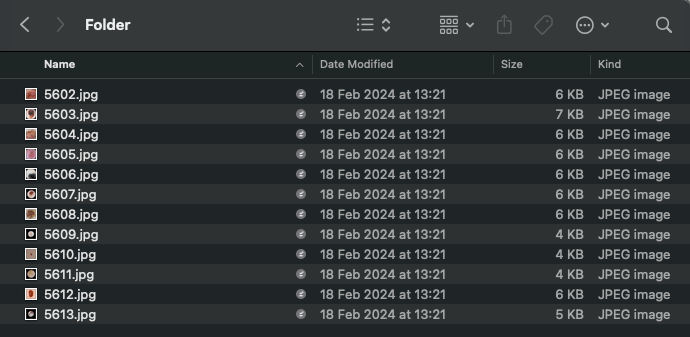
    I took a photo of some of my games (PS3 so not exactly retro!) and then set about writing a Python script that used the Python SDK for OCI to submit the photos and extract any detected text, below is an example image I used for testing ๐Ÿ“ท.

    The script that I wrote does the following:

    • Connects to the OCI AI Vision Service
    • Submits an image (which is stored within an OCI Object Storage Bucket) to the Vision Service for analysis, requesting OCR (denoted by the featuretype of TEXT_DETECTION) – you could pass a local image instead if needed, further details on how to do this can be found here.
    • Converts the response from the AI Vision Service to JSON (which makes it easier to use)
    • Output’s each line of text detected to the terminal, but only if this is greater than 5 characters in length – this helps to ensure that only game titles are returned, rather than other information on the spine of the box, such as the game classification and ID number.

    This worked really well, with only a couple of small issues (can you spot them ๐Ÿ”Ž):

    The script I wrote can be found below and also on GitHub.

    import oci
    import json
    
    # Authenticate to the OCI AI Vision Service
    config = oci.config.from_file()
    ai_vision_client = oci.ai_vision.AIServiceVisionClient(config)
    
    # Set the type of analysis to OCR
    featuretype = "TEXT_DETECTION"
    
    # Analyse the image within object storage
    analyze_image_response = ai_vision_client.analyze_image(
        analyze_image_details=oci.ai_vision.models.AnalyzeImageDetails(
            features=[
                oci.ai_vision.models.ImageClassificationFeature(
                    feature_type=featuretype,
                    max_results=300)],
            image=oci.ai_vision.models.ObjectStorageImageDetails(
                source="OBJECT_STORAGE",
                namespace_name="Replace with Object Storage Namespace",
                bucket_name="Replace with the bucket name",
                object_name="Replace with the name of image to analyse"),
            compartment_id="Replace with Compartment ID"),
       )
    
    # Convert to JSON
    json = json.loads(str(analyze_image_response.data))
    
    # Print the names of the games identified (each returned line in the resnpose with greater than 5 characters)
    lines = []
    for analysedlines in json["image_text"]["lines"]:
        if len(analysedlines["text"]) > 5:
            print(analysedlines["text"])
            lines.append(analysedlines["text"])
    
  • Tracking OCI spend on a per-user basis ๐Ÿ’ท

    I had an interesting conversation with my colleagues recently about how we could track the spend on our OCI test tenant on a per-user basis.

    There are several people within my team who have access to this shared tenant and we needed a way to quickly and easily see the spend per-user.

    I looked into this and created a script using the Python SDK for OCI, which does the following:

    • Connects to a tenant specified by the tenant_id variable
    • Calculates the date range of the previous month, for example it’s currently February 2024, the script calculates a date range of 1st January 2024 (datefrom) to 1st February 2024 (dateto)- this is used as the reporting period for the usage query.
    • Calls the RequestSummarizedUsageDetails usage API and requests the usage for a given date range (the previous month in this case), returning the cost and grouping this by who created the resource – this uses the inbuilt CreatedBy tag, more details on this can be found here.
    • For each of the users (CreatedBy) in the response from the usage API, print to the console along with the cost attributed to each.

    Here is an example of the script output, which shows cost per user for the previous calendar month (in this case January 2024):

    The script can be found on GitHub and below, the request can be updated to meet your specific needs, using the documentation as a reference:

    import oci
    import datetime
    
    # Authenticate to OCI
    config = oci.config.from_file()
    
    # Initialize the usageapi client service client with the default config file
    usage_api_client = oci.usage_api.UsageapiClient(config)
    
    # Create the from and to dates for the usage query - using the previous calendar month
    dateto = datetime.date.today().replace(day=1) # Get the first day of the current month
    month, year = (dateto.month-1, dateto.year) if dateto.month != 1 else (12, dateto.year-1)
    datefrom = dateto.replace(day=1, month=month, year=year) # Get the first day of the previous month
    
    # Build request
    request_summarized_usages_response = usage_api_client.request_summarized_usages(
        request_summarized_usages_details=oci.usage_api.models.RequestSummarizedUsagesDetails(
            tenant_id="Tenant OCID", # Update with the tenant OCID
            time_usage_started=(datefrom.strftime('%Y-%m-%dT%H:%M:%SZ')),
            time_usage_ended=(dateto.strftime('%Y-%m-%dT%H:%M:%SZ')),
            granularity="MONTHLY",
            is_aggregate_by_time=False,
            query_type="COST",
            group_by_tag=[
                oci.usage_api.models.Tag( # Return results by the CreatedBy tag, which will indicate the user who created the resource (who the usage cost will be attributed to)
                    namespace="Oracle-Tags",
                    key="CreatedBy")],
            compartment_depth=6))
    
    # Store the output of the request
    output = request_summarized_usages_response.data
    
    # Loop through the output and print the usage cost per user
    i = 0
    while i < len(output.items):
        print("-" + output.items[i].tags[0].value + " Cost: " + "ยฃ" + str(output.items[i].computed_amount))
        i += 1
    
  • Using OCI Language (text analytics) to detect PII ๐Ÿคซ

    OCI Language AI (text analytics) has the ability to detect PII from a string of text, this is particularly useful for the following use-cases:

    Detecting and curating private information in user feedback ๐Ÿง‘

    Many organizations collect user feedback is collected through various channels such as product reviews, return requests, support tickets, and feedback forums. You can use Language PII detection service for automatic detection of PII entities to not only proactively warn, but also anonymize before storing posted feedback. Using the automatic detection of PII entities you can proactively warn users about sharing private data, and applications to implement measures such as storing masked data.

    Scanning object storage for presence of sensitive data ๐Ÿ’พ

    Cloud storage solutions such as OCI Object Storage are widely used by employees to store business documents in the locations either locally controlled or shared by many teams. Ensuring that such shared locations don’t store private information such as employee names, demographics and payroll information requires automatic scanning of all the documents for presence of PII. The OCI Language PII model provides batch API to process many text documents at scale for processing data at scale.

    Taken from – https://docs.oracle.com/en-us/iaas/language/using/pii.htm

    I created a simple Python script that uses the OCI Language API to detect PII in a string of text and replace this with a placeholder (PII type), this can be found below and on GitHub.

    It analyses the text contained within the texttoanalyse variable, if any PII is detected this is replaced with the type of data contained and the updated string is printed to the console.

    Update texttoanalyse and compartment_id before running.

    import oci
    
    config = oci.config.from_file()
    ai_language_client = oci.ai_language.AIServiceLanguageClient(config)
    texttoanalyse = "my details are brendan@brendg.co.uk, I was born in 1981" # String to analyse for PII
    
    batch_detect_language_pii_entities_response = ai_language_client.batch_detect_language_pii_entities( # Identify PII in the string
        batch_detect_language_pii_entities_details=oci.ai_language.models.BatchDetectLanguagePiiEntitiesDetails(
            documents=[
                oci.ai_language.models.TextDocument(
                    key="String1",
                    text=texttoanalyse,
                    language_code="en")],
            compartment_id="Compartment ID"))
    
    cleansedtext = texttoanalyse # Replace the PII in the string with the type of data it is, for example e-mail address
    for document in batch_detect_language_pii_entities_response.data.documents:
        for entities in document.entities:
            cleansedtext = cleansedtext.replace((entities.text),("*" + (entities.type) + "*"))
    
    print(cleansedtext)
    

    Here is the script in action:

  • OCI Vision: drawing a bounding box on analysed images ๐Ÿ“ฆ

    In my last post I shared a script that I’d written that uses the OCI Vision API (object detection) with Python to analyse a local image stored on my machine.

    I wanted to take this a step further and draw a bounding box around the object detected, just as the OCI Console does (example below).

    When calling the Vision API, the response includes the locations of objects detected within the normalized_vertices property, in the example below a dog is detected and the x and y coordinated denote exactly where the dog is within the image analysed ๐Ÿถ.

    I didn’t have a clue how I could take these and draw a bounding box on the image, however luckily for me somebody on Stack Exchange did ๐Ÿ˜‚. I stumbled across the following which provided an example of how to do this using Python with OpenCV and NumPy, I tweaked this example and incorporated with my existing image analysis script, my updated script does the following:

    1. Converts a local image on my machine to Base64 (imagepath variable)
    2. Submits this to the OCI Vision (object detection) API
    3. Returns details of the first object detected in the image
    4. Uses OpenCV and NumPy to take the normalized_vertices of the image (taken from the response) and draws a bounding box on the image
    5. Saves the image with the bounding box (using the imagewritepath variable)

    In the example below, I submitted this image (Photo.jpg):

    Which created this image (PhotoBoundingBox.jpg)

    As you can see this drew a bounding box around the object detected (dog).

    The script is a little rough, as in it’s current form it only draws a bounding box around the first object detected, however in the future I’ll likely update this to draw bounding boxes around additional objects within the image – I’d also like to annotate the image with the name of the object too.

    Here is the script, it can also be found on GitHub. To run this you’ll need to update the imagepath and imagewritepath variables, you’ll also need to include your Compartment ID within compartment_id (within the Detect object section).

    import base64
    import oci
    import cv2
    import numpy as np
    
    imagepath = "D:\\Pictures\\Camera Roll\\Photo.jpg" # path of the image to analyse
    imagewritepath = "D:\\Pictures\Camera Roll\\PhotoBoundingBox.jpg" # image to create with bounding box
     
    def get_base64_encoded_image(image_path): # encode image to Base64
        with open(image_path, "rb") as img_file:
            return base64.b64encode(img_file.read()).decode('utf-8')
    
    image = get_base64_encoded_image(imagepath)
    
    config = oci.config.from_file()
    ai_vision_client = oci.ai_vision.AIServiceVisionClient(config)
    
    # Detect object
    analyze_image = ai_vision_client.analyze_image(
        analyze_image_details=oci.ai_vision.models.AnalyzeImageDetails(
            features=[
                oci.ai_vision.models.ImageObjectDetectionFeature(
                    max_results=10,)],
            image=oci.ai_vision.models.InlineImageDetails(
                source="INLINE",
                data = image),
            compartment_id="Compartment ID"))
    
    analysis = analyze_image.data
    print("Analysis complete, image contains: " + (analysis.image_objects[0].name))
    
    # Read the image from the location
    img = cv2.imread(imagepath)
    
    # Define the polygon vertices using the first object detected in the image
    vertices = np.array([((analysis.image_objects[0].bounding_polygon.normalized_vertices[0].x), (analysis.image_objects[0].bounding_polygon.normalized_vertices[0].y)), ((analysis.image_objects[0].bounding_polygon.normalized_vertices[1].x), (analysis.image_objects[0].bounding_polygon.normalized_vertices[1].y)),
                         ((analysis.image_objects[0].bounding_polygon.normalized_vertices[2].x), (analysis.image_objects[0].bounding_polygon.normalized_vertices[2].y)),((analysis.image_objects[0].bounding_polygon.normalized_vertices[3].x), (analysis.image_objects[0].bounding_polygon.normalized_vertices[3].y))])
    
    # Convert the normalized vertices to pixel coordinates
    height, width = img.shape[:2]
    pixels = np.array([(int(vertex[0] * width), int(vertex[1] * height)) for vertex in vertices])
    
    # Draw the polygon on the image
    cv2.polylines(img, [pixels], True, (0, 255, 0), 10)
    
    # Save the updated image
    cv2.imwrite(filename=imagewritepath,img=img)
    
  • Using the OCI Vision API with a local image ๐Ÿ”

    I’ve been playing around with the OCI Vision API recently and have been really impressed at it’s ease of use and performance ๐ŸŽ๏ธ.

    One thing I wanted to figure out, is how to use the OCI Vision API to analyse a local image on my machine, rather than having to first upload to OCI Object Storage, I couldn’t find any examples of how to do this (possibly due to my Google-Fu skills!) so I spent some time putting together the example below using Python, which does the following:

    1. Converts an image on my PC to Base64 format, this is a pre-req for using the OCI Vision API when submitting a local image for analysis, rather than one stored within OCI Object Storage.
    2. Submits the image to the OCI Vision API (object detection).
    3. Returns a list of the objects detected and the confidence level of each

    Step 1 – Convert image to Base64

    import base64
    
    path = "C:\\Users\\brend\\OneDrive\\Pictures\\Camera Roll\\Photo.jpg" # path to image file
     
    def get_base64_encoded_image(image_path): # function that converts image file to Base64
        with open(image_path, "rb") as img_file:
            return base64.b64encode(img_file.read()).decode('utf-8')
    
    image = get_base64_encoded_image(path) # call the function, passing the path of the image
    

    Step 2 – Submit image to the OCI Vision API for analysis

    import oci
    
    config = oci.config.from_file() # auth to OCI using the default config file and file
    
    ai_vision_client = oci.ai_vision.AIServiceVisionClient(config) # create the Vision API client
    
    analyze_image = ai_vision_client.analyze_image( #pass the image for analysis
        analyze_image_details=oci.ai_vision.models.AnalyzeImageDetails(
            features=[
                oci.ai_vision.models.ImageObjectDetectionFeature(
                    max_results=130,)],
            image=oci.ai_vision.models.InlineImageDetails(
                source="INLINE",
                data = image),
     compartment_id="Compartment ID")) # update with the OCID of the compartment whose Vision API you'd like to use
    

    Step 3 – Return a list of objects detected and the confidence level of each

    analysis = analyze_image.data # put the JSON response returned into a variable
    
    # for each object within the JSON response print it's name and the confidence levels
    for object in analysis.image_objects:
        print(str(object.name) + " : " + str(object.confidence))
    

    Here is the script in action ๐ŸŽฌ
    Input image (Photo.jpg):

    Here is a slightly more complex image:

    The script demo’d above can be found on GitHub.

  • Events in OCI not created for Object Storage “Object – Create” type ๐Ÿ—„๏ธ

    I setup a rule in OCI Events to send me an e-mail when a file is created within OCI Object Storage using the Rule Condition and Rule Action below:

    Rule Condition
    Rule Action

    The topic TestTopic referenced above was configured like this:

    For some reason this did not fire when I uploaded a file to object storage, I verified that the topic worked (TestTopic) by manually sending a message using Publish Message, this worked and I received an e-mail notification within a minute.

    After much head scratching and frustration it turned out that I needed to enable Emit Object Events on the storage bucket – once I’d enabled this it worked as expected.

    Notification e-mail

  • Retrieve a secret from an OCI Vault using Python ๐Ÿค

    I’ve recently created a Vault in OCI to store secrets, I have some Python scripts that I’m going to convert into OCI Functions and I wanted to avoid storing any credentials/keys directly within the script, one way to do this is to use OCI vault to store the secrets (credentials/keys) which the script can retrieve at runtime directly from the vault using resource principal authentication.

    I created a vault and a master encryption key (which is used to encrypt secrets within the vault). Once I’d got these pre-req’s out of the way I added my first secret to the vault:

    The secret is named MySecret and uses the master encryption key named BrendgMasterKey, the contents of the secret is the string SuperSecret1.

    Once the secret had been created I needed to grab the OCID of the secret from it’s properties page (which I’ll use in the Python script to retrieve the secret).

    Here’s the script I wrote, all I needed to do was to update keyOCID with the OCID of the secret. This does the following:

    • Authenticates to OCI
    • Get’s the secret using the OCID
    • Decodes the secret from Base64 and print’s (secrets are returned from the vault in Base64 format)
    import oci
    import base64
    
    # Specify the OCID of the secret to retrieve
    keyOCID = "OCID"
    
    # Create vaultsclient using the default config file (\.oci\config) for auth to the API
    config = oci.config.from_file()
    vaultclient = oci.vault.VaultsClient(config)
    
    # Get the secret
    secretclient = oci.secrets.SecretsClient(config)
    secretcontents = secretclient.get_secret_bundle(secret_id=keyOCID)
    
    # Decode the secret from base64 and print
    keybase64 = secretcontents.data.secret_bundle_content.content
    keybase64bytes = keybase64.encode("ascii")
    keybytes = base64.b64decode(keybase64bytes)
    key = keybytes.decode("ascii")
    print(key)
    

    Above you can see that the script retrieves the secret and prints this within the terminal. The script can be found on GitHub too – https://github.com/brendankarl/Blog-Samples/blob/main/OCI/GetSecretfromVault.py

  • Configure JIT (Just-in-Time) Provisioning of User Accounts between Azure AD / Entra ID and OCI IAM โžก๏ธ

    I recently configured identity federation between Azure AD / Entra ID and OCI IAM, this provided me the ability to login to my OCI tenancy using an Azure AD account, I wrote about it here – Configuring OCI Identity Federation with Azure AD / Entraย ID ๐Ÿ”’

    The one drawback of the approach I used is that it required me to create a matching account in OCI, for example in Azure AD I have a user account lewis@brendan-griffin.com, to get SSO working between Azure AD and OCI IAM I also needed to create this account in OCI IAM.

    User in Azure AD / Entra ID:

    User in OCI:

    As I’m lazy I wanted to avoid this, one approach is to configure JIT (Just-in-Time) provisioning, essentially what this does is automatically create the user account in OCI IAM at first SSO login, which removes the need to create the account manually – result!

    Oracle have detailed guidance on how to do this – JIT Provisioning from Azure AD to OCI IAM, I ran through this process however ran into some issues, which I’ll detail the solutions for below.

    After following the steps to setup JIT (detailed in the link above), I received the following error when attempting to login to the OCI Console using a new account – an account that exists in Azure AD, but not in OCI IAM:

    Cannot authenticate the user account. Contact your system administrator

    In my particular case the two issues were:

    1 – Issue with the OCI documentation ๐Ÿ“„

    The documentation for configuring JIT has a typo (JIT Provisioning from Azure AD to OCI). Within Step 12 of the Configure JIT Attributes in OCI IAM section, the URL for givenname is invalid and the highlighted text needs to be removed.

    2 – Issue with me ๐Ÿคฆโ€โ™‚๏ธ

    When I created the account I used to test JIT in Azure AD (harrison@brendan-griffin.com), I hadn’t populated all of the required fields – surname, emailaddress and givenname. To fix this, I updated the user account in Azure AD (highlighted fields) with the appropriate values:

    Once I’d done this I was able to successfully login into the OCI console using harrison@brendan-griffin.com, JIT had kicked in, worked it’s magic and created his user account in OCI as part of the login process, configuring this as a federated account.

  • Configuring OCI Identity Federation with Azure AD / Entra ID

    One thing on my backlog that I’ve finally got round to is configuring identity federation between OCI and Azure AD / Entra ID, my reason for doing this is to provide the ability to login to the OCI console and administer OCI using an Azure AD / Entra ID account ๐Ÿ”’

    This process is well documented – both Microsoft and Oracle provide detailed guidance on how to do this:

    I ran into a couple of small issues so thought I’d put together a short video that steps through the end-to-end process for configuring this.

    Points to Note:

    • I configured a single user account (Lewis) with the ability to authenticate to the OCI console using his Azure AD / Entra ID account, for this to work I also needed to create an account in OCI IAM with a matching username (lewis@brendan-griffin.com) ๐Ÿง‘
    • I couldn’t complete Step 1 of the Oracle documentation as the federation metadata wasn’t available in the location specified, I was able to obtain this via Identity & Security > Domains > Default (replace with the domain you’d like to configure) > Security > Identity providers > Export SAML metadata ๐Ÿ“„
    • In Step 3 of the Oracle documentation, you need to enter a sign-on URL, as these are region specific, you’ll need to update to match your region. In my specific case, this URL was https://console.uk-london-1.oraclecloud.com a full list of regions can be found in Regions and Availability Domainsโ€‚๐ŸŒ
    • As I was testing with a single user account, I didn’t bother with Group Mappings (step 8) โฌ…๏ธโžก๏ธ

    Here is the video ๐Ÿ“ผ: