As an absolute terrible front-end developer, I’ve completely fallen in love with Streamlit – it makes building apps so simple, without the hassle of handcrafting a UI from scratch 🎨.
I’m currently building an app that transcribes, summarises and translates audio using the AI capabilities of OCI (more on this in a future post 🗓️).
One of the things I wanted to do in the app is record audio, thankfully Streamlit has st.audio_input, which can record audio from a users’ microphone, however I needed a way to save the recorded audio to the server running the Streamlit app so that I could work some AI-magic on it 🪄.
It turns out that this is super-simple, the code below is for a page that has the st.audio_input widget, when a recording has been created it is saved with the filename recorded_audio.wav.
import streamlit as st

st.sidebar.title("Audio Recording App")
st.title("Record Your Audio")
st.write("Press the button to start recording and then stop when you're done.")
audio = st.audio_input("Record your audio")

if audio:
    with open("recorded_audio.wav", "wb") as f:
        f.write(audio.getbuffer())
        st.write("Audio recorded and saved successfully!")
Here’s the page in all it’s glory:
Within the directory that the Streamlit app is run from you can see that a WAV audio file has been saved:
I’d deployed a shiny new Function to OCI, I went to test this using fn invoke and it failed with the following error:
Error invoking function. status: 502 message: Failed to pull function image
The reason for this error is that I didn’t have a Service Gatewayprovisioned within the VCN that hosted the function app – but what is a Service Gateway you may ask???
A service gateway lets a Virtual Cloud Network (VCN) privately access specific Oracle services without exposing the data to the public internet. No internet gateway or NAT gateway is required to reach those specific services. The resources in the VCN can be in a private subnet and use only private IP addresses. The traffic from the VCN to the Oracle service travels over the Oracle network fabric and never traverses the internet.
To fix this I created a Service Gateway and attached this the subnet where my function app had been deployed, this provided the function app with access to the Container Registry to pull the image that contained the function.
In my case I’d deployed the function app to a private subnet that had no connectivity to the outside world – even to OCI services 🔐.
I then needed to add a rule to route traffic through the Service Gateway.
When I got the section to configure Azure (Task 5), I ran into an issue – it wasn’t clear exactly what I needed to populate the App Insights Workspace Resource ID setting with as it’s not covered within the documentation 🤔.
This setting can be obtained from the Log Analytics workspace in Azure that is created in Task 4.
Go to Settings > Properties:
Copy the Resource ID and paste this into the App Insights Workspace Resource ID setting.
Once I’d done this, I was able to successfully configure the integration and now have lots of lovely OCI audit logs within Microsoft Sentinel.
I’ve previously written about how I setup a site-to-site VPN between a Raspberry Pi and OCI, this has worked like a charm and I’ve had no issues with it. This works really well when I’m at home, but as I often travel and need a convenient way to VPN into my OCI tenancy I started exploring running OpenVPN in OCI, this would enable me to install a VPN client on my laptop/phone and conveniently VPN into my tenant from wherever I am in the world 🌍.
There is a pre-configured marketplace image for OpenVPN available within OCI, further information on this can be found here. The one drawback to this is that it only supports deployment on x64 VM instances, I’m tight and wanted to deploy OpenVPN on a free Ampere (ARM) VM instance so that it didn’t cost me a penny 🪙.
Rather than muck about and learn how to setup OpenVPN and go through the process manually, I stumbled across this fantastic script that fully automates the configuration ✅.
I have a single Virtual Cloud Network (VCN) that I need access to, this VCN has a private and a public subnet, the resources that I need access to all reside within the private subnet and are not directly accessible via the Internet (hence the need for a VPN!).
Below is the end-to-end process that I followed for setting up OpenVPN in OCI.
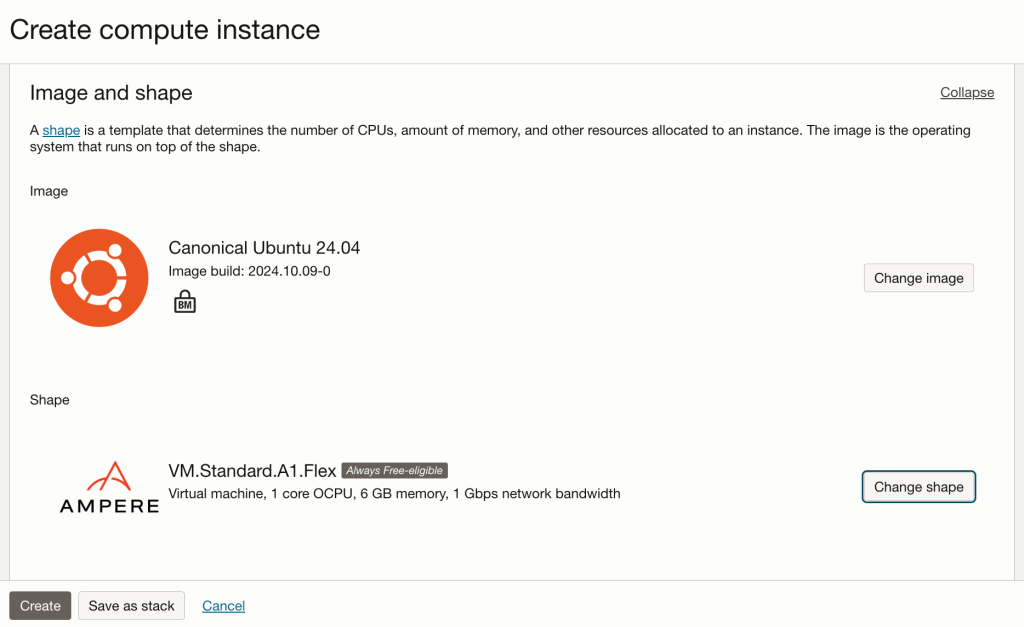
Step 1 – Provisioned an Ampere VM instance running Ubuntu 24.04, with 1 OCPU and 6GB memory, deployed this within the public subnet within the VCN.
Step 2 – Ran the OpenVPN installation and configuration script found here, taking the defaults for everything.
Step 3 – Copied the VPN connection profile that the setup created from the OpenVPN server to my local machine (.ovpn file).
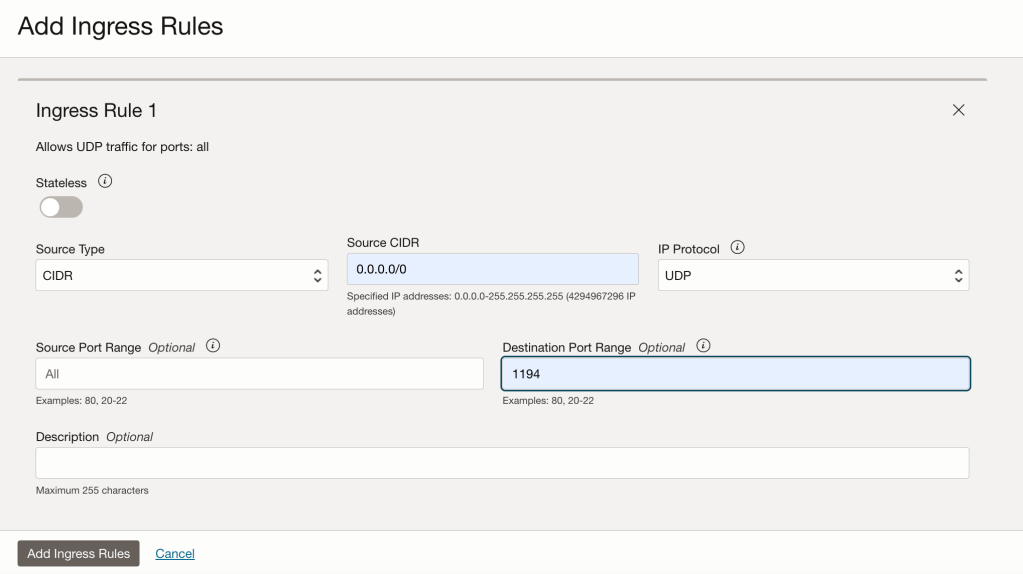
Step 4 – Before attempting to connect to the OpenVPN server I needed to open UDP port 1194 which is the port that OpenVPN listens on.
As I only have a single server within the public subnet in the VCN, I simply added an entry to the Security List associated with the public subnet, using a Network Security Group is the recommended way to do this – especially when you have multiple instances within a public subnet, however I wanted a quick and dirty solution 😀.
The rule I added provides access to UDP port 1194 from anywhere to the OpenVPN server within the public subnet.
Step 5 – Enable IP forwarding on the OpenVPN server, using the guidance found here.
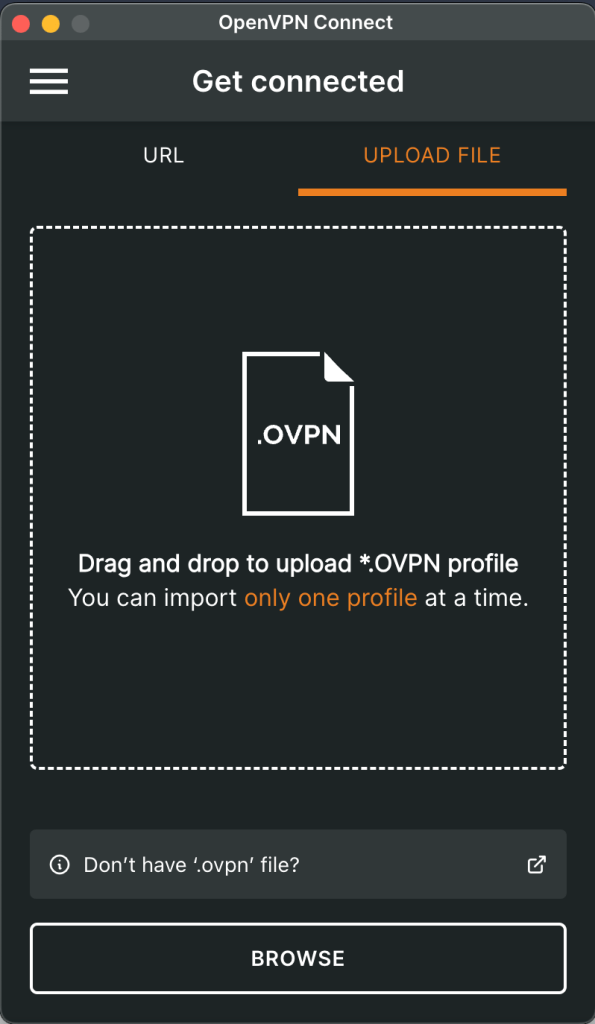
Step 6 – Installed the client for OpenVPN from https://openvpn.net/client/, clients are available for Windows, MacOS, Linux, Android, iOS and Chrome OS, so plenty of choice!
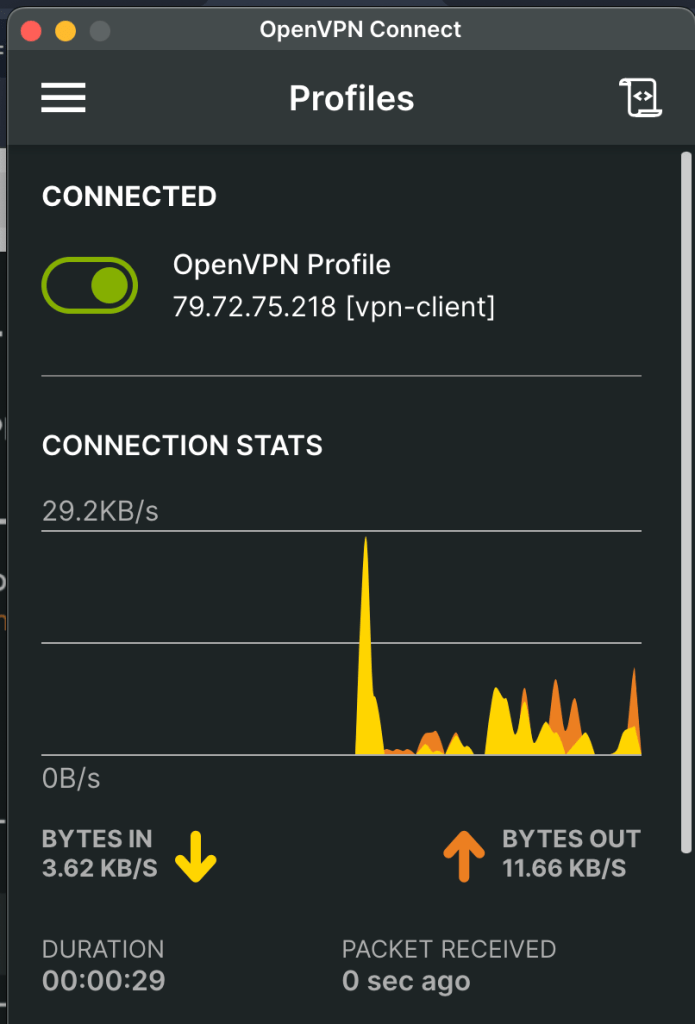
Once the profile was imported, I could connect!
That was it – I was really impressed with the ease of setting this up, even better it doesn’t cost me a penny 🪙!
Select AI is a fantastic capability included in Oracle Autonomous Database, which enables a database to be queried using natural language rather than SQL commands, which is a godsend for somebody like me who struggles with all of that select * from malarkey!
I was going through one of my Select AI demos in preparation for a customer meeting and all my queries were failing with the error below – typical, just before I needed to demo it 😫.
The reason for this error is that the Select AI profile that I was using was configured to use the cohere.command–r-plus LLM from the OCI Generative AI Service, this LLM has been deprecated as per the documentation, therefore no longer works:
To fix this issue I needed to update (well delete and re-create!) the Select AI profile to use the newer variant of this LLM, which is cohere.command-r-plus-08-2024.
Deleting a profile – replace ProfileName with the name of the profile to delete 🗑️
BEGIN
     DBMS_CLOUD_AI.DROP_PROFILE(profile_name => 'ProfileName');
END;
Re-adding the profile with the new LLM – Example ➕
I recently shared an example of how to create a basic front-end for an OCI Generative AI Agent using Streamlit, in this post I’m going to share how to do this for the OCI Generative AI Service, this is useful for demo’s when you need to incorporate a specific look and feel, something that’s a little more snazzy than the playground within the OCI Console! 💻
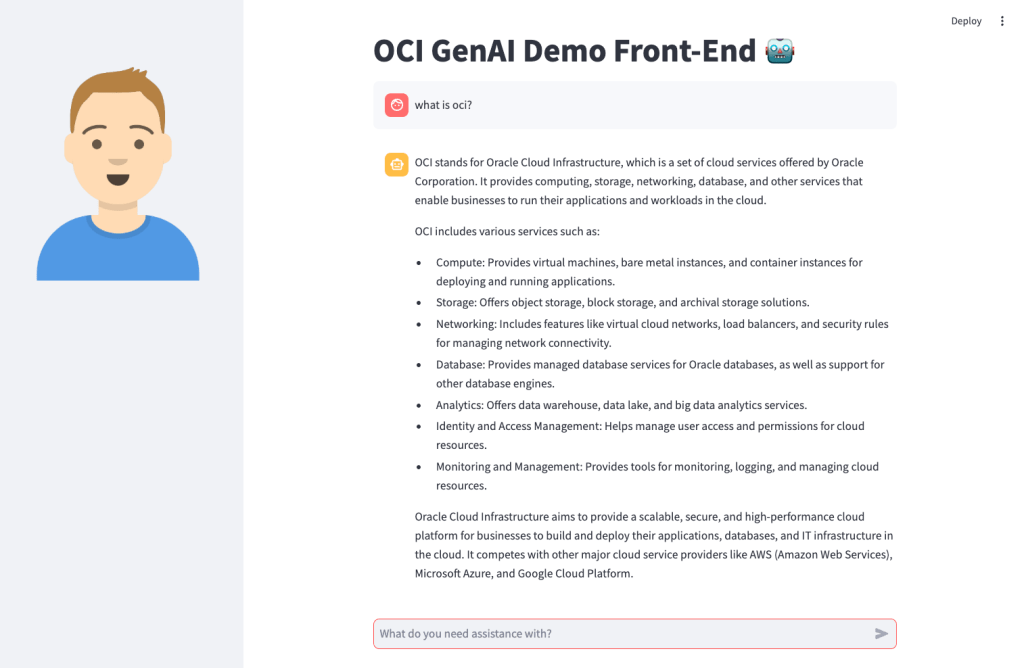
Here’s what the basic front-end I created looks like:
Installing Streamlit is a breeze using the single command below.
pip install streamlit
Once I’d done this, I put together the following Python script to create the web app, this can also be downloaded from GitHub.
Disclaimer: I’m no developer and this code is a little hacky, but it gets the job done!
The following variables need to be updated before running the script:
st.title – Set’s the title of the page
st.set_page_config – Set’s the name and icon to use for the page
st.sidebar.image – Configures the image to use in the sidebar
compartment_id – The compartment to make the request against, a the Generative AI Service doesn’t need to be provisioned, this can be useful for cost tracking and budgeting purposes (as spend is against a specific compartment).
endpoint – The endpoint for the region to pass the request to, a full list of the current endpoints can be found here, in my example I’m connecting to the Frankfurt endpoint.
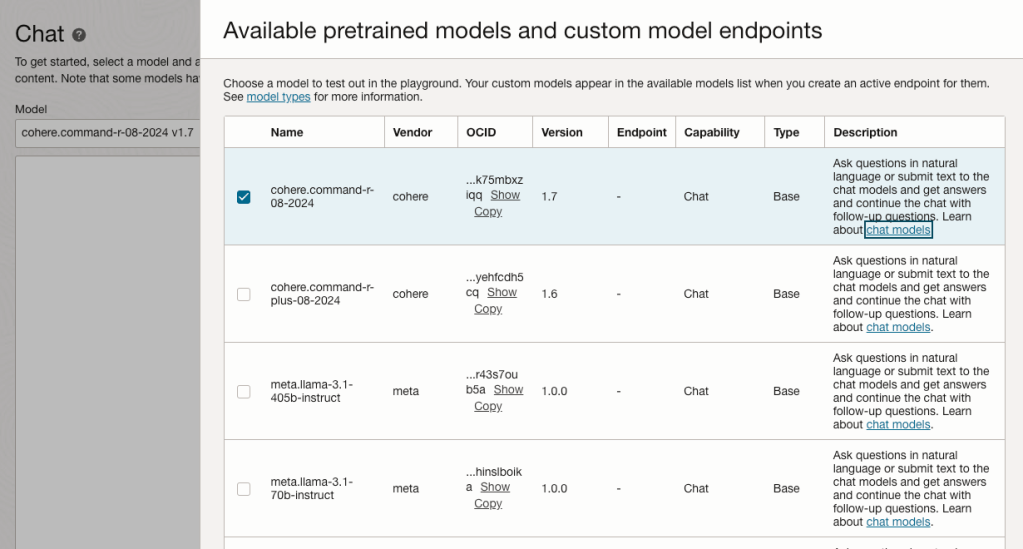
model_id – The OCID of the model to call, the eaisest way to obtain this is via the OCI Console: Analytics & AI > Generative AI > Chat > View model details. This will provide a list of the models that are available, simply copy the OCID of the model you’d like to use. Further details on the difference between each of the models can be found here.
import oci
import streamlit as st

st.set_page_config(page_title="OCI GenAI Demo Front-End",page_icon="🤖")
st.title("OCI GenAI Demo Front-End 🤖")
st.sidebar.image("https://brendg.co.uk/wp-content/uploads/2021/05/myavatar.png")

# GenAI Settings
compartment_id = "Compartment OCID"
config = oci.config.from_file(profile_name="DEFAULT")
endpoint = "https://inference.generativeai.eu-frankfurt-1.oci.oraclecloud.com"
model_id = "Model OCID"

def chat(question):
    generative_ai_inference_client = oci.generative_ai_inference.GenerativeAiInferenceClient(config=config, service_endpoint=endpoint, retry_strategy=oci.retry.NoneRetryStrategy(), timeout=(10,240))
    chat_detail = oci.generative_ai_inference.models.ChatDetails()
    chat_request = oci.generative_ai_inference.models.CohereChatRequest()
    chat_request.message = question
    chat_request.max_tokens = 1000
    chat_request.temperature = 0
    chat_request.frequency_penalty = 0
    chat_request.top_p = 0.75
    chat_request.top_k = 0
    chat_request.seed = None
    chat_detail.serving_mode = oci.generative_ai_inference.models.OnDemandServingMode(model_id=model_id)
    chat_detail.chat_request = chat_request
    chat_detail.compartment_id = compartment_id
    chat_response = generative_ai_inference_client.chat(chat_detail)
    return chat_response.data.chat_response.text

# Initialize chat history
if "messages" not in st.session_state:
    st.session_state.messages = []

# Display chat messages from history on app rerun
for message in st.session_state.messages:
    with st.chat_message(message["role"]):
        st.markdown(message["content"])

# Accept user input
if prompt := st.chat_input("What do you need assistance with?"):
    # Add user message to chat history
    st.session_state.messages.append({"role": "user", "content": prompt})
    # Display user message in chat message container
    with st.chat_message("user"):
        st.markdown(prompt)

    # Display assistant response in chat message container
    with st.chat_message("assistant"):
        response = chat(prompt)
        write_response = st.write(response)
    # Add assistant response to chat history
    st.session_state.messages.append({"role": "assistant", "content": response})
You may also want to tweak the chat_request settings for your specific use-case for Generative AI, my example is tuned for summarisation. Details for what each of the settings does for the Cohere model (which I used), can be found here.
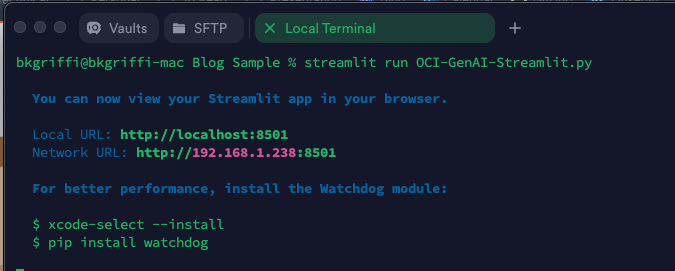
Once this file has been saved, it’s simple to run with a single command:
streamlit run OCI-GenAI-Streamlit.py
It will then automatically launch a browser and show the web app in action 🖥️
This basic example can easily be updated to meet your requirements, the Streamlit documentation is very comprehensive and easy to follow with some useful examples – https://docs.streamlit.io/.
I had a situation recently where I wanted to use Resource Principal authentication to authenticate a Container Instance to an OCI Generative AI Agent, the container was running a Python-based front end for an agent that I had created, however rather than using an API Key to authenticate as a specific user account to the Generative AI Agent service, I wanted to authenticate as the actual Container Instance itself.
Doing this meant that I didn’t need to store a private key and config file (of the user account) on the Container Instance, which could be viewed as a security risk.
There are three steps required to configure Resource Principal authentication which I have explained below, one thing to note is that this approach can be adapted for authenticating to other OCI services.
Step 1 – Create a Dynamic Group that includes the Container Instance 🫙
This defines the resource that will be connecting from (the Container Instance) to the Generative AI Agent. To create the Dynamic Group, I did the following within the OCI Console – I navigated to:
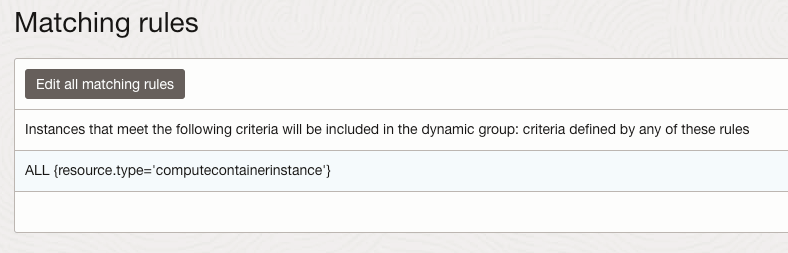
I then created a group named Container-Instances with the following rule:
ALL {resource.type=’computecontainerinstance’}
This Dynamic Group contains every Container Instance within my tenant, I could have been more granular and specified an individual Container Instance.
For further details on how to create Dynamic Groups be sure to check out the official documentation.
Step 2 – Create a Policy that provides members of the Dynamic Group with access to the Generative AI Agents service 📄
The policy grants permissions to the Dynamic Group created above so that members of this group are able to connect to the Generative AI Agent service, to create the policy I did the following within the OCI Console:
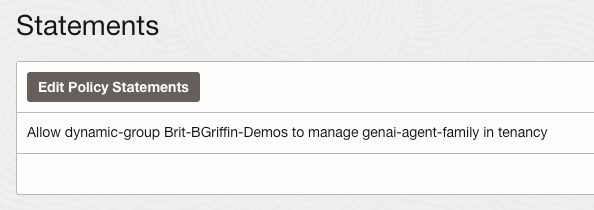
I then created a policy with the following statement:
Allow dynamic-group Container-Instances to manage genai-agent-family in tenancy
This provides the Dynamic Group named Container-Instances (created in Step 1) the desired access to the Generative AI Agent service – each OCI service has specific resource types that can be used within policies, the full policy reference for the Generative AI Agent service can be found here.
Step 3 – Update the Python code to authenticate to the Generative AI Agent service using the identify of the Container Instance (Resource Principal) 🐍
To update the Python script that connects to the Generative AI Agent so that it uses Resource Principal rather than API Key authentication, I updated the following lines of code from this:
Using “oci.auth.signers.get_resource_principals_signer()” rather than loading a config file with “config = oci.config.from_file(“config”)”
When connecting to the service, using “config={},signer=rps,service_endpoint=service_ep” (key bits in bold) rather than “config,service_endpoint=service_ep“
As mentioned earlier the approach that I’ve covered above an be adapted to work with other OCI services.
I was working with a customer to deploy a Docker image that I’d added to their OCI Container Registry, however when provisioning a Container Instance using this image it was failing with the following error 🛑:
A container image provided is not compatible with the processor architecture of the shape selected for the container instance.
This is a pretty descriptive error message, that you will receive when attempting to deploy a container on a host machine that has a different CPU architecture than that of the image you are attempting to deploy, for example trying to deploy a container that uses an x64 based image to a host machine that has an ARM CPU.
In this specific case, I was attempting to deploy a container to a AMD x64 machine – something which I had done numerous times successfully with this very image – a real case of “it works on my machine!“. After much head scratching I figured out what I’d done wrong 💡.
I had used the Cloud Shell to create the image and deploy to the Container Registry (I ❤️ the Cloud Shell!).
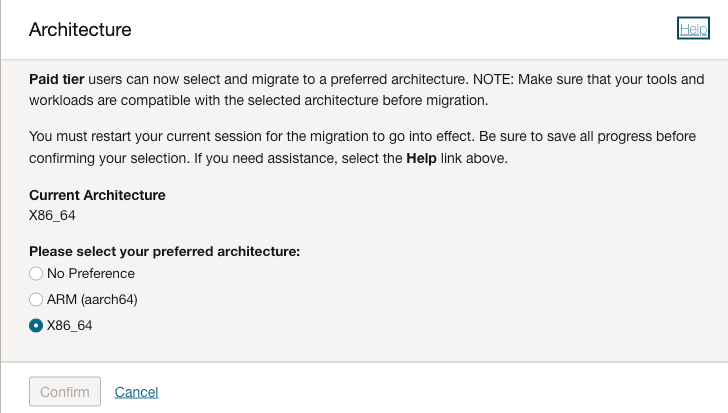
It turns out that it’s possible to select the arcihtecture to use for the Cloud Shell, I had been using x64 in my tenant, however the admin at the customer had ARM configured for their Cloud Shell therefore when it was building the Docker image it was pulling the ARM version of the base image therefore failing when attempting to deploy this to an AMD x64 host.
There are two options to fix this:
Provision the Container Instance on an Ampere (ARM) host
Re-create the image using a Cloud Shell with the desired CPU architcture, in this case x64
I was lazy and opted for option 1, to however to change the CPU architecture for Cloud Shell:
Launch Cloud Shell
Select Actions > Architecture
Choose the desired architecture (this is a per-user setting, not tenant-wide)
The OCI CLI includes a raw-request option, as the name suggests this is a useful way to send manual requests to OCI services instad of using the native CLI commands 💻.
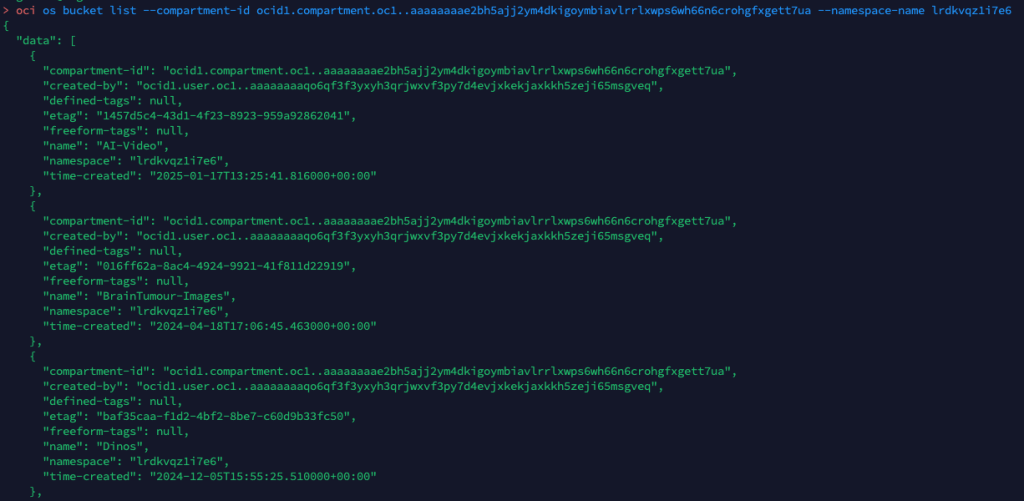
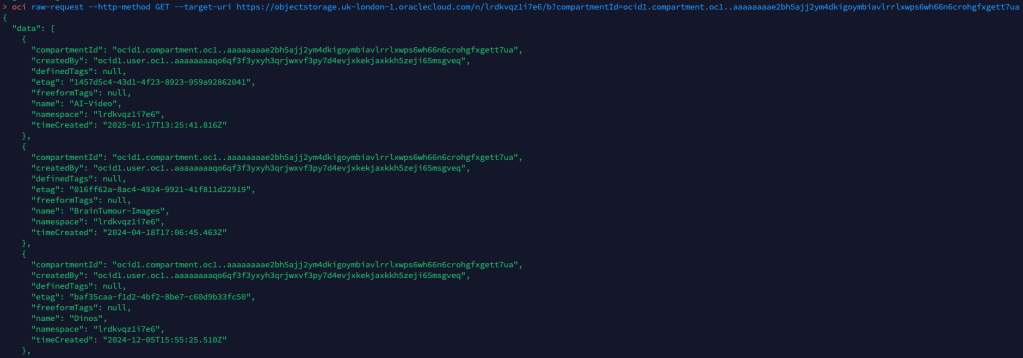
For example to list the buckets within a specific compartment I can run the following OCI CLI command 🪣:
oci os bucket list --compartment-id (OCID) --namespace-name (NameSpace)
Or alternatively I could run the following using the OCI CLI raw-request command.
oci raw-request --http-method GET --target-uri https://objectstorage.uk-london-1.oraclecloud.com/n/lrdkvqz1i7e6/b?compartmentId=ocid1.compartment.oc1..aaaaaaaa5yxo6ynmcebpvqgcapt3vpmk72kdnl33iomjt3bk2bcraqprp6fq
This is a fairly simple read request against object storage, to help me understand how to formulate the URL (target-uri) I added –debug to the initial oci os bucket list CLI command that I ran. This provides a wealth of information on what happens “under the hood” when running a CLI command and helped me to understand the –target-uri I needed to use for the raw-request command.
For more complex scenarios, such as creating resources or using a service e.g. analysing an image with AI Vision, you can add –generate-param-json-input to a CLI command and it will generate a JSON file which can be populated with the desired parameters that you can then pass to raw-request using the –request-body parameter.
In terms of real-world usage, the only real use-case for this is with new services that you need to interact with, where there isn’t a CLI command available, with that being said this would mean that you couldn’t use the –debug parameter to help understand how to send the request using raw-request, so you’d need to rely on documentation and/or trial and error – probably the latter!
Buried within the December 2024 release notes for the OCI Generative AI Agents service is this little gem 💎:
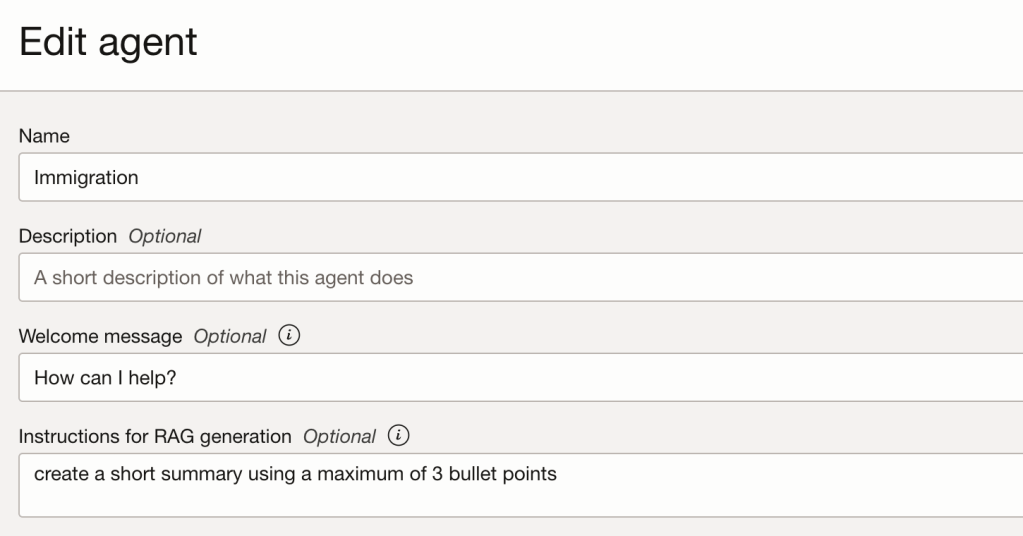
This now enables you to do some prompt engineering to influence the response produced by an agent, this is useful if you need to tailor the length, style and tone of the response from the agent. For example you may need the response to include a maximum of 3 bullet points.
To provide additional instructions to an agent response, navigate to the agent and select Edit. Below you will see a field named Instructions for RAG generation, within this add the additional instructions. In the example below, I have simply asked it to crerate a short summary using a maximum of 3 bullet points.
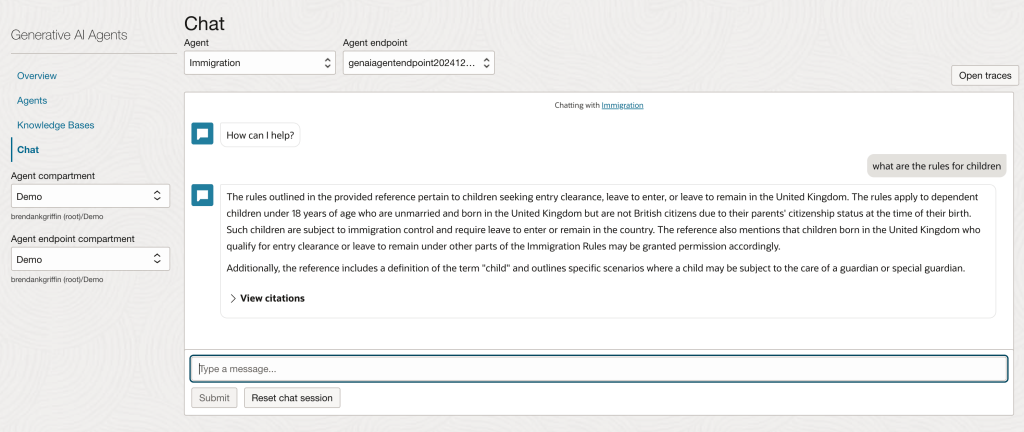
Here is a before/after comparison of the response from the agent, this is using an agent I built that is trained on UK immigration policy data.
Before
After
There’s some other interesting features in the December release, including more detailed citations and the ability to override Object Storage citation links through custom Object Storage metadata.