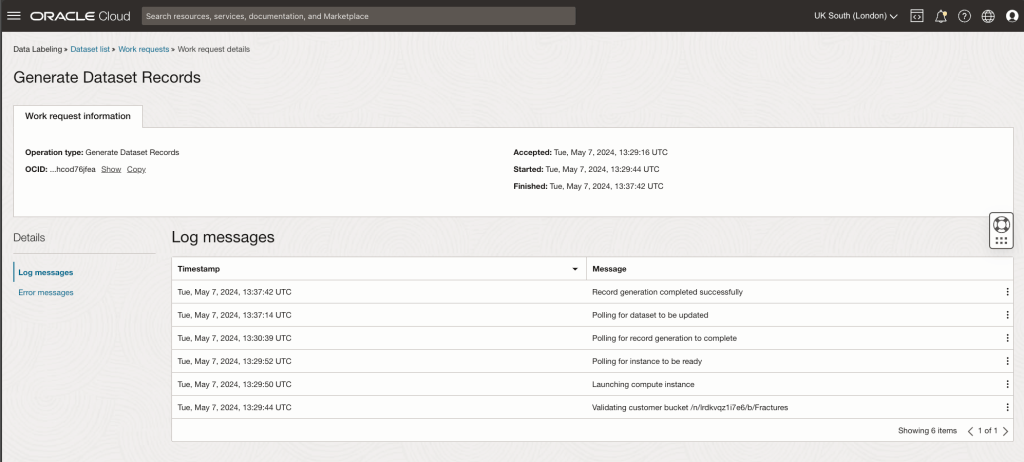
• Creating a Dataset in OCI Data Labeling fails with “Content-Type Validation failed” error

    I ran into an issue recently with OCI Data Labelling, Generate records was failing with the following error: Content-Type Validation Failed ❌.

    I was using data labeling to label some images that I was going to use to train a custom AI vision classification model.

    In my specific case, the dataset comprised images stored in an OCI Object Storage bucket. I had uploaded the images to the bucket using the OCI CLI, specifically the following command which uploaded all files within a specific directory on my local machine to a named bucket:

    oci os object bulk-upload --bucket-name Pneumonia-Images --src-dir "/Users/bkgriffi/OneDrive/Development/train/PNEUMONIA"
    

    A helpful colleague advised me to manually set the content type at upload to image/jpeg, below is the updated command that I run that uploads the images and sets the correct content type.

    oci os object bulk-upload --bucket-name Pneumonia-Images --src-dir "/Users/bkgriffi/OneDrive/Development/train/PNEUMONIA" --overwrite --content-type image/jpeg
    

    Once I’d done this, records generated successfully ✅.

  • Copying files between Azure Blob Storage and OCI Object Storage using Rclone

    For an upcoming AI demo, I need to demonstrate moving some images from Azure Blob Storage to OCI Object Storage so that these could be trained using a custom model with OCI AI Vision. I was looking for a nice demo-friendly way to automate this and stumbled across Rclone.

    Rclone is a command-line program to manage files on cloud storage. It is a feature-rich alternative to cloud vendors’ web storage interfaces. Over 70 cloud storage products support rclone including S3 object stores, business & consumer file storage services, as well as standard transfer protocols.

    Taken from: https://rclone.org/

    Within a few minutes I was able to configure Rclone to connect to Azure Blob Storage and OCI Object Storage and was copying files between the two with a single command 😮.

    To get started I installed Rclone using the instructions here – for macOS, this was as simple as running:

    sudo -v ; curl https://rclone.org/install.sh | sudo bash
    

    Once I’d installed, I typed rclone config and then n to create a new host, this walked me through the process of creating a connection – including selecting the type of storage (there are 55 to choose from, including OCI and Azure), the storage account to connect to and how to authenticate, I did this for OCI and then repeated the process for Azure.

    In terms of authentication, I selected option 2 for OCI, which uses my OCI config file within ~/.oci/config, more details on how to create a config file can be found here.

    For Azure I opted to use the access key to authenticate to the storage account:

    Once I’d created the connections, I could inspect the configuration file that Rclone had created – the location of which can be found by running rclone config file.

    Below is the contents of the configuration file that I have 📄.

    I could view the contents of each of the storage accounts (OCI and Azure are the names that I gave the respective configurations, which need to be used with the command):

    Contents of OCI storage account

    Contents of Azure storage account

    Finally, I ran the command below to copy the content of the images directory (container) within Azure to the Images bucket within OCI.

    rclone copy Azure:images OCI:Images --progress
    

    Here’s a short video of it in action

  • Creating an AI Vision Model in OCI that can detect brain tumours 🧠

    Here’s a short walkthrough video of how to create an AI Vision model in OCI that can analyse a brain scan and detect brain tumours 🔎.

    The images I used to train the model can be found here – https://www.kaggle.com/datasets/navoneel/brain-mri-images-for-brain-tumor-detection/data

    The script I used to bulk label the images uploaded to the object storage bucket can be found here – https://github.com/oracle-samples/oci-data-science-ai-samples/tree/main/data_labeling_examples/bulk_labeling_python

  • Using PowerShell to upload files to OCI Object Storage 🪣

    With my new focus on all things Oracle Cloud Infrastructure (OCI) I’ve not been giving PowerShell much love recently.

    I knew that PowerShell modules for OCI were available, however hadn’t had an excuse to use them until somebody asked me how they could use PowerShell with OCI Object Storage 🪣.

    Fortunately, the OCI Modules for PowerShell are feature-rich and well documented 💪.

    To get started you can run the following to install all of the modules (as I did):

    Install-Module OCI.PSModules
    

    If you’d prefer to only install the specific modules that you need, this can be done by running the following – replacing ServiceName with the name of the service whose module you’d like to install, the ServiceName for each service can be found within the Cmdlet reference.

    Install-Module OCI.PSModules.<ServiceName>
    

    Before you use the PowerShell modules, you’ll need to ensure that you have an OCI configuration file (which is used for authentication), instructions on creating one can be found here.

    In my first example, I’m going to use the OCI PowerShell Module for Object Storage to upload a file to a storage bucket, prior to running this command I need to know the Namespace for Object Storage within my tenant as the Cmdlet requires this. This is listed within the details page for each storage bucket (as highlighted below):

    Once I had this, I ran the following to upload the file named DemoObject.rtf to the bucket named data, within the namespace I obtained above.

    Write-OCIObjectstorageObject -bucketname "data" -NamespaceName "lrdkvqz1i7f7" -ObjectName "DemoObject.rtf" -PutObjectBodyFromFile "/Users/bkgriffi/Downloads/DemoObject.rtf"
    

    One point to note is that I’m running this on a Mac, if you are running on Windows you’ll need to use the correct file path format.

    Once I’d ran the command I could see it uploadec within the OCI Console:

    In the more advanced example below, the script loops through a speific folder (set by the $Folder variable) and uploads all files within it to the data bucket.

    
    $Folder = "/Users/bkgriffi/OneDrive/Development/Folder"
    $Files = Get-ChildItem -Path $Folder
    
    Foreach ($File in $Files) {
        Write-OCIObjectstorageObject -bucketname "data" -NamespaceName "lrdkvqz1i7f7" `
        -ObjectName $File.Name -PutObjectBodyFromFile ($Folder + "/" + $File.Name)
    }
    

    If your configuration file isn’t in the default location, you will also need to specify
    -ConfigFile
    and the pass to the file within the command.

    A Full reference for the Cmdlet used (Write-OCIObjectstorageObject) can be found here.

  • Give a user read-only access to an OCI tenant 👨‍🏫

    I was recently asked by a customer to perform a review of their OCI tenancy, following the principle of least privilege I stepped them through the process of creating a user account that granted me read-only access to their tenancy, meaning that I can see how everything has been setup, but I cannot change anything.

    Following Scott Hanselman’s guidance of preserving keystrokes I thought I’d document the process here as I’ll no doubt need to guide somebody else through this in the future 😀.

    The three steps to do this are below👇

    Step 1 – Create a user account for the user 👩

    Yes, I know that this is obvious however I’ve included it here for completeness 😜. A user can be added to an OCI tenancy via Identity & Security > Domains > (Domain) > Users > Create user.

    Ensure that the email address for the user is valid as this will be used to confirm their account. The user does not need to be added to any groups at this point (we’ll do that in the next step).

    If the user who you need to grant read-only access to the tenancy already exists, this step can be skipped.

    Step 2 – Create a group 👨👩

    OCI policies do not permit assigning permissions directly to a user, so we will create a group which will be assigned read-only permissions to the tenancy.

    A group can be created via Identity & Security > Domains > (Domain) > Groups > Create group. I used the imaginative name of Read-Only for the group in the example below.

    Once a group has been created, add the user that you wish to grant read-only permissions to the tenancy (in this case Harrison):

    Step 3 – Create a policy to grant read-only access to the tenancy 📃

    We are nearly there, the penultimate step is to create a policy that grant the group named Read-Only with read permissions to the tenancy, a policy can be created via Identity & Security > Policies > Create Policy.

    I created a policy within the root compartment of the tenancy (which targets the policy at the entire tenancy).

    I used the following policy statement – allow group Read-Only to read all-resources in tenancy

    One thing to note, if you have multiple domains within the tenancy and the user account you wish to give read-only access to the tenancy doesn’t reside within the default domain, you’ll need to specify the domain within the policy, in the example above if the user was a member of the domain CorpDomain, the policy statement should be updated to read as follows:

    Allow group ‘CorpDomain’/’Read-Only’ to read all resources in tenancy

  • Connect to an OCI VM instance in a private subnet 🔒

    I’ve previously wrote about how I use OCI Bastion and Site to Site VPN to connect to my VM instances running within OCI that do not have a public IP address. There is also a third option, which I (rather embarrassingly) only recently found out about.

    It’s possible to use the OCI Cloud Shell (which runs within a web browser) to connect via SSH to a VM instance that is attached to a private subnet (therefore has no public IP address).

    To do this, launch Cloud Shell from within the OCI Console

    Select the Network drop-down menu and then Ephemeral private network setup

    Select the VCN and Subnet to connect to (the one that contains the instance you wish to connect to) and then click Use as active network

    Wait a minute or two! When the network status updates to Ephemeral the Cloud Shell is connected directly to the VCN and subnet selected.

    You can SSH into a VM instance within the subnet using it’s private IP address.

  • Using OCI API Gateway to Publish an OCI Function 📚

    OCI API Gateway includes native support for publishing OCI Functions, this was especially useful for me as I wanted to make my function available externally without authentication – whilst it’s possible to make an OCI Function available externally without using API Gateway, it’s not possible to make a function callable without authentication (e.g. make it available to anybody on the internet) 🔓.

    I’d ran through the process of publishing an OCI Function through OCI API Gateway a couple of months ago and got it to work successfully without too much pain, earlier this week I had to do this again and ran into a few issues – I was clearly a lot brighter back then! I thought I’d capture these issues and solutions to help others and for my future self 😀.

    A step-by-step guide for publishing an OCI Function through OCI API Gateway can be found here – if only I’d have read the documentation, I could have saved an hour of my life. Below are the issues I ran into and the solutions that I found ✅

    Issue 1 – Calls to the Function timeout ⏱️

    Using Curl to call the API Gateway endpoint for the Function timed out with the following error:

    curl: (28) Failed to connect to bcmd2sv4corxwehdxx4lzvrj9u.apigateway.uk-london-1.oci.customer-oci.com port 443 after 75019 ms: Couldn’t connect to server

    I’d provisioned a new API Gateway into a public VCN subnet and had forgotten to allow inbound traffic on port 443 to the subnet. To resolve this, I added an ingress rule to the security list associated with the subnet allowing traffic on port 443.

    Issue 2 – Calls to the function generate a 500 error

    Once I’d enabled port 443 inbound to the VCN subnet containing the API Gateway, I started to receive a different error when attempting to call the function using Curl (or a web browser for that matter):

    “Internal Server Error”,”code”:500

    To investigate this further I enabled Execution Logs for the API Gateway Deployment and sent some further requests, I could then see the following in the logs:

    With the full error being:

    “Error returned by FunctionsInvoke service (404, NotAuthorizedOrNotFound). Check the function exists and that the API gateway has been given permission to invoke the function.”

    Damn…….I’d forgotten to give the API Gateway permission to call the Function, hence the not authorized error 🤦‍♂️.

    To resolve this I created a dynamic group that contained the API Gateway – actually this contains all API Gateway’s within the specified compartment.

    I then created a policy to permit this dynamic group (API-DG) access to call Functions – again this rule is quite broad as it provides the dynamic group the permissions to call all functions within the tenancy. Within a production environment, you’d be a little stricter here and restrict this to a specific Function 😀.

    Issue 3 – I have no patience 😀

    After working through issue 1 and 2 and resolving these issues, I was still running into problems – inspecting the logs yielded the same NotAuthorizedOrNotFound error. It turns out that I needed to wait for the policy I created to come to life, about 30 minutes or so later (during this time I was frantically troubleshooting!) it started to work and public calls to my function through the API Gateway started to work 👍.

    Above is the output of my “workout generator” 🏋️ Function. If you’d like to learn more about creating a Function in OCI, check out – Creating a Function in the Oracle Cloud (OCI) to help me stay fit 🏃‍♂️

  • Add the contents of an Excel file to an Oracle NoSQL Database table

    As you may gather if you’ve read any of my previous posts, one of my hobbies is collecting retro video games 🕹️.

    I’ve recently catalogued my collection of games and put these into an Excel spreadsheet (we all know that Excel is the worlds most popular database!).

    What I wanted to do though, is to migrate this to an Oracle NoSQL Database hosted within OCI – this is complete overkill for my needs, but a great use-case/example to help me get to grips with using NoSQL 🧠.

    To do this, I needed to figure out how to:

    1. Create an Oracle NoSQL Database table to store the data ✅
    2. Read an Excel file (the one containing my list of retro games) using Python, which is my language of choice ✅
    3. Write this data to an Oracle NoSQL Database table ✅

    Step 1 – Creating an Oracle NoSQL Database table

    I did this directly from the OCI Console, via Databases > Oracle NoSQL Database > Tables > Create table

    On the table creation screen, I selected the following:

    • Simple input – I could then easily define my simple schema within the browser (defining the columns needed within the table).
    • Reserved capacity – Further details on how this works can be found here. I opted for a read/write capacity of 10 units which equates to 10KB of reads/writes per second, I only need this capacity for the initial data load so will reduce to 1 after I’ve loaded the data from Excel. I went with 1GB of storage (which is the minimum), I’m sure I won’t use more than 1MB though!
    • Name – I kept this simple and called the table Games.
    • Primary key – I named this ID of type integer, I’m going to populate this with the epoch time so that I have unique values for each row.
    • Columns – I only actually need two columns, Game and System. For example, an entry could be Game = Super Mario Land and System = Game Boy.

    I then hit Save and within a few seconds my table was created ✅.

    Step 2 – Reading data from an Excel spreadsheet

    The spreadsheet with my game collection in has a separate sheet for each system, with the respective games for that system listed within the sheet.

    The example below shows the PS1 games I own, as you can see there are sheets for other systems, such as Wii U and PS3.

    After much investigation, I found that the easiest way to read an Excel file using Python was with the pandas and OpenPyXL libraries.

    I put together the following Python script which iterates through each sheet in the Excel file, outputting the sheet name (system, such as Game Boy) and the contents of each row within the sheet (which would be a game, such as Super Mario Land).

    import pandas as pd
    import time
    
    excelfilepath = '/Users/bkgriffi/Downloads/Retro Games Collection.xlsx' # Excel file to read from
    excel = pd.ExcelFile(excelfilepath)
    sheets = excel.sheet_names # Create a list of the sheets by name (each system has a separate sheet)
    
    for sheet in sheets: # Loop through each of the sheets (systems)
        print("----------")
        print(sheet) # Print the name of the sheet (system)
        print("----------")
        excel = pd.read_excel(excelfilepath,header = None, sheet_name= sheet)
        i = 0
        while i < len(excel[0]) - 1: # Run a while loop that only runs until each row in the sheet has been processed
            print(excel[0][i]) # Print the row (game)
            i += 1 # Increase i so that on the next loop it outputs the next row (game) in the sheet (system)
    

    Here is the script in action, as you can see it lists the system (sheet name) and then the rows within that sheet (game), before then moving on to the next sheet.

    Step 3 – Writing data to an Oracle NoSQL Database table

    Now that I’d figured out how to read an Excel file with Python, the final piece of the puzzle was to write this to the Oracle NoSQL Database table.

    I took the script above and incorporated it into the following:

    import pandas as pd
    import oci
    import time
    
    # Connect to OCI
    config = oci.config.from_file()
    nosql_client = oci.nosql.NosqlClient(config)
    
    # Read Excel file
    excelfilepath = '/Users/bkgriffi/Downloads/Retro Games Collection.xlsx' # Path to Excel file
    excel = pd.ExcelFile(excelfilepath)
    sheets = excel.sheet_names
    
    # Write the data to the Oracle NoSQL Database table
    for sheet in sheets:
        print("----------")
        print(sheet)
        print("----------")
        excel = pd.read_excel(excelfilepath,header = None, sheet_name= sheet)
        i = 0
        while i < len(excel[0]) - 1:
            print(excel[0][i])
            update_row_response = nosql_client.update_row(
            table_name_or_id="GamesTable",
            update_row_details=oci.nosql.models.UpdateRowDetails(
            value={'ID': int((str(time.time()).split(".")[0])), 'Game': excel[0][i], 'System': sheet}, # This is the data to write to the table, the value for ID may look a little scary, all this is doing is passing the UNIX epoch time, I did this to ensure that each row had a unique ID, which is needed as the ID column is the primary key
            compartment_id="Replace with the OCI of the compartment that contains the Oracle NoSQL Database table",
            option="IF_ABSENT",
            is_get_return_row=True))
            i += 1
    

    This uses the OCI Python SDK to connect to the Oracle NoSQL Database table created earlier (Games) and writes the data to it, after running the script I could verify this within the OCI Console by going to Explore data > Execute and running the default SQL statement (which returns everything in the table).

    Points to note about the script:

    • You need to update the compartment_id and put in the value for the compartment that contains the Oracle NoSQL Database table to populate.
    • This script requires the OCI SDK for Python with appropriate auth in place, I wrote a quick start on this here.

    The script can also be found on GitHub.

  • How to use query strings with OCI Functions

    I’ve been using OCI Functions for a few month now, having previously used Azure Functions extensively one thing that I did miss was the ability to take values from the query string of a request to a function and pass these directly to the function, rather than including any input values that the function requires within the body of the request and submitting as a POST ✉️.

    As a side note, I did a short video that walks through the process of creating an OCI Function, which can be found here.

    For example, I’d previosuly written an Azure function during the pandemic to create a workout for me, with this function I could pass the number of exercises that I wanted in my workout to the function as part of the query string and it would return a workout with the number of exercises requested 🏋️.

    The query string, could for example be ?exercises=10 to create a workout with 10 exercises (as you can see below the exercises themselves are defined directly in the function itself).

    Example Azure Function code (Python)

    import logging
    import random
    import azure.functions as func
    
    def main(req: func.HttpRequest) -> func.HttpResponse:
        logging.info('Python HTTP trigger function processed a request.')
    
        exercises = req.params.get('exercises')
        if not exercises:
            try:
                req_body = req.get_json()
            except ValueError:
                pass
            else:
                exercises = req_body.get('exercises')
    
        if exercises:
            exerciselist = ['50 Star Jumps','20 Crunches','30 Squats','50 Press Ups','1 Min Wall Sit','10 Burpees','20 Arm Circles',\
            '20 Squats','30 Star Jumps','15 Crunches','10 Press Ups','2 Min Wall Sit','20 Burpees','40 Star Jumps','25 Burpees',\
            '15 Arm Circles','30 Crunches','15 Press Ups','30 Burpees','15 Squats','30 Sec Arm Circles','2 Min Wall Sit','20 Burpees',\
            '60 Star Jumps','10 Crunches','25 Press Ups'
            ]
            workout = []
            for i in range(0,int(exercises)):
                randomnumber = random.randint(0,(len(exerciselist)-1))
                workout.append(exerciselist[randomnumber])
            return func.HttpResponse(str(workout))
                
        else:
            return func.HttpResponse(
                 "Please pass the number of exercises required to the query string",
                 status_code=400
            )
    
    func.HttpResponse
    

    To do the same in an OCI Function, I discovered that I could inspect the ctx.RequestURL which provides the URL that was passed to the function and then do some magic to extract the query string values from this, below is the Python code for my OCI Functions variant of my exercise generator function that does this.

    The comments in the script explain how I achieved this.

    import io
    import random
    import json
    from fdk import response
    
    def handler(ctx,data):
        max = ctx.RequestURL() # Get the requested URL
        max = max.split("=")[1] # Extract the value passed to the query string, this makes the presumption that there is a single query string (I know you should never presume!) and uses this for the max variable that the for loop uses
        exerciselist = ['50 Star Jumps','20 Crunches','30 Squats','50 Press Ups','1 Min Wall Sit','10 Burpees','20 Arm Circles',\
            '20 Squats','30 Star Jumps','15 Crunches','10 Press Ups','2 Min Wall Sit','20 Burpees','40 Star Jumps','25 Burpees',\
            '15 Arm Circles','30 Crunches','15 Press Ups','30 Burpees','15 Squats','30 Sec Arm Circles','2 Min Wall Sit','20 Burpees',\
            '60 Star Jumps','10 Crunches','25 Press Ups'
            ]
        workout = []
        for i in range(0,int(max)):
            randomnumber = random.randint(0,(len(exerciselist)-1))
            workout.append(exerciselist[randomnumber])
    
        return response.Response(ctx, response_data=workout)
    

    Here is the function in all it’s glory being called from a browser (published via OCI App Gateway to make it callable without auth):

    The code can also be found on GitHub.

  • Creating a Site to Site VPN in Oracle OCI using a Raspberry Pi 🌏

    In my test lab I wanted to setup a Site-to-Site VPN between a Raspberry Pi on my home network and OCI, the main reason for this was to enable me to quickly access resources in OCI (such as my VMs) without having to use a Bastion (as I’m lazy and impatient) 🔐.

    I’d recently bought a shiny new Raspberry Pi 5 so this was a perfect excuse to have a play with it! Fortunately for me, Johannes Michler created a fantastic guide on how to setup a Raspberry Pi to connect to an OCI IPSec VPN – https://promatis.com/at/en/using-a-raspberry-pi-to-connect-to-oracle-oci-ipsec-vpn/.

    I followed this guide and was able to get this working eventually (which was definitely a case of me not RTFM’ing). I thought I’d share some additional info which others may find helpful 💡.

    1 – Error: No connection named “connection name”

    When running sudo journalctl | grep pluto to check the status of the VPN tunnels to OCI I could see the tunnels were not connecting and the following error was being repeated – “no connection named “oracle-tunnel-1” and “no connection named “oracle-tunnel-2

    These are the names of the two tunnels that I had defined within /etc/ipsec.d/oci-ipsec.conf and are the default names provided by Oracle (you can call them whatever you like).

    The reason for this error, is that the two tunnels were ignored as they are configured to use IKEv1 (the default when you use the Site-to-Site VPN wizard in OCI). By default Libreswan doesn’t permit IKEv1, to enable this I had to add the ikev1-policy=accept to the file /etc/ipsec.conf within the config section.

    Once I’d done this and restarted the IPSec service using sudo systemctl restart ipsec, it came to life and the two IPSec tunnels connected to OCI 🎉.

    Output from sudo journalctl | grep pluto

    Obviously in a production environment you wouldn’t use IKEv1 as IKEv2 is far more secure, I was happy using this my for basic lab environment though.

    2 – Starting the VPN tunnels automatically on reboot

    To ensure that the VPN tunnels persist between reboots of the Raspberry Pi I needed to configure the IPSec service to start automatically, which I did using the following command:

    sudo systemctl enable ipsec

    3 – Creating a static route on the Raspberry Pi 🛣️

    I added a route to the Raspberry Pi to route all of the traffic destined to my OCI VCN (10.2.0.0./16) via the VPN using the following command:

    sudo ip route add 10.2.0.0/16 nexthop dev vti1

    The device vti1 is what I defined for the first tunnel within the file /etc/ipsec.d/oci-ipsec.conf

    Once I’d added the static route, I was able to SSH directly from my Pi to one of the VMs within my VCN! The challenge is that this route doesn’t persist between reboots, so I needed some way to make this static.

    There is a myriad of different ways to do this on Linux, however I opted for the low-tech approach and added the following line to /home/pi/.bashrc.

    sudo ip route add 10.2.0.0/16 nexthop dev vti1 > /dev/null 2>&1

    This script runs each time the Pi user logs in and as Raspberry Pi OS logs the Pi user in automatically by default, this means that the command will execute each time the Pi boots up – defintely not a production solution, but fine for a lab environment 🥼.

    4 – Creating a route on client devices within my network

    I didn’t want to use my Pi directly to connect to resources within OCI, the idea is that the Pi simply spins up the VPN tunnels, I can then route traffic from my network to the Pi for the 10.2.0.0./16 IP address range, which will send traffic down the VPN tunnel(s) to OCI – result being I can connect to my OCI resources from other devices within my network (such as my Mac and Windows PC).

    I ran the following command to add a route to my Mac:

    sudo route -n add 10.2.0.0/16 192.168.1.228

    This tell the Mac to route all requests for the IP range 10.2.0.0./16 (my VCN in OCI) via the Raspberry Pi (which has an IP address of 192.168.1.228).

    The equivalent on Windows would be – route add 10.2.0.0 mask 255.255.0.0 192.168.1.228

    NOTE: Neither of these commands makes the routes persistent (they’ll disappear after a reboot), although this is easy enough to do by adding /p to the command for Windows and using one of the options described here for macOS.

    Hopefully this is of use to somebody 😀.