
I was working with a customer to deploy a Docker image that I’d added to their OCI Container Registry, however when provisioning a Container Instance using this image it was failing with the following error 🛑:
A container image provided is not compatible with the processor architecture of the shape selected for the container instance.
This is a pretty descriptive error message, that you will receive when attempting to deploy a container on a host machine that has a different CPU architecture than that of the image you are attempting to deploy, for example trying to deploy a container that uses an x64 based image to a host machine that has an ARM CPU.
In this specific case, I was attempting to deploy a container to a AMD x64 machine – something which I had done numerous times successfully with this very image – a real case of “it works on my machine!“. After much head scratching I figured out what I’d done wrong 💡.
I had used the Cloud Shell to create the image and deploy to the Container Registry (I ❤️ the Cloud Shell!).
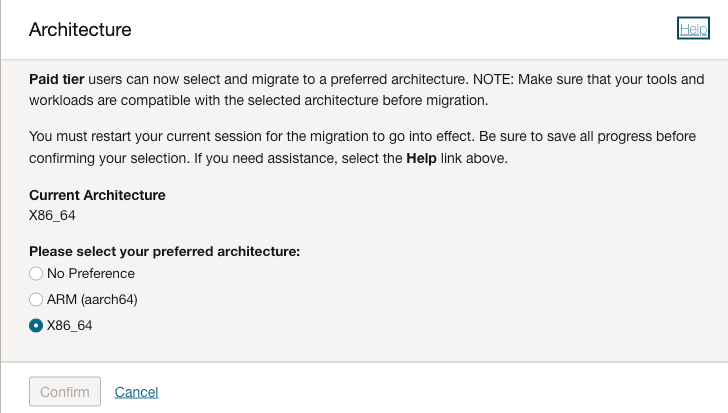
It turns out that it’s possible to select the arcihtecture to use for the Cloud Shell, I had been using x64 in my tenant, however the admin at the customer had ARM configured for their Cloud Shell therefore when it was building the Docker image it was pulling the ARM version of the base image therefore failing when attempting to deploy this to an AMD x64 host.
There are two options to fix this:
- Provision the Container Instance on an Ampere (ARM) host
- Re-create the image using a Cloud Shell with the desired CPU architcture, in this case x64
I was lazy and opted for option 1, to however to change the CPU architecture for Cloud Shell:
- Launch Cloud Shell
- Select Actions > Architecture
- Choose the desired architecture (this is a per-user setting, not tenant-wide)
Hope this helps somebody in the future!
 Brendan's Tech Ramblings
Leave a reply to João Paulo Rolim Cancel reply