
I have a Windows VM hosted within Oracle Cloud Infrastructure (OCI) that I needed to access remotely via RDP. The VM itself is hosted within a private subnet (therefore it doesn’t have a public IP address) so I’m not able to connect to it directly over the Internet 🌐.
I could have used a “jump box” to access this, which would be another VM in a public subnet within the same VCN, essentially RDP’ing into this publicly available VM and then “jumping across” to the VM in the private subnet.
I decided to take a look at OCI Bastion instead, which provides the ability to connect to hosts that aren’t available externally, similar to Azure Bastion.
I followed the steps here to create a Bastion. Once I’d done this, I did the following to get access to my Windows VM via RDP.
Step 1 – Enable inbound RDP (port 3389) to the private subnet where the Windows VM is located from the IP address of the Bastion.
This needs to be done so that the Bastion deployed within OCI is able to connect to the VM via RDP (port 3389).
I created an ingress rule for RDP in the Security List associated with the subnet that contains the Windows VM via Networking > Virtual cloud network > Virtual Cloud Network Details > Security Lists. Here I specified the private endpoint IP address of the Bastion host (which can be found on the details page of the Bastion).

Step 2 – Create Bastion session
The next step is to create a Bastion session, it’s worth noting that by default these are valid for 3 hours and are then removed, although you can provision a session for a longer duration if needed.
To do this, click Create session within the Bastion.
- Select SSH port forwarding session for Session type
- Give the session a name, in this case I called the session WindowsVM
- For Connect to the target host by using I chose Instance name and then selected the VM from the dropdown list, my instance is named WindowsServerPrivate – you could connect via the private IP address or hostname if you wish though.
- Enter 3389 as the port
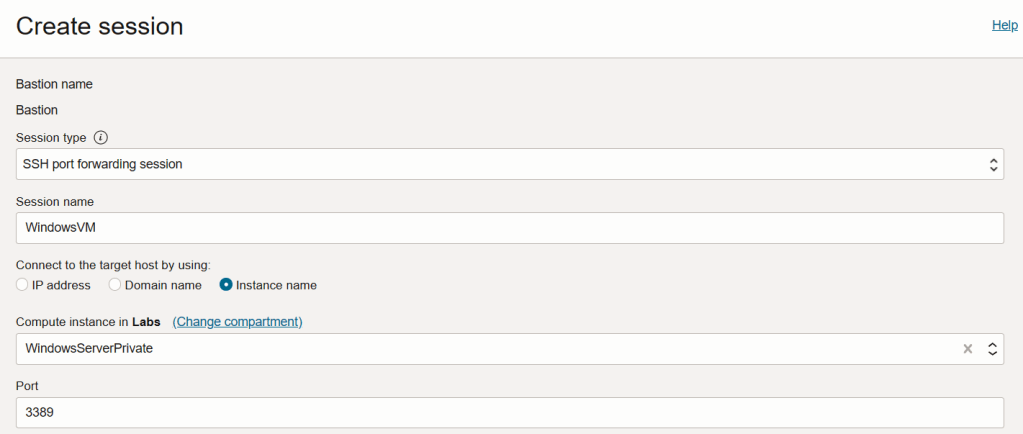
I then selected Generate SSH key pair and saved both the private and public key locally – if you already have a SSH key pair you use for OCI, you can select Choose SSH key file instead. The keys are used to authenticate to the Bastion when the SSH tunnel is created (more on this in step 3).

When this has been done click Create session, when the session state has changed to Active you can move on to the next step.

Step 3 – Create the SSH tunnel
In this step we’ll create an SSH tunnel between the local machine and the OCI Bastion, to do this select the session that has just been created and from the drop down choose Copy SSH command.

Paste this into a text editor, which should look something like this:
ssh -i <privateKey> -N -L <localPort>:10.0.2.239:3389 -p 22 ocid1.bastionsession.oc1.uk-london-1.amaaaaaaayvpzvaarqmz3pdqxcrfrv5r@host.bastion.uk-london-1.oci.oraclecloud.com
- Replace <localPort> with a port number on your local machine – you’ll use this port on your local machine to connect via RDP to the Windows VM.
- Replace <privateKey> with the path to the private key that you saved in Step 2.
An example command looks like this:
ssh -i "D:\OCI\OCI.key" -N -L 3390:10.0.2.239:3389 -p 22 ocid1.bastionsession.oc1.uk-london-1.amaaaaaaayvpzvaarqmz3pdqxcrfrv5r@host.bastion.uk-london-1.oci.oraclecloud.com
This is using the private key located at D:\OCI\OCI.key to connect to the Bastion, port 3390 on the localhost is redirected to port 3389 on 10.0.2.239 (which is the IP address of the Windows VM).
Run this command within Windows Terminal to create the SSH tunnel, here is an example of the command:

Step 4 – Connect via RDP
Finally we can connect via RDP! This may seem like a lot of work so far, but it literally takes 2 minutes once you have the Bastion setup – in a production/enterprise environment you’d probably script all of this up rather than clicking around the OCI portal 😀.
Launch the RDP client and connect to 127.0.0.1:3390, this should route the traffic via the SSH tunnel to the Bastion, which in turn will route it to the Windows VM.
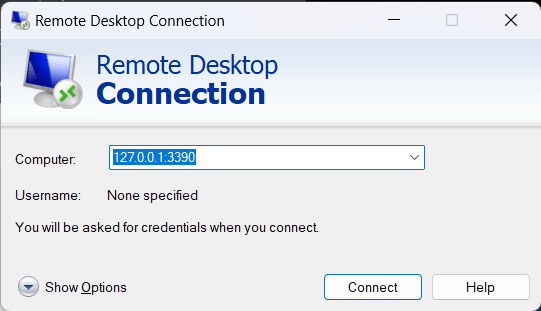
There we go, we are connected:

Just remember, that by default the session will only live for 3 hours at which point you’ll need to go back through Steps 2-4 to re-connect.


Leave a reply to SSH to a Compute Instance in OCI using a Bastion 🖥️ – Brendan's Tech Ramblings Cancel reply