Tag: security

  • Why isn’t DHCP working on the secondary VNIC of an OCI VM instance? βŒ

    Every day is a school day – especially with OCI!

    I was recently playing around in my lab and needed to add a secondary VNIC to one of my VMs for some testing that I was doing.

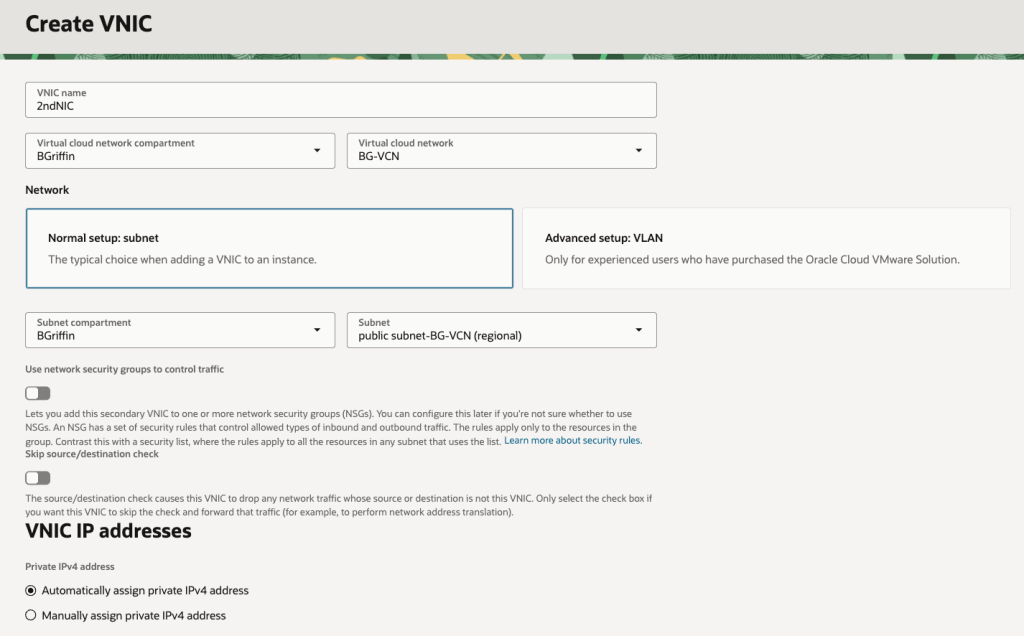
    I quickly set about adding a secondary VNIC and used the default option of assigning an IP address automatically using DHCP rather than specifying a static IP address (I’m lazy, I know!).

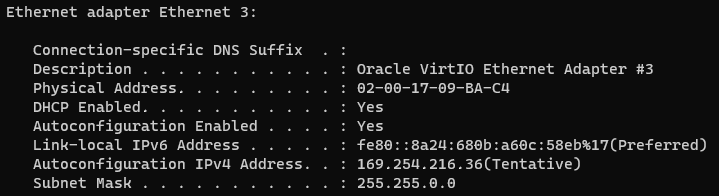
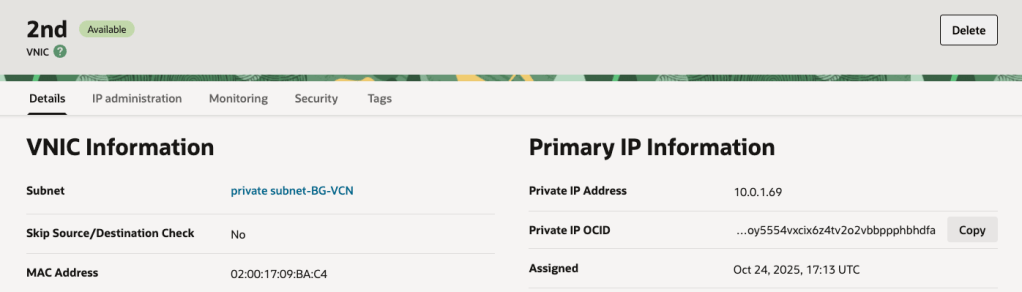
    I gave the server a reboot, logged in and to my surprise the shiny new secondary VNIC had acquired a nasty APIPA address (169.x.x.x) rather than the dynamic IP address that OCI had assigned (10.0.1.69) ❌:

    What is an APIPA address you may ask:

    “An APIPA (Automatic Private IP Addressing) IP address isΒ a self-assigned address in the 169.254.x.x range that a device uses when it cannot get an IP address from a DHCP server.Β This feature allows devices on a local network to communicate with each other even when the DHCP server is down, providing basic connectivity”

    I deleted and re-added the VNIC, rebooted the server more times that I care to admit – but still nothing, I couldn’t get rid of this pesky APIPA IP address and get the “real” IP address that OCI had assigned (10.0.1.69).

    After realising I’d sunk far too much time on this, I reached out to a colleague who is a networking whizz in OCI who informed me that OCI will only use DHCP for the primary VNIC on VM instances – for any secondary VNICs that you add to a VM instance, these must be configured with a static IP address (why oh why didn’t I ask them sooner 😫).

    This is quite confusing as the OCI console allows you to add a secondary VNIC and specify DHCP – it just doesn’t work πŸ€¦β€β™‚οΈ.

    It will even display the “dynamic” IP address that has been assigned to the instance in the console – it just won’t be picked up by the underling OS on the VM instance as DHCP doesn’t work:

    Moral of the story, when adding a secondary VNIC (or tertiary for that matter) use static IP addressing βœ….

    Note that whilst this affected a Windows Server in my case, this also applies to Linux too.

    Hopefully my pain, will help somebody else in the future!

  • Unauthorized to use OML application error when trying to obtain an OML token from an Oracle Autonomous database with a private endpoint βŒ

    Probably the longest title I’ve ever had for a post!

    I have an Oracle Autonomous Database that I created a private endpoint for and published via a public load balancer in OCI……my reason for this complexity – I wanted to use a custom vanity URL to access the database and this is the supported way to do this. If want to know more about setting this up, be sure to check out this step by step guide πŸ“–.

    Once I’d got this setup, everything worked as expected apart from one small issue – when trying to get a token via REST so that I could call an Oracle Machine Learning model within the database I received the following error ❌.

    b'{“error_message”:”\’DEMO1USER\’ unauthorized to \’use OML application\’”,”errorCode”:0,”request_id”:”OMLIDMREST-955f999622584d33a70″}’

    I was calling the REST API via Python, but other methods such as Curl returned the same error (further details on calling the REST API to get a token and authenticate can be found here). The user had the relevant permissions so it was definitely something else πŸ€”.

    The trick to fixing this is to update the URL that is called to obtain the token, rather than using this:

    https://oml-cloud-service-location-url/omlusers/api/oauth2/v1/token

    The URL needs to be updated to include the OCID of the OCI tenancy and the name of the database to connect to, like this:

    https://oml-cloud-service-location-url/omlusers/tenants/TenancyOCID/databases/DatabaseName/api/oauth2/v1/token

    For example, I was originally using this URL:

    https://adb.brendg.co.uk/omlusers/api/oauth2/v1/token

    I had to update this to:

    https://adb.brendg.co.uk/omlusers/tenants/ocid1.tenancy.oc1..aaaaaabbjdjwnd3krfpjw23erghw4dxnvadd9w6j2hwcirea22qrtfam24mq/databases/DemoDB/api/oauth2/v1/token

    The reason for this, is that when using a custom (vanity) URL to access the REST endpoint, it doesn’t know which tenancy and database you are trying to obtain an authentication token for, therefore you need to specify this in the REST endpoint.

    Once I’d done this, it worked like magic πŸͺ„

  • How to create a free SSL certificate with Let’s Encrypt…and as a bonus use this certificate with Oracle Analytics Cloud πŸ”

    I needed an SSL certificate recently as wanted to make an instance of Oracle Analytics Cloud available publicly with a nice vanity URL, rather than https://demo1analyticscloud-lrmvtbrwx-ld.analytics.ocp.oraclecloud.com, something a little more memorable, such as https://oac.oci-demo.co.uk.

    To do this I needed an SSL certificate and decided to use Let’s Encrypt as they provide free SSL certificates (with a validity period of 90 days).

    It was relatively straightforward to create a certificate using the Certbot client for macOS, to do this I did the following:

    Step 1 – Installed Certbot using the following command

    brew install certbot
    

    Step 2 – Created a directory to store the generated certificates

    mkdir certs
    cd certs
    

    Step 3 – Create the certificate request using Certbot

    This uses the DNS challenge type, which is ideal when you need to create a certificate for use on a system that doesn’t provide native integration with Certbot (such as Oracle Analytics Cloud). Replace “e-mail address” with a valid address to use for renewal reminders.

    cd certs
    certbot certonly --manual --preferred-challenges=dns --config-dir config --work-dir workdir --logs-dir logs --agree-tos -m e-mail address --key-type rsa
    

    When this command has been run, it will ask for the hostname to create the SSL certificate for. In my case I requested a certificate for demo1oac.oci-demo.co.uk.

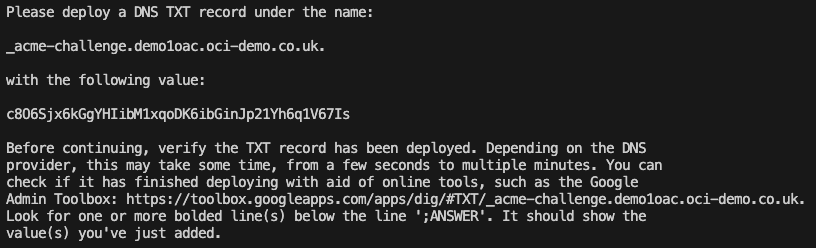
    After hitting enter, it then provides a DNS record that needs to be created to validate domain ownership.

    I host my DNS within OCI, so this was as simple as creating a DNS TXT record using the OCI Console (the process will vary depending on your DNS provider).

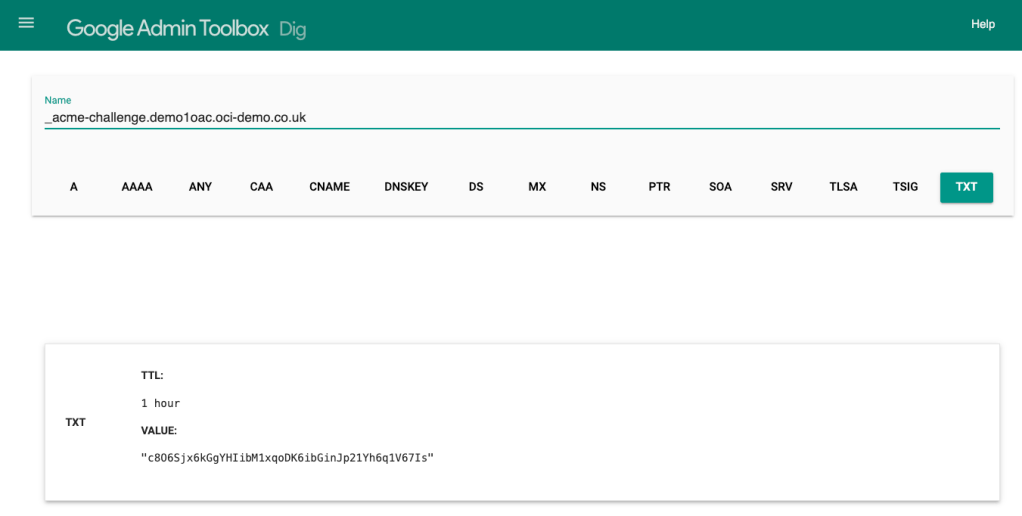
    I then used the link within the instructions to validate the presence of the DNS TXT records that I had just created.

    Once I’d verified that the DNS record was available publicly, I hit enter and the SSL certificates were created for me!

    Step 4 – Configure OAC to use a custom hostname with SSL (example)

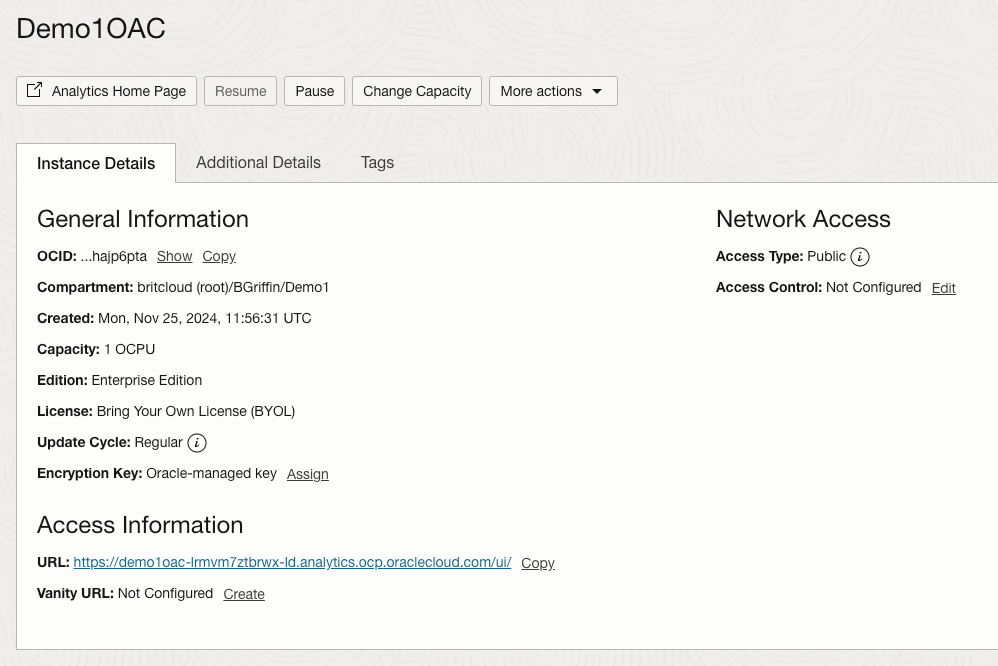
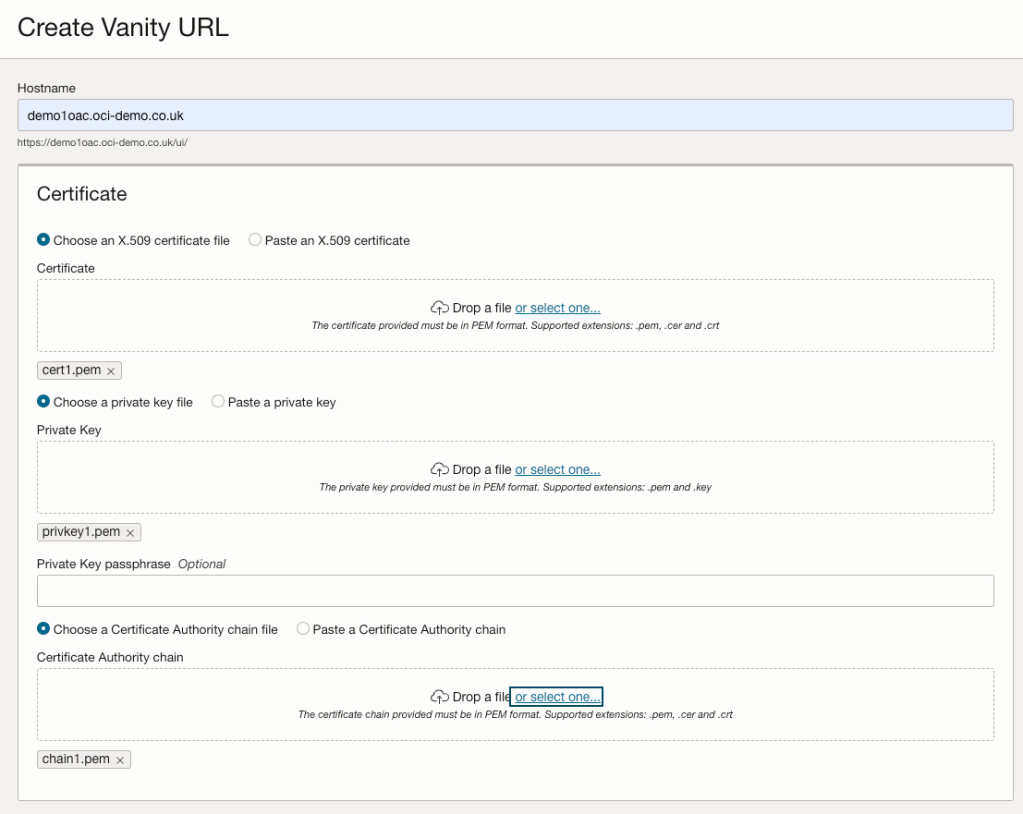
    I then navigated to Oracle Analytics Cloud within the OCI Console and within Vanity URL selected Create.

    I entered the hostname for the vanity URL – demo1oac.oci-demo.co.uk. I then uploaded the certificates that had just been generated.

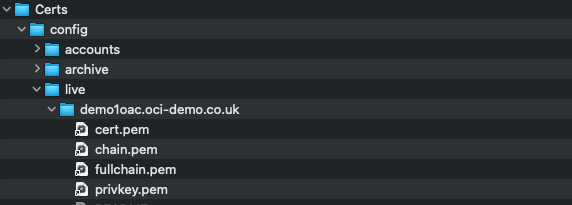
    The mapping between certificate types and the .pem files created is as follows:

    • Certificate = cert1.pem
    • Private Key = privkey1.pem
    • Certificate Authority chain file = chain1.pem

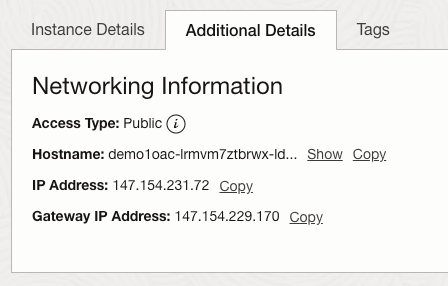
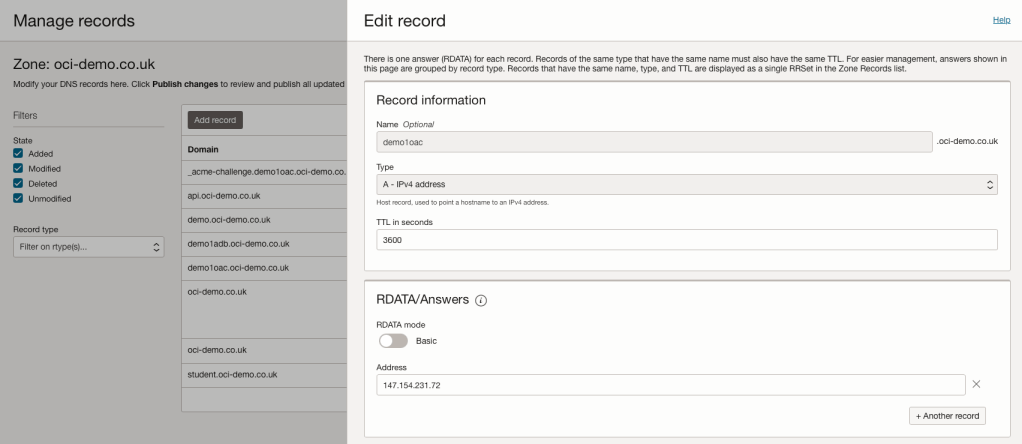
    I then hit Create to apply the configuration. A final step was for me to create a DNS entry to point demo1oac.oci-demo.co.uk to the public IP address of the OAC instance.

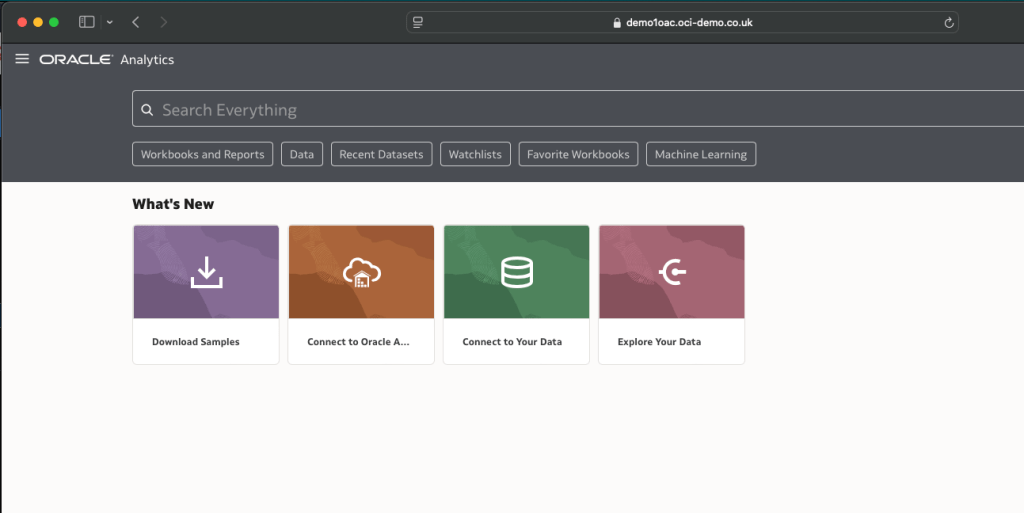
    I then waited a few minutes for the DNS record to come to life and then browsed to https://demo1oac.oci-demo.co.uk and it worked!