Tag: linux

  • Installing a desktop environment on a Linux VM hosted in OCI and making this available using RDP 🖥️

    Next up in random things Brendan has done……installing a desktop environment (Gnome) on a Linux instance (Ubuntu) hosted in OCI and making this available via Remote Desktop Protocol (RDP) with xrdp – it sounds quite complicated but there isn’t that much to getting it up and running ✅.

    Basically, I wanted a VM that I can RDP to from anywhere….and any computer, importantly! To do basic coding (is in my coding is all basic 😀) using Visual Studio Code and Python.

    To keep the costs down (I’m a tight Yorkshireman after all) I’m using an Always Free Ampere A1 VM instance running in OCI – so this will not cost me a penny to run 🙌.

    To learn more about the OCI Always Free resources, check this article out.

    To get started, I created a Linux instance using Ubuntu 24.04:

    I placed this into a Public Subnet within a Virtual Cloud Network, to learn more about how to do this, check this guide out – the reason for placing the VM into a Public Subnet is so that it gets a public IP address and I can connect to this directly over the Internet, without requiring that a VPN or FastConnect be in-place.

    Once the VM had been provisioned, I SSH’d onto the VM instance (if you are not sure how to do this, check this guide out) and then ran the following commands in order:

    Update and Upgrade Installed Packages

    sudo apt update && sudo apt upgrade -y


    Install Ubuntu Desktop

    sudo apt install ubuntu-desktop -y
    

    Install xrdp

    sudo apt install xrdp -y
    

    Ensure that Gnome runs (the Ubuntu Desktop Environment) when logging in via RDP

    echo "gnome-session" > ~/.xsession
    

    Restart xrdp

    sudo systemctl restart xrdp
    

    Permit inbound traffic on TCP port 3389 (the port used by RDP)

    sudo iptables -I INPUT 4 -m state --state NEW -p tcp --dport 3389 -j ACCEPT
    sudo netfilter-persistent save


    Set a password for the user “ubuntu” by default OCI configures the VM instance to authenticate the ubuntu user using SSH keys, for RDP you’ll need to use a password – you may prefer to use a separate non-root account for this.

    sudo passwd ubuntu
    

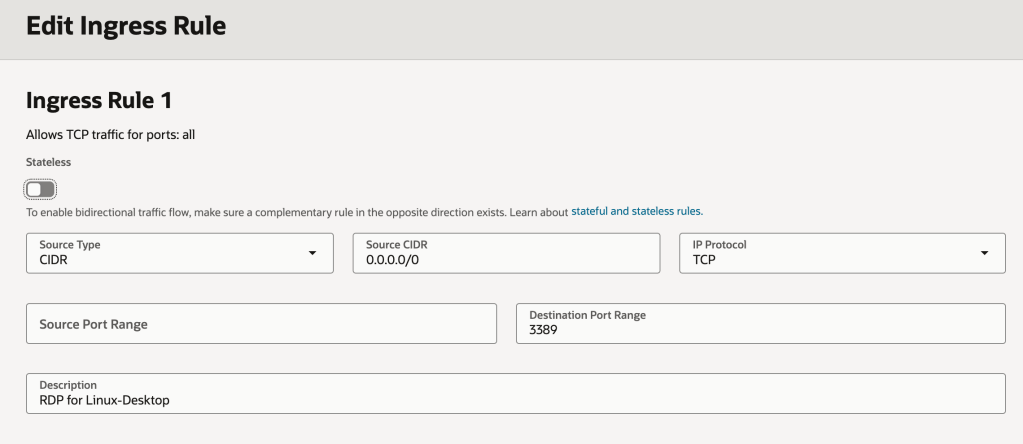
    Once those commands have been run, the final thing you’ll need to do is ensure that any Security Lists OR Network Security Groups (NSGs) that the VM instance is associated with permit inbound access to port 3389 – the port used by RDP.

    More info on this (including how to do this) can be found here.

    Here is how my Security List looks (there isn’t an NSG associated with my VM instance).

    WARNING: This gives any machine on the Internet (source CIDR 0.0.0.0/0) access to this VM instance…..and any other resources in the subnet via RDP – port 3389! You’d likely want to restrict this to specific IP addresses or IP address ranges e.g. the public IP address you break out from your house/office to prevent any randomer on the Internet getting access.

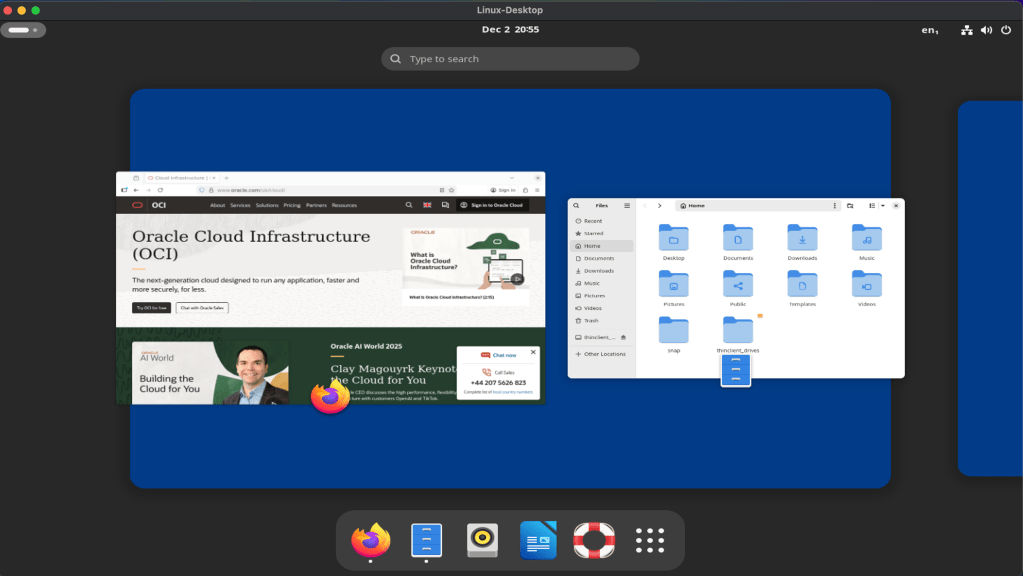
    Once the Security List had been updated. I fired up the Microsoft RDP client (other RDP clients are available!) and configured it to connect to the public IP address of the VM instance and Voilà – I now have access to the desktop on my Ubuntu VM instance from anywhere.

  • Deploying an OCI Landing Zone using Terraform 🛩️

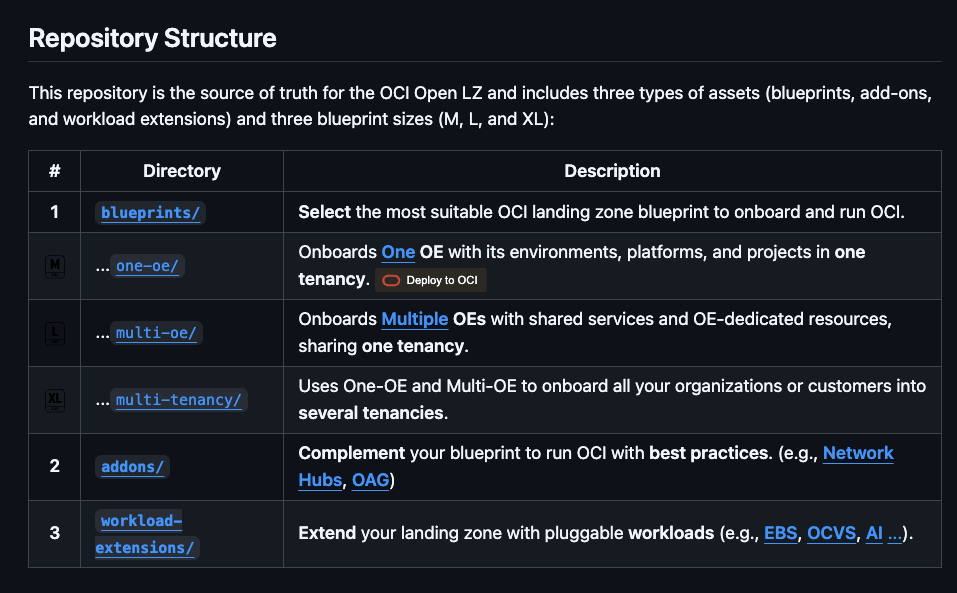
    OCI has a number of Terraform based Landing Zone blueprints available.

    The One OE (Operating Entity) OCI LZ blueprint can be deployed to an OCI tenancy directly from GitHub using the “Deploy to OCI” button:

    This then uses OCI Resource Manager to deploy the blueprint to a tenancy – which uses Terraform under the hood.

    I wanted to deploy the One OE blueprint to one of my test tenancies, however I wanted to do this natively using Terraform from my local machine rather than using OCI Resource Manager, mainly due to the additional flexibility and ease of troubleshooting that this approach provides.

    It took me a while to figure out exactly how to do this (with a lot of help from one of the OCI LZ Black Belts 🥋).

    I’ve documented the process that I followed below, hopefully it saves somebody else some time ⌚️.

    Step 0Make sure you have Terraform and Git installed (I’m assuming that you already have these installed locally).

    Step 1 – Create a directory to store the blueprints and configuration

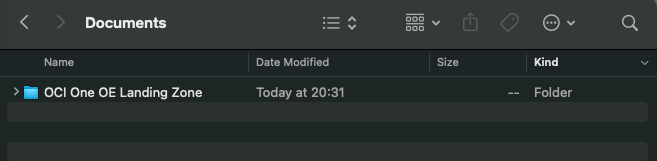
    I created a folder aptly named “OCI One OE Landing Zone

    …then opened a terminal and ran the following commands from within this folder:

    git clone https://github.com/oci-landing-zones/oci-landing-zone-operating-entities.git
    git clone https://github.com/oci-landing-zones/terraform-oci-modules-orchestrator.git

    These commands download the OCI OE Landing Zone blueprints and the Landing Zone Orchestrator.

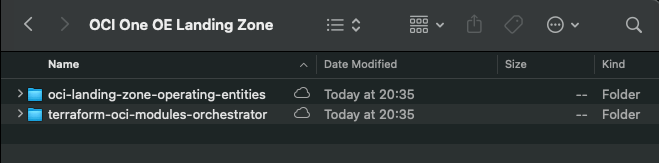
    Once the downloads have completed, the folder should look something like this:

    Step 2 – Configure Authentication

    Grab a copy of the file oci-credentials.tfvars.json.template, which is located within the folder OCI One OE Landing Zone/oci-landing-zone-operating-entities/commons/content.

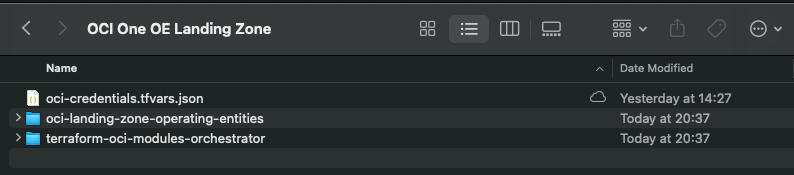
    Take a copy of this file, place it in the root of the OCI One OE Landing Zone folder that you just created and rename the file to oci-credentials.tfvars.json

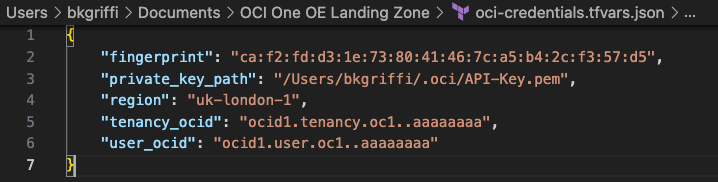
    Open the oci-credentials.tfvars.json file and populate with your authentication information, if you don’t have this please follow the guide here to create an API Signing Key and obtain the other required information.

    Here’s an example of what mine looks like:

    Step 3 – Grab a copy of the required configuration files

    In order to deploy the One OE Landing Zone, a number of configuration files are required, these can be found within the following folder:

    ‘OCI One OE Landing Zone/oci-landing-zone-operating-entities/blueprints/one-oe/runtime/one-stack’

    • oci_open_lz_one-oe_governance.auto.tfvars.json
    • oci_open_lz_one-oe_iam.auto.tfvars.json
    • oci_open_lz_one-oe_security_cisl1.auto.tfvars.json
    • oci_open_lz_hub_a_network_light.auto.tfvars.js
    • oci_open_lz_one-oe_observability_cisl1.auto.tfvars.json

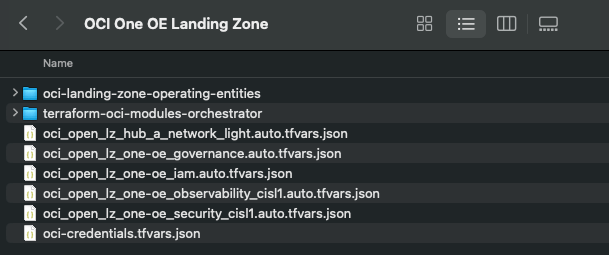
    Copy these files into the root of the OCI One OE Landing Zone folder – you can leave them in their original location, but by taking a copy this means that you can edit them (if needed) and easy return them to their “vanilla” state by re-copying across from their original location.

    Step 4 – Time to deploy 🚀

    Run the following command from within the OCI One OE Landing Zone/terraform-oci-modules-orchestrator folder to download the required Terraform Providers and Modules

    terraform init

    Once this has completed, run terraform plan (from the same folder), referencing the required configuration files:

    terraform plan \
    -var-file ../oci-credentials.tfvars.json \
    -var-file ../oci_open_lz_one-oe_governance.auto.tfvars.json \
    -var-file ../oci_open_lz_one-oe_iam.auto.tfvars.json \
    -var-file ../oci_open_lz_hub_a_network_light.auto.tfvars.json \
    -var-file ../oci_open_lz_one-oe_security_cisl1.auto.tfvars.json \
    -var-file ../oci_open_lz_one-oe_observability_cisl1.auto.tfvars.json 

    ….if all goes well, you can run terraform apply (from the same folder) using the exact same configuration files.

    terraform apply \
    -var-file ../oci-credentials.tfvars.json \
    -var-file ../oci_open_lz_one-oe_governance.auto.tfvars.json \
    -var-file ../oci_open_lz_one-oe_iam.auto.tfvars.json \
    -var-file ../oci_open_lz_hub_a_network_light.auto.tfvars.json \
    -var-file ../oci_open_lz_one-oe_security_cisl1.auto.tfvars.json \
    -var-file ../oci_open_lz_one-oe_observability_cisl1.auto.tfvars.json 

    Within a few minutes, you should (hopefully!) have a beautiful OCI Landing Zone deployed within your tenancy.

  • Why isn’t DHCP working on the secondary VNIC of an OCI VM instance? ❌

    Every day is a school day – especially with OCI!

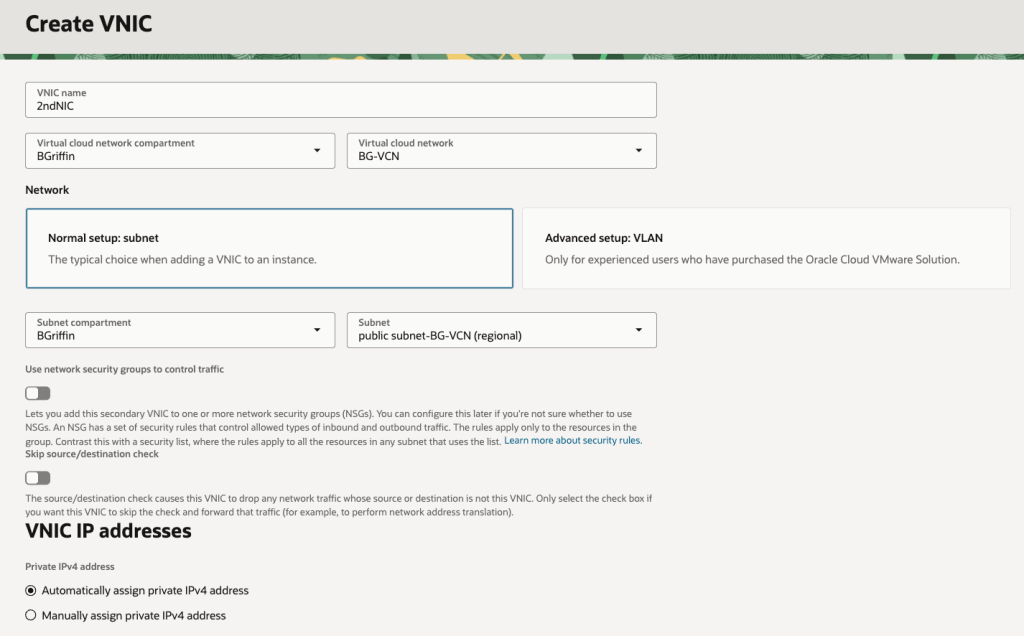
    I was recently playing around in my lab and needed to add a secondary VNIC to one of my VMs for some testing that I was doing.

    I quickly set about adding a secondary VNIC and used the default option of assigning an IP address automatically using DHCP rather than specifying a static IP address (I’m lazy, I know!).

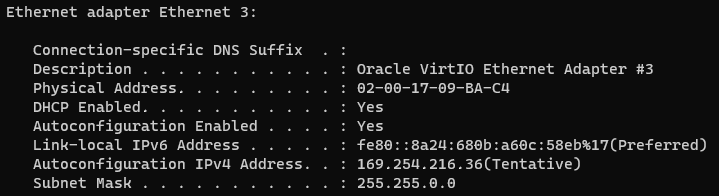
    I gave the server a reboot, logged in and to my surprise the shiny new secondary VNIC had acquired a nasty APIPA address (169.x.x.x) rather than the dynamic IP address that OCI had assigned (10.0.1.69) ❌:

    What is an APIPA address you may ask:

    “An APIPA (Automatic Private IP Addressing) IP address is a self-assigned address in the 169.254.x.x range that a device uses when it cannot get an IP address from a DHCP server. This feature allows devices on a local network to communicate with each other even when the DHCP server is down, providing basic connectivity”

    I deleted and re-added the VNIC, rebooted the server more times that I care to admit – but still nothing, I couldn’t get rid of this pesky APIPA IP address and get the “real” IP address that OCI had assigned (10.0.1.69).

    After realising I’d sunk far too much time on this, I reached out to a colleague who is a networking whizz in OCI who informed me that OCI will only use DHCP for the primary VNIC on VM instances – for any secondary VNICs that you add to a VM instance, these must be configured with a static IP address (why oh why didn’t I ask them sooner 😫).

    This is quite confusing as the OCI console allows you to add a secondary VNIC and specify DHCP – it just doesn’t work 🤦‍♂️.

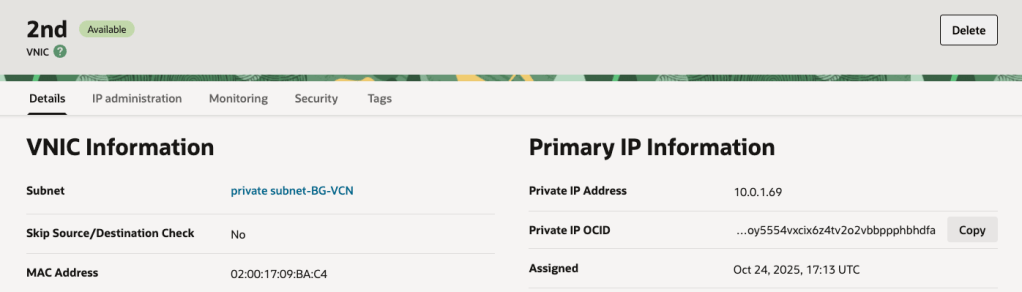
    It will even display the “dynamic” IP address that has been assigned to the instance in the console – it just won’t be picked up by the underling OS on the VM instance as DHCP doesn’t work:

    Moral of the story, when adding a secondary VNIC (or tertiary for that matter) use static IP addressing ✅.

    Note that whilst this affected a Windows Server in my case, this also applies to Linux too.

    Hopefully my pain, will help somebody else in the future!