Tag: artificial-intelligence

  • Getting the output of a SQL tool in an OCI Gen AI Agent πŸ“Š

    The Generative AI Agent service in OCI recently added the ability to add a SQL Tool, this enables an agent to generate a SQL query and optionally run the query against a database and return the results of the query to the agent πŸ€–. I created a short video that steps through how to use a SQL Tool βš’οΈ with an agent, which can be found here πŸ“Ό.

    More recently (mid-July 2025) the SQL Tool has been further enhanced so that responses include the following:

    • The raw output of the SQL query
    • A conversational “LLM style” response

    Previously a SQL Tool would only return the raw output of the SQL query, I found this quite useful as I could use Python packages such as matplotlib to visualise results, as of mid-July responses from the agent also include an LLM style conversational response, for example (taken from my agent that queries a database of bird sightings πŸ¦…):

    Raw Output of SQL Query

    Conversational LLM Style Response

    I’ve put together a short Python script that demonstrates how to get access to this data from a response, I typically use Streamlit as a front-end for the demo agents that I build, however to keep things simple, we’ll use the good old “shell” for this demo!

    Here is the script –

    import oci
    textinput = "what were the 3 most popular birds in 1997"
    config = oci.config.from_file(profile_name="DEFAULT")
    service_ep = "https://agent-runtime.generativeai.uk-london-1.oci.oraclecloud.com"
    agent_ep_id = "ocid1.genaiagentendpoint.oc1.uk-london-1.xwywwkz7bn5f5aogazpvkijnoj2u75yadsq"
    generative_ai_agent_runtime_client = oci.generative_ai_agent_runtime.GenerativeAiAgentRuntimeClient(config,service_endpoint=service_ep)
    create_session_response = generative_ai_agent_runtime_client.create_session(
        create_session_details=oci.generative_ai_agent_runtime.models.CreateSessionDetails(
            display_name="Session",
            description="Session"),
        agent_endpoint_id=agent_ep_id)
    sess_id = create_session_response.data.id
    response = generative_ai_agent_runtime_client.chat(
        agent_endpoint_id=agent_ep_id,
        chat_details=oci.generative_ai_agent_runtime.models.ChatDetails(
            user_message=textinput,
            session_id=sess_id))
    output = response.data.traces[3].output
    output = eval(output)
    sql_response = output["result"]
    print("")
    print("SQL Response: " + str(sql_response))
    text_response = response.data.message.content.text
    print("")
    print("Text Response: " + str(text_response))
    

    To use this script you’ll need to update the following:

    Finally make sure you have the latest version of the OCI SDK for Python, to upgrade to the latest version run the following command –

    pip3 install oci --upgrade

    When run the output should look something like this:

    Here is an example of how I’ve used matplotlib (within a Streamlit front-end) to visualise results using the raw output of the SQL query.

    As you can see below, it returns the conversational response, I then take the raw SQL output and use matplotlib to make it look pretty πŸ’„ – I may put together a post on this too.

    Thanks for reading!
  • Crawling a web site using Trafilatura πŸ•·οΈ

    I’ve been building a lot of OCI Generative AI Agents for customer demos recently πŸ€–, one demo that typically resonates well with customers is a RAG agent that uses text scraped from their public website, for example when working with a council this can demonstrate how residents can use a Generative AI Agent to quickly get answers to their questions about council services…….without the hassle of navigating their maze of a website πŸ‘©β€πŸ’».

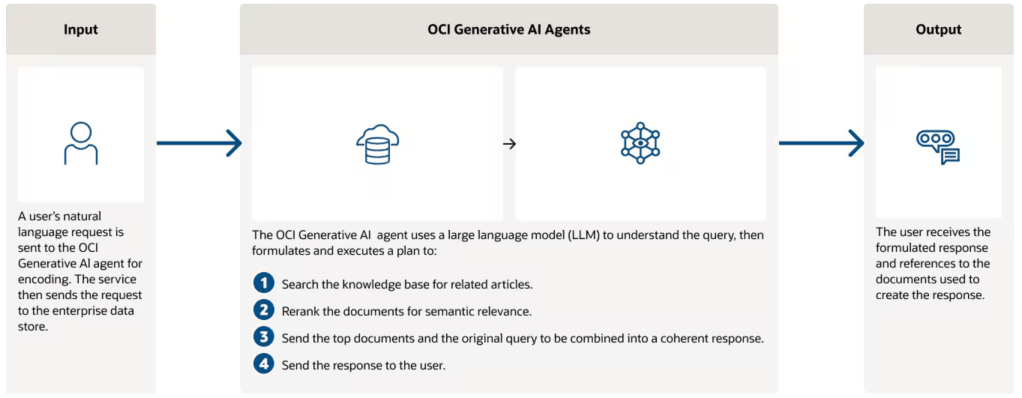
    For reference here’s how an OCI Gen AI Agent works at a high-level.

    In the real world a Gen AI Agent would use internal data that isn’t publicly accessible, however I typically don’t have access to customers data, therefore the approach of crawling their public website works well to showcase the capabilities of a Gen AI Agent and begin a conversation on real-world use-cases that use internal data πŸ“Š.

    I wrote a very hacky Python script to crawl a site and dump the content to a text file which can then be ingested into a Gen AI Agent…….however this is super unreliable as the script is held together with sticking plasters 🩹 and constantly needs to be updated to work around issues experienced when crawling.

    I recently stumbled across a fantastic Python package named Trafilatura which can reliably and easily scrape a site, enabling me to retire my hacky Python script 🐍.

    Trafilatura can be installed using the instructions here (basically pip install trafilatura).

    Once it had been installed, I was able to scrape my own blog (which you are currently reading) using two commands!

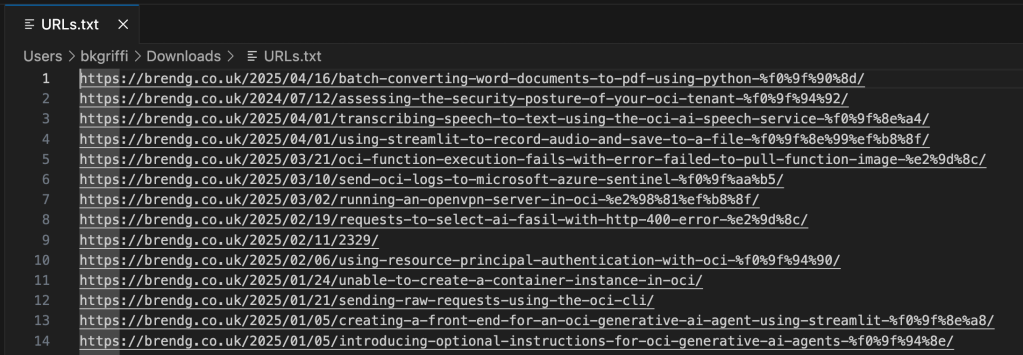
    trafilatura --sitemap "https://brendg.co.uk/" --list >> URLs.txt
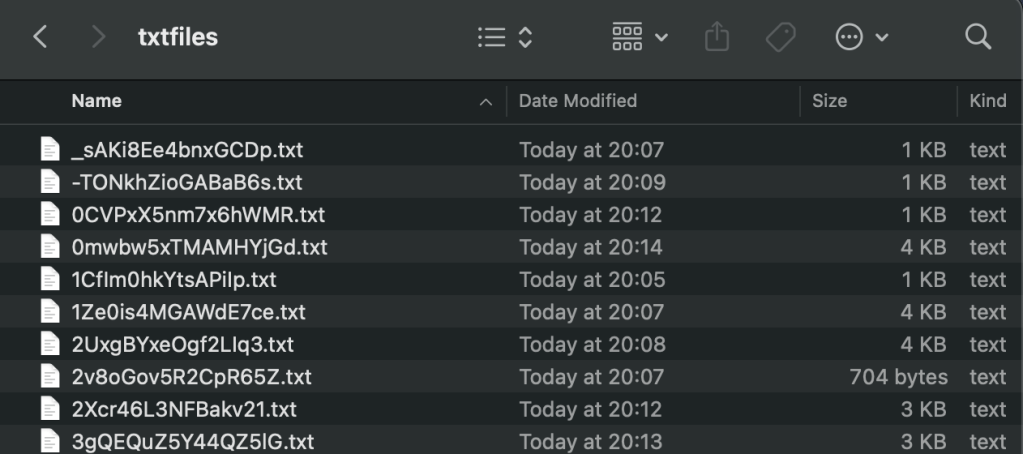
    trafilatura -i URLs.txt -o txtfiles/
    

    The first command grabs the sitemap for https://brendg.co.uk, and writes a list of all URLs found to URL.txt.

    The second command takes the URL.txt file as input and for each URL within, crawls the page and writes the contents to a text file within the folder txtfiles.

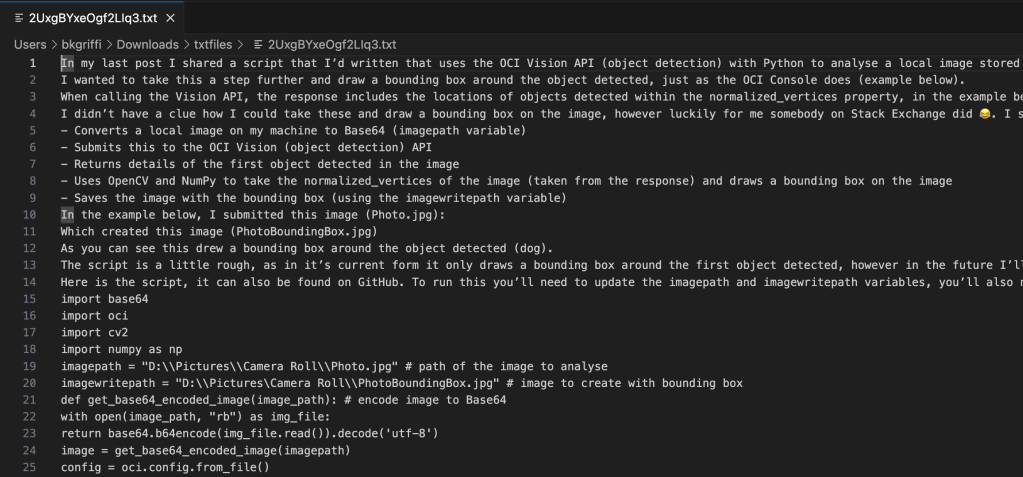
    Below is an example of one of the text files that have been output, you can clearly see the text from the blog post scraped.

    Such a useful tool, which will save me a ton of time ⏱️!

  • Transcribing speech to text using the OCI AI Speech service with Python πŸŽ€

    I’ve been playing around with the OCI AI Speech service recently, one thing I really struggled with was using the AI Speech API to create a transcription job to extract the text from an audio/video file (as I needed to automate the process).

    After much head scratching (…and some help from a colleague), I was able to assemble the following Python script, this provides a function named transcribe, which can be called to submit a transcription job. The following parameters are required:

    • inputfile – The name of the audio/video file to transcribe e.g. recording.mp3
    • bucket – The name of the bucket that contains the inputfile to transcribe (this is also where the JSON output of the transcription job will be stored)
    • compartmentid – OCID of the compartment to run the transcription job in
    • namespace – The Object Storage namespace
    import oci
    
    config = oci.config.from_file()
    
    def transcribe(inputfile,compartmentid,bucket,namespace):
        ai_speech_client = oci.ai_speech.AIServiceSpeechClient(config)
        create_transcription_job_response = ai_speech_client.create_transcription_job(
                create_transcription_job_details=oci.ai_speech.models.CreateTranscriptionJobDetails(
                    compartment_id=compartmentid,
                    input_location=oci.ai_speech.models.ObjectListInlineInputLocation(
                        location_type="OBJECT_LIST_INLINE_INPUT_LOCATION",
                        object_locations=[oci.ai_speech.models.ObjectLocation(
                            namespace_name=namespace,
                            bucket_name=bucket,
                            object_names=[inputfile])]),
                    output_location=oci.ai_speech.models.OutputLocation(
                        namespace_name=namespace,
                        bucket_name=bucket)))
    
    transcribe(inputfile="Name of file to transcribe",compartmentid="OCID of the compartment to run the transcription job in",bucket="Bucket that contains the file to transcribe",namespace="Object storage namespace")
    

    For example:

    transcribe(inputfile=”recording.mp3“,compartmentid=”ocid1.compartment.oc1..aaaaaaaae“,bucket=”Transcription“,namespace=”lrdkvqz1i7f9“)

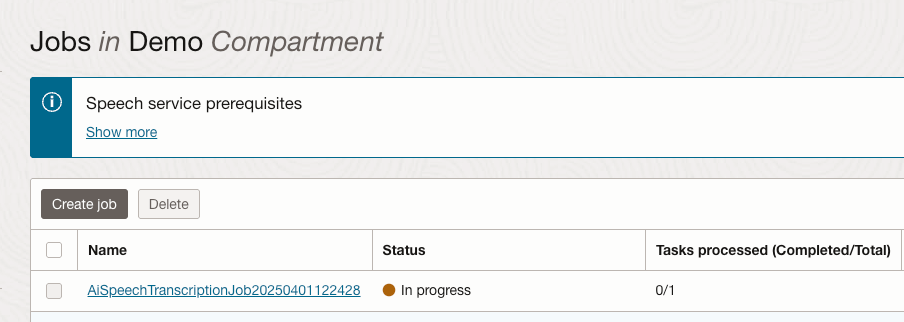
    When this has been executed, the transcription job can be viewed within the OCI Console.

    Once the job completed, the transcription was available to view from within the job (clicking the filename within the Tasks section):

    Here is the transcript in all it’s glory.

    The sample can also be found on GitHub.

  • Creating a front end for the OCI Generative AI Service using Streamlit πŸŽ¨

    I recently shared an example of how to create a basic front-end for an OCI Generative AI Agent using Streamlit, in this post I’m going to share how to do this for the OCI Generative AI Service, this is useful for demo’s when you need to incorporate a specific look and feel, something that’s a little more snazzy than the playground within the OCI Console! πŸ’»

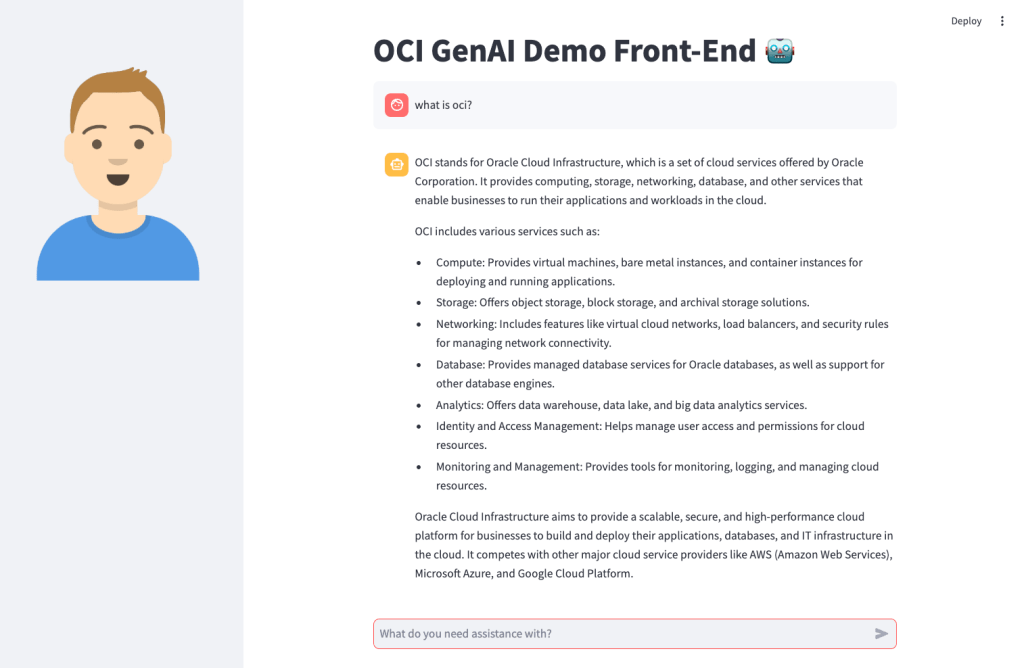
    Here’s what the basic front-end I created looks like:

    Installing Streamlit is a breeze using the single command below.

    pip install streamlit
    

    Once I’d done this, I put together the following Python script to create the web app, this can also be downloaded from GitHub.

    Disclaimer: I’m no developer and this code is a little hacky, but it gets the job done!

    The following variables need to be updated before running the script:

    • st.title β€“ Set’s the title of the page
    • st.set_page_config – Set’s the name and icon to use for the page
    • st.sidebar.image β€“ Configures the image to use in the sidebar
    • config β€“ Set’s the OCI SDK profile to use, further info on this can be found here – https://docs.oracle.com/en-us/iaas/Content/API/Concepts/sdkconfig.htm
    • compartment_id – The compartment to make the request against, a the Generative AI Service doesn’t need to be provisioned, this can be useful for cost tracking and budgeting purposes (as spend is against a specific compartment).
    • endpoint – The endpoint for the region to pass the request to, a full list of the current endpoints can be found here, in my example I’m connecting to the Frankfurt endpoint.
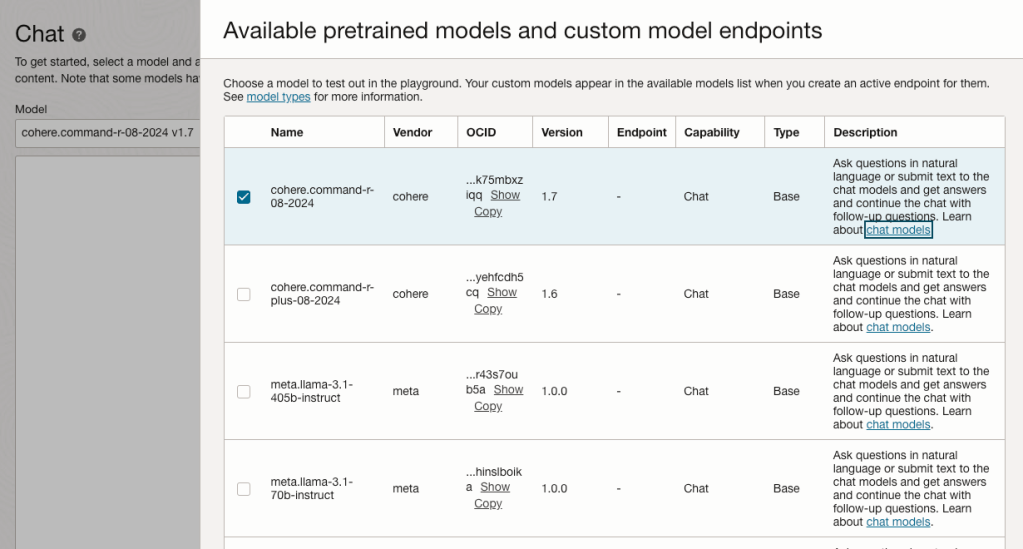
    • model_id – The OCID of the model to call, the eaisest way to obtain this is via the OCI Console: Analytics & AI > Generative AI > Chat > View model details. This will provide a list of the models that are available, simply copy the OCID of the model you’d like to use. Further details on the difference between each of the models can be found here.

    import oci
    import streamlit as st
    
    st.set_page_config(page_title="OCI GenAI Demo Front-End",page_icon="πŸ€–")
    st.title("OCI GenAI Demo Front-End πŸ€–")
    st.sidebar.image("https://brendg.co.uk/wp-content/uploads/2021/05/myavatar.png")
    
    # GenAI Settings
    compartment_id = "Compartment OCID"
    config = oci.config.from_file(profile_name="DEFAULT")
    endpoint = "https://inference.generativeai.eu-frankfurt-1.oci.oraclecloud.com"
    model_id = "Model OCID"
    
    def chat(question):
        generative_ai_inference_client = oci.generative_ai_inference.GenerativeAiInferenceClient(config=config, service_endpoint=endpoint, retry_strategy=oci.retry.NoneRetryStrategy(), timeout=(10,240))
        chat_detail = oci.generative_ai_inference.models.ChatDetails()
        chat_request = oci.generative_ai_inference.models.CohereChatRequest()
        chat_request.message = question 
        chat_request.max_tokens = 1000
        chat_request.temperature = 0
        chat_request.frequency_penalty = 0
        chat_request.top_p = 0.75
        chat_request.top_k = 0
        chat_request.seed = None
        chat_detail.serving_mode = oci.generative_ai_inference.models.OnDemandServingMode(model_id=model_id)
        chat_detail.chat_request = chat_request
        chat_detail.compartment_id = compartment_id
        chat_response = generative_ai_inference_client.chat(chat_detail)
        return chat_response.data.chat_response.text
    
    # Initialize chat history
    if "messages" not in st.session_state:
        st.session_state.messages = []
    
    # Display chat messages from history on app rerun
    for message in st.session_state.messages:
        with st.chat_message(message["role"]):
            st.markdown(message["content"])
    
    # Accept user input
    if prompt := st.chat_input("What do you need assistance with?"):
        # Add user message to chat history
        st.session_state.messages.append({"role": "user", "content": prompt})
        # Display user message in chat message container
        with st.chat_message("user"):
            st.markdown(prompt)
    
        # Display assistant response in chat message container
        with st.chat_message("assistant"):
            response = chat(prompt)
            write_response = st.write(response)
        # Add assistant response to chat history
        st.session_state.messages.append({"role": "assistant", "content": response})
    

    You may also want to tweak the chat_request settings for your specific use-case for Generative AI, my example is tuned for summarisation. Details for what each of the settings does for the Cohere model (which I used), can be found here.

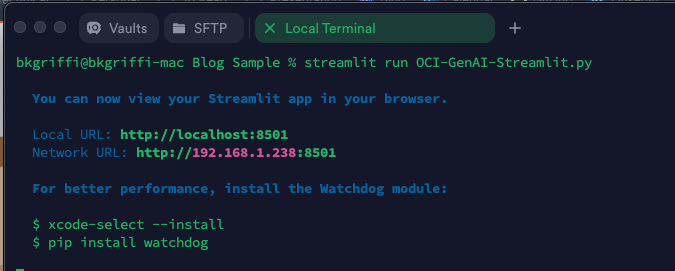
    Once this file has been saved, it’s simple to run with a single command:

    streamlit run OCI-GenAI-Streamlit.py
    

    It will then automatically launch a browser and show the web app in action πŸ–₯️

    This basic example can easily be updated to meet your requirements, the Streamlit documentation is very comprehensive and easy to follow with some useful examples – https://docs.streamlit.io/.