I’ve been working with OCI recently and have just started to write some Python scripts that use the OCI SDK. I thought I’d document the process of getting everything setup – mainly because I’ll probably forget how I did this and have to re-learn at some point in the future 😂.
This guide was written for Windows 11, however with minor adaptions should work with any OS that supports the OCI SDK for Python.
Step 1 – Install the OCI Python SDK
Run the following command to install the OCI Python SDK.
Step 3 – Connect to OCI with Python using the API Signing Key
Now that the OCI SDK for Python is installed and an API Signing Key has been created, you can connect to OCI using the following:
import oci

# Reads the config created when the API Signing Key was generated, which should be stored within \.oci\config
config = oci.config.from_file()
Once you’ve done this, you can then use the Python SDK as you wish, in the example below I list all of the compute instances within my root compartment.
# Create client with the default config file (\.oci\config)
computeclient = oci.core.ComputeClient(config)

# List all of the compute instances within the compartment
list_instances_response = computeclient.list_instances(
    compartment_id="Replace with the OCID of the compartment to query")

# List all of the compute instances
print(list_instances_response.data)
Here is the script in action, it lists (a lot of) data about each of the instances found within the compartment queried.
I have a Windows VM hosted within Oracle Cloud Infrastructure (OCI) that I needed to access remotely via RDP. The VM itself is hosted within a private subnet (therefore it doesn’t have a public IP address) so I’m not able to connect to it directly over the Internet 🌐.
I could have used a “jump box” to access this, which would be another VM in a public subnet within the same VCN, essentially RDP’ing into this publicly available VM and then “jumping across” to the VM in the private subnet.
I decided to take a look at OCI Bastion instead, which provides the ability to connect to hosts that aren’t available externally, similar to Azure Bastion.
I followed the steps here to create a Bastion. Once I’d done this, I did the following to get access to my Windows VM via RDP.
Step 1 – Enable inbound RDP (port 3389) to the private subnet where the Windows VM is located from the IP address of the Bastion.
This needs to be done so that the Bastion deployed within OCI is able to connect to the VM via RDP (port 3389).
I created an ingress rule for RDP in the Security List associated with the subnet that contains the Windows VM via Networking > Virtual cloud network > Virtual Cloud Network Details > Security Lists. Here I specified the private endpoint IP address of the Bastion host (which can be found on the details page of the Bastion).
Step 2 – Create Bastion session
The next step is to create a Bastion session, it’s worth noting that by default these are valid for 3 hours and are then removed, although you can provision a session for a longer duration if needed.
To do this, click Create session within the Bastion.
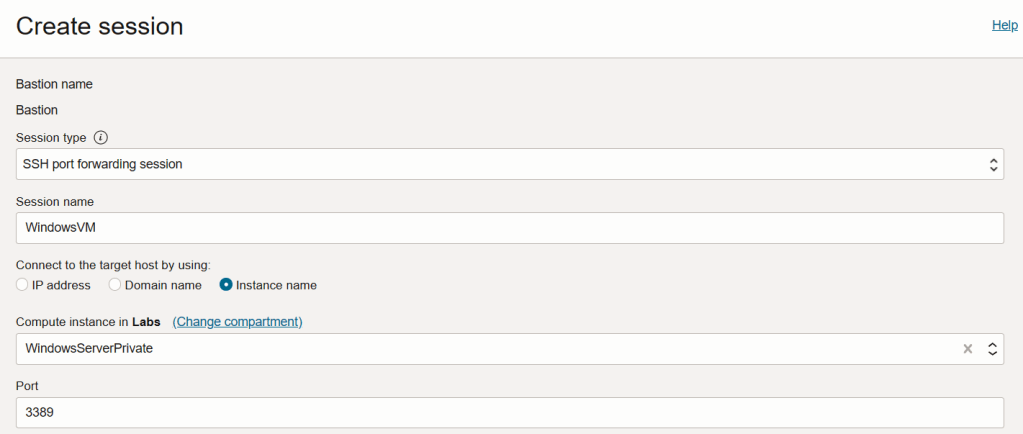
Select SSH port forwarding session for Session type
Give the session a name, in this case I called the session WindowsVM
For Connect to the target host by using I chose Instance name and then selected the VM from the dropdown list, my instance is named WindowsServerPrivate – you could connect via the private IP address or hostname if you wish though.
Enter 3389 as the port
I then selected Generate SSH key pair and saved both the private and public key locally – if you already have a SSH key pair you use for OCI, you can select Choose SSH key file instead. The keys are used to authenticate to the Bastion when the SSH tunnel is created (more on this in step 3).
When this has been done click Create session, when the session state has changed to Active you can move on to the next step.
Step 3 – Create the SSH tunnel
In this step we’ll create an SSH tunnel between the local machine and the OCI Bastion, to do this select the session that has just been created and from the drop down choose Copy SSH command.
Paste this into a text editor, which should look something like this:
This is using the private key located at D:\OCI\OCI.key to connect to the Bastion, port 3390 on the localhost is redirected to port 3389 on 10.0.2.239 (which is the IP address of the Windows VM).
Run this command within Windows Terminal to create the SSH tunnel, here is an example of the command:
Step 4 – Connect via RDP
Finally we can connect via RDP! This may seem like a lot of work so far, but it literally takes 2 minutes once you have the Bastion setup – in a production/enterprise environment you’d probably script all of this up rather than clicking around the OCI portal 😀.
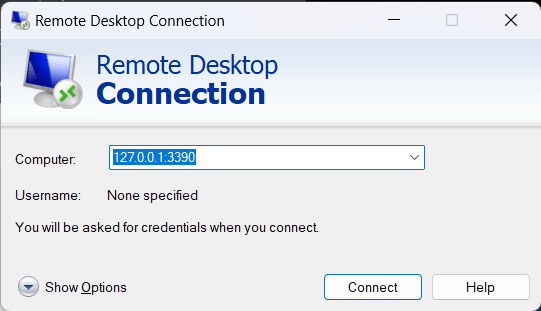
Launch the RDP client and connect to 127.0.0.1:3390, this should route the traffic via the SSH tunnel to the Bastion, which in turn will route it to the Windows VM.
There we go, we are connected:
Just remember, that by default the session will only live for 3 hours at which point you’ll need to go back through Steps 2-4 to re-connect.
Over the years I’ve created a few web apps in Python using the Flask Framework, a good (or not so good) example can be found here.
I typically host these within an Azure Web App, recently I was experimenting with container instances within OCI (Oracle Cloud Infrastructure), I set about attempting to port one of my web apps to run within a container, I ran into a small issue that I thought I’d document here (mainly for my future self).
When deploying a Python web app to an Azure Web App that uses Flask, I use the following code to run the web app (at the bottom of the Pythion application.py file – which contains the code for the Flask web app):
if __name__ == "__main__":
    app.run()
This works like a charm locally (running the web app on http://localhost:5000) and when published to an Azure Web App, this runs on port 443 (https), for example https://(webappname).azurewebsites.net.
When running this app within a container, it failed miserably and the site didn’t render ☹️. Looking at the logs within OCI this was because the container was listening on port 5000 (as it would typically do when running locally).
It turned out that I needed to update the application.py file and configure the port to listen on and override the default of port 5000 (as below – I used port 80/http to keep this simple).
if __name__ == "__main__":
    app.run(port=80,host='0.0.0.0')
This did the trick and my web app worked correctly! It looks like Azure (Gunicorn) does some magic under the hood and override’s the default behaviour of listening on port 5000.
Whilst I ran into this issue using OCI, it would be the same if I was running Docker locally, Azure, GCP or AWS – it was an issue with me, rather than OCI 🤦♂️.
I’ve recently stepped out of my Microsoft comfort zone and have been experimenting with AWS, GCP and OCI. One of my favourite features of Azure is Azure Functions.
I wrote an Azure Function during the pandemic as I needed a way to automagically generate a workout routine, as I could no longer attend my favourite circuit class – the code for this can be found here 🏋️♂️.
This is a HTTP triggered Azure Function App that generates a list of exercises for a workout (from a pool of 26 different exercises), pass the query string exercices=(number) to the Function App URL to specify how many exercises you’d like including in the workout and the function app will work it’s magic 🪄.
As this is fairly simple, I thought I’d have a go at adapting this to run as a function within OCI. I put together a short video that walks through the process of creating a function app in OCI, deploying the code and then finally testing the function app, the walkthrough video can be found below, the Python code used can be found here.
I was pleasantly surprised at how straightforward this was, despite a few small hiccups I managed to get this all done in less than a couple of hours ⏱️.
Some time ago I shared a Python script that I’d written that could complete the first level of Super Mario Land 🎮.
Since then I’ve being thinking of other games that I could try to automate playthrough’s of. One game that I’ve never played (until recently) is Typing of the Dead Overkill, which is basically House of the Dead but instead of shooting enemies manually, you type a word to kill them, improving your typing skills whilst playing – who needs Mavis Beacon ⌨️!
As this is fairly simple in nature it made me think that I could probably do something as follows to automate playing the game (using Python of course).
I grabbed a copy of the game from Steam and set about putting my master plan into action!
I managed to create a proof of concept for this (script available here), however it simply wasn’t performant enough so I kept dying ☹️.
I think moving the OCR processing from Azure to my local device would make this a workable solution and is definitely something I’ll look at in the future when I have time.
Before I threw in the towel however, I thought I’d try a low-tech approach, which to many astonishment worked really well and effectively can complete the game without any manual user input!
This approach does the following……runs a loop that types each character on the keyboard (a-z) in order and then repeats, it’s not pretty but it does the job! I put in a 10 second pause so that the script can be launched before the game (I have two monitors and had the script running on my second monitor).
import pyautogui
import time

time.sleep(10)
i = 1
while i == 1:
    pyautogui.write("qazwsxedcrfvtgbyhnujmikopl")
I recently needed to export a list of all Power Automate Flows from a tenant, along with details of any connectors they were using to read/write data such as SharePoint Online, Dataverse and Outlook. I needed this for preparation for a tenant-to-tenant migration to aid with planning 📃.
I put together the PowerShell script below, which outputs a list of all Flows along with their state (enabled or disabled) and the connectors that they use to a CSV file.
This script requires the Power Platform Administrators PowerShell module to be installed, instructions on how to install this can be found here. Simply update the $FilePath variable (which sets the location to write the CSV file to) and then you are good to go👍.
The challenge I had, was that the PowerShell script provided requires end-user interaction and I needed to run this script un-attended via a Group Policy Object (GPO). I managed to do this and below is my updated version of the script which writes the hardware hash to a local file on the device, in my final solution, this will write the file to a fileshare.
Another example of a complete edge case scenario, with little use to anyone – besides myself when I need to refer to this in the future, when I make the same mistake 😆.
I was recently playing around with Azure Migrate and performed a test migration of a VM from On-Premises (a local Hyper-V server in my lab) to Azure ☁️.
I’d provisioned a new VM within my Hyper-V server On-Premises, configured this as a web server and then did a migration to Azure (which was a lot simpler than I thought!). The one thing I forgot to do was enable RDP on the On-Premises VM prior to migration, I’d been using Hyper-V Manager to remotely access the VM and configure it so completely forgot to do this 🤦♂️.
The result of this, was that when the VM had been migrated to Azure it didn’t have RDP enabled so I was unable to access it, this is where the serial console came to the rescue and enabled me to configure RDP and get access to the migrated VM in Azure.
Here are the steps that I followed:
Step 1 – Enable the Serial Console
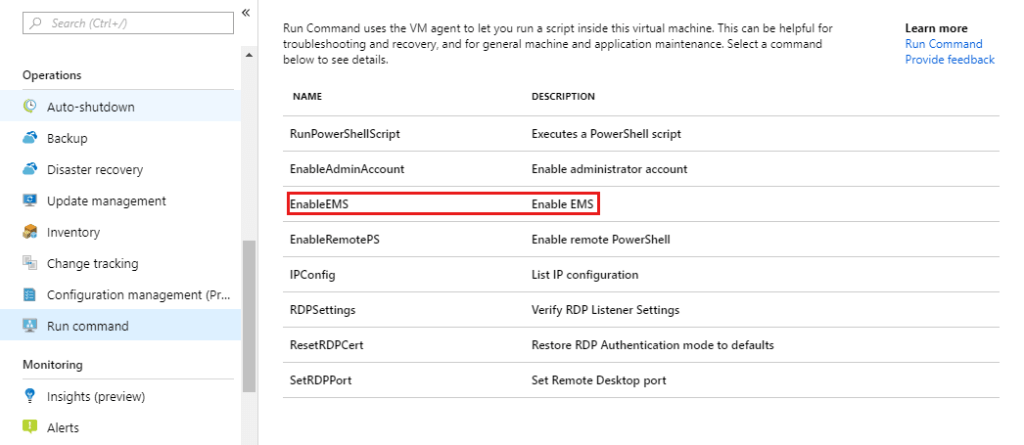
The first thing I needed to do was enable the serial console, the steps required are documented here.
You need to Run EnableEMS against the VM to do this:
Step 2 – Connect to the VM using the Serial Console
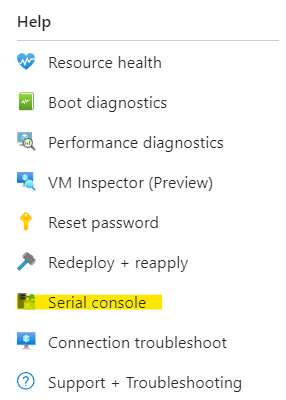
Select Serial Console within the Help section of the VM within Azure
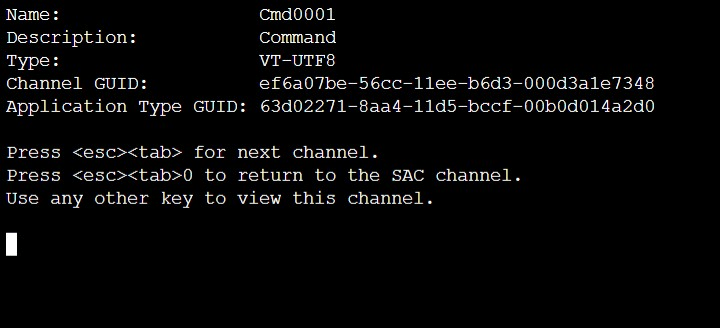
Type cmd and press enter
Type ch -si 1 and press enter
Press any key
Input the credentials for the VM
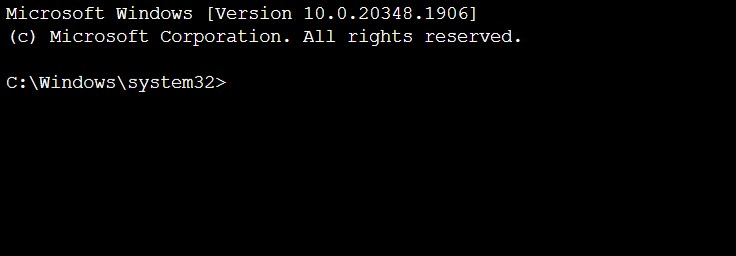
If successfully authenticated, you should now have a command shell
Step 3 – Enable RDP and Create a Firewall Rule to allow access
Run the following commands within the command shell to enable RDP on the server and then configure Windows Firewall to allow inbound access.
More test lab building….and more issues! This time I needed to build a Windows Server 2022 running Hyper-V hosted in Azure, the plan was to use this VM to host other VMs (known as nested virtualization). I provisioned a VM using one of the Azure VM SKUs that supports nested virtualization however when I attempted to install Hyper-V on the VM it failed with the following error “Hyper-V cannot be installed: The processor does not have the required virtualization capabilities“
After much troubleshooting, I eventually figured out what the problem was, when provisioning the VM I should have configured the Security type as Standard rather than Trusted launch virtual machines.
Re-creating the VM using this setting enabled me to install Hyper-V and enjoy some nested virtualization goodness 💪.
I was recently building a lab environment for Microsoft Intune, as part of this I needed to provision a Windows 11 machine as I needed to do some testing of Windows Autopilot. I decided to host this on Hyper-V (running on my Windows 11 desktop PC) rather than using a physical device to keep things simple (at least that was the idea!).
I ran into an issue during installation and received the following error message –“This PC doesn’t meet the minimum system requirements to install this version of Windows”.
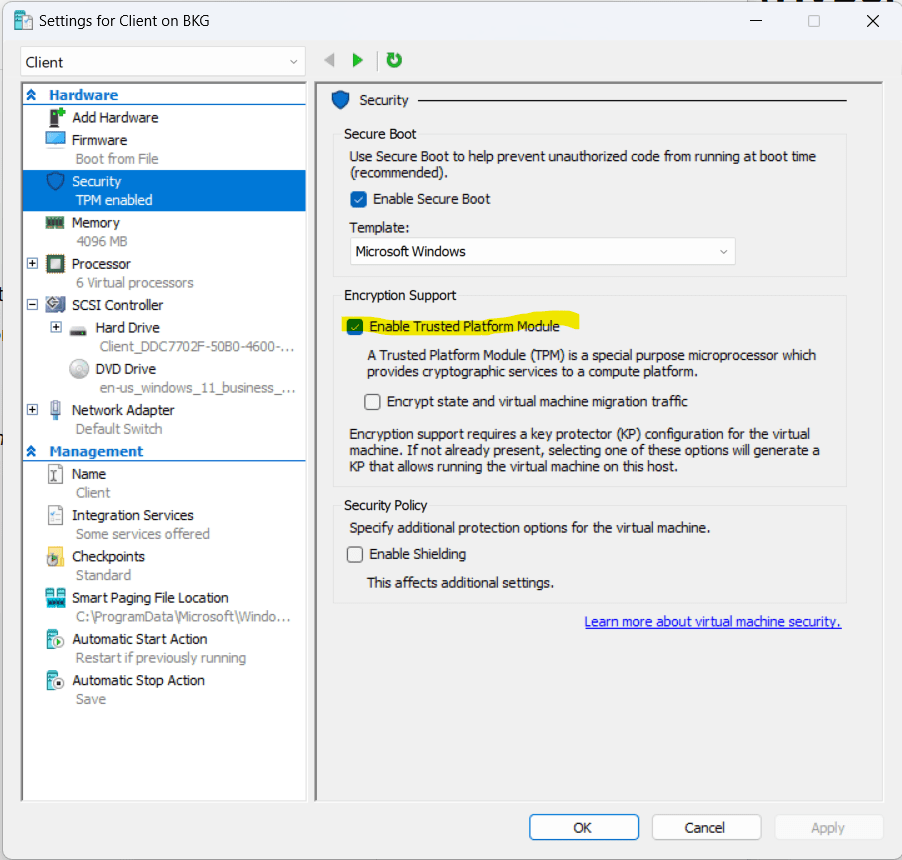
To fix this I needed to enable TPM support within the settings for the VM, it’s also worth noting that the VM should be created as a Generation 2 VM.
Once I’d enabled this setting I was able to successfully install Windows 11 🎉.











 Brendan's Tech Ramblings