
A customer of mine recently ran the OCI Security Health Check 👨⚕️, this flagged up the following issue:
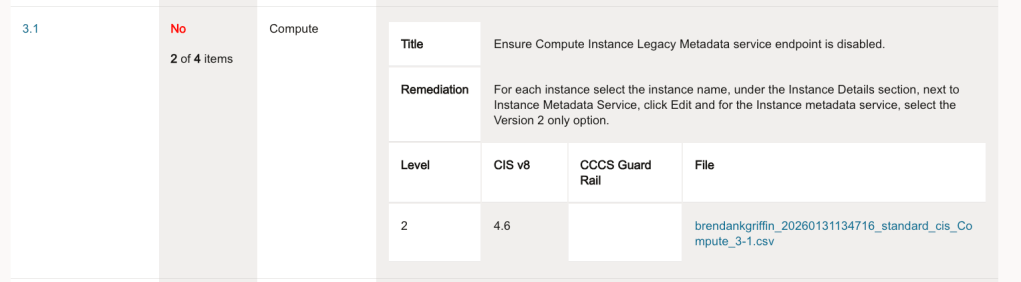
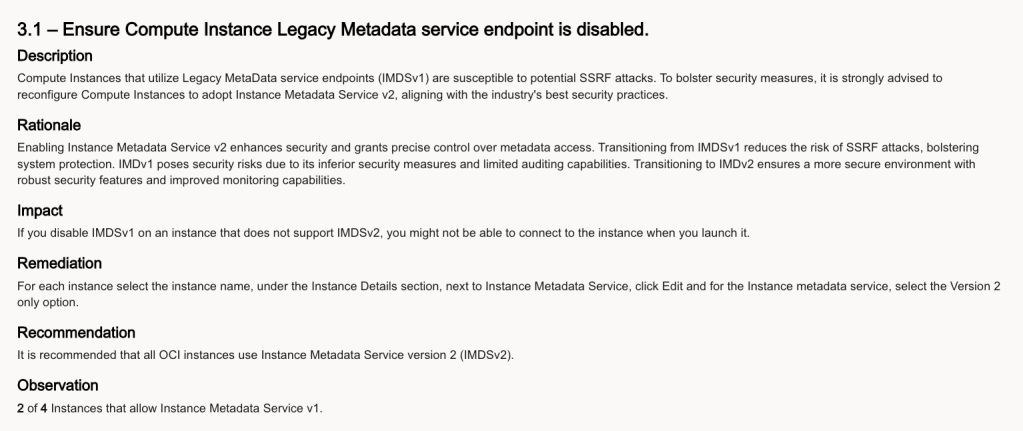
Rather than manually clicking through the OCI Console and updating this setting for all Compute Instances (which would have been mind-numbing!) to resolve this, I wrote a PowerShell script that loops through all instances within a tenancy and changes the Instance metadata service so that it only supports Version 2 (rather than V1 and V2), updating the configuration from this:
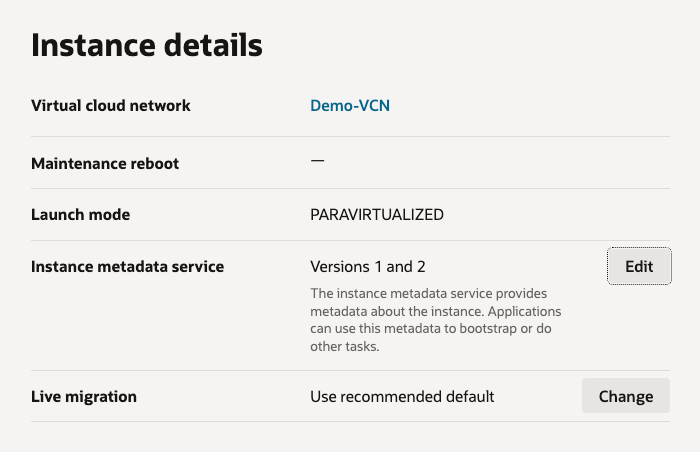
To this:
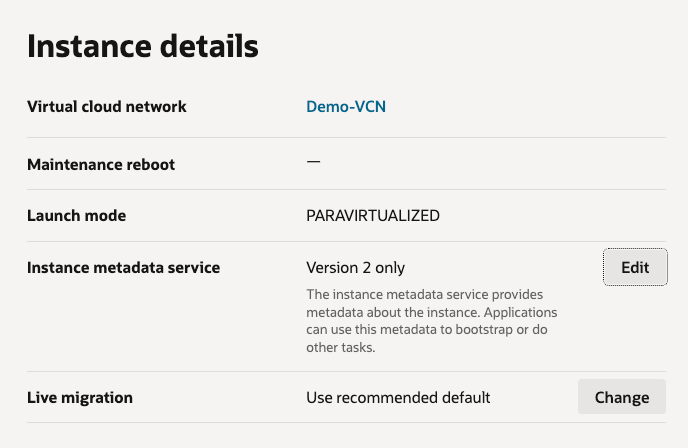
Here is the script in all of it’s glory, it can also be found on GitHub. Simply replace TenancyOCID with the OCID of the root compartment in the tenancy and run – this will loop through all compartments, find all Compute Instances and update the setting.
# Get all Compartments$Compartments = Get-OCIIdentityCompartmentsList -CompartmentId TenancyOCID -CompartmentIdInSubtree $true -LifecycleState Active# Loop through all VMs and update the instance metadata service so that it only supports version 2Foreach ($Compartment in $Compartments) {Write-Host "Compartment Name:" $Compartment.Name -ForegroundColor Green$Instances = Get-OCIComputeInstancesList -CompartmentId $Compartment.IdForeach ($Instance in $Instances) { Write-Host "-Instance:" $Instance.DisplayName -ForegroundColor White $Action = Update-OCIComputeInstance -InstanceId $Instance.Id -UpdateInstanceDetails @{InstanceOptions = @{AreLegacyImdsEndpointsDisabled = $true}} }}If you need a hand using PowerShell with OCI, check out this guide.
That’s all for now!
 Brendan's Tech Ramblings
Leave a comment