
I recently shared an example of how to create a basic front-end for an OCI Generative AI Agent using Streamlit, in this post I’m going to share how to do this for the OCI Generative AI Service, this is useful for demo’s when you need to incorporate a specific look and feel, something that’s a little more snazzy than the playground within the OCI Console! 💻
Here’s what the basic front-end I created looks like:
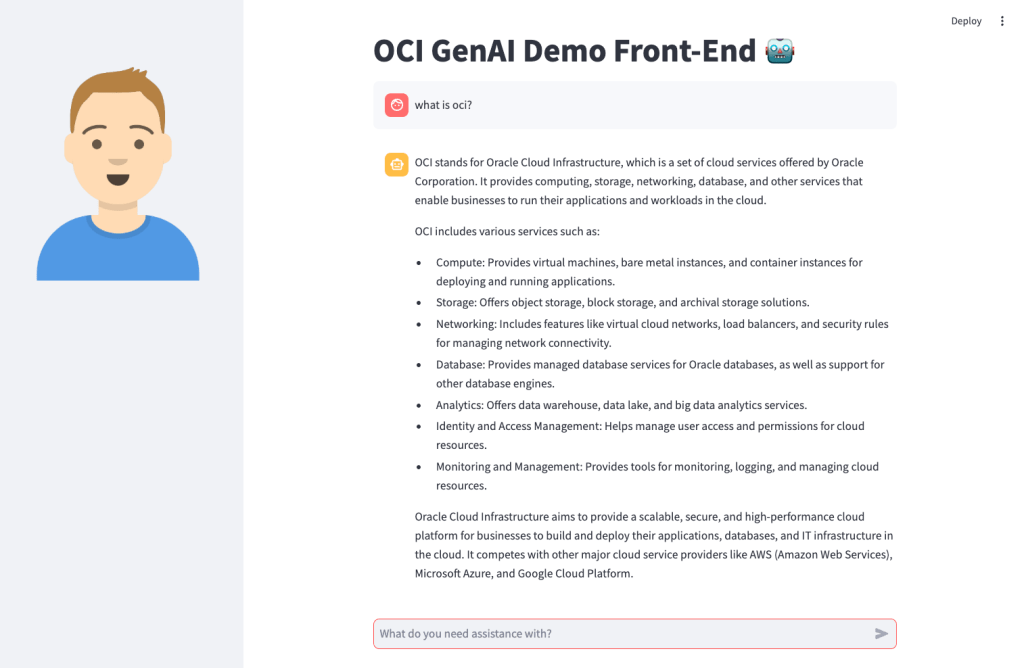
Installing Streamlit is a breeze using the single command below.
pip install streamlit
Once I’d done this, I put together the following Python script to create the web app, this can also be downloaded from GitHub.
Disclaimer: I’m no developer and this code is a little hacky, but it gets the job done!
The following variables need to be updated before running the script:
- st.title – Set’s the title of the page
- st.set_page_config – Set’s the name and icon to use for the page
- st.sidebar.image – Configures the image to use in the sidebar
- config – Set’s the OCI SDK profile to use, further info on this can be found here – https://docs.oracle.com/en-us/iaas/Content/API/Concepts/sdkconfig.htm
- compartment_id – The compartment to make the request against, a the Generative AI Service doesn’t need to be provisioned, this can be useful for cost tracking and budgeting purposes (as spend is against a specific compartment).
- endpoint – The endpoint for the region to pass the request to, a full list of the current endpoints can be found here, in my example I’m connecting to the Frankfurt endpoint.
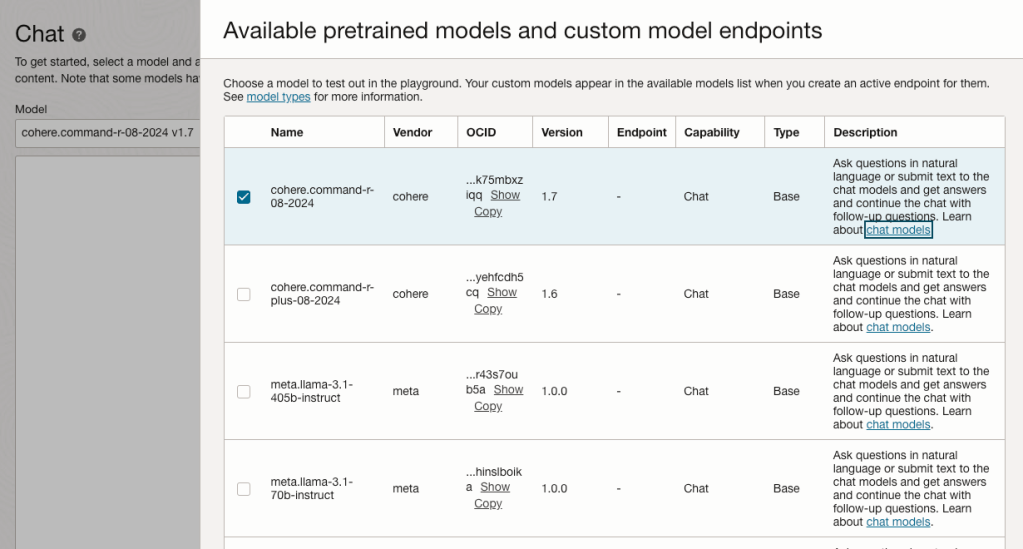
- model_id – The OCID of the model to call, the eaisest way to obtain this is via the OCI Console: Analytics & AI > Generative AI > Chat > View model details. This will provide a list of the models that are available, simply copy the OCID of the model you’d like to use. Further details on the difference between each of the models can be found here.
import oci
import streamlit as st

st.set_page_config(page_title="OCI GenAI Demo Front-End",page_icon="🤖")
st.title("OCI GenAI Demo Front-End 🤖")
st.sidebar.image("https://brendg.co.uk/wp-content/uploads/2021/05/myavatar.png")

# GenAI Settings
compartment_id = "Compartment OCID"
config = oci.config.from_file(profile_name="DEFAULT")
endpoint = "https://inference.generativeai.eu-frankfurt-1.oci.oraclecloud.com"
model_id = "Model OCID"

def chat(question):
    generative_ai_inference_client = oci.generative_ai_inference.GenerativeAiInferenceClient(config=config, service_endpoint=endpoint, retry_strategy=oci.retry.NoneRetryStrategy(), timeout=(10,240))
    chat_detail = oci.generative_ai_inference.models.ChatDetails()
    chat_request = oci.generative_ai_inference.models.CohereChatRequest()
    chat_request.message = question
    chat_request.max_tokens = 1000
    chat_request.temperature = 0
    chat_request.frequency_penalty = 0
    chat_request.top_p = 0.75
    chat_request.top_k = 0
    chat_request.seed = None
    chat_detail.serving_mode = oci.generative_ai_inference.models.OnDemandServingMode(model_id=model_id)
    chat_detail.chat_request = chat_request
    chat_detail.compartment_id = compartment_id
    chat_response = generative_ai_inference_client.chat(chat_detail)
    return chat_response.data.chat_response.text

# Initialize chat history
if "messages" not in st.session_state:
    st.session_state.messages = []

# Display chat messages from history on app rerun
for message in st.session_state.messages:
    with st.chat_message(message["role"]):
        st.markdown(message["content"])

# Accept user input
if prompt := st.chat_input("What do you need assistance with?"):
    # Add user message to chat history
    st.session_state.messages.append({"role": "user", "content": prompt})
    # Display user message in chat message container
    with st.chat_message("user"):
        st.markdown(prompt)

    # Display assistant response in chat message container
    with st.chat_message("assistant"):
        response = chat(prompt)
        write_response = st.write(response)
    # Add assistant response to chat history
    st.session_state.messages.append({"role": "assistant", "content": response})
You may also want to tweak the chat_request settings for your specific use-case for Generative AI, my example is tuned for summarisation. Details for what each of the settings does for the Cohere model (which I used), can be found here.
Once this file has been saved, it’s simple to run with a single command:
streamlit run OCI-GenAI-Streamlit.py
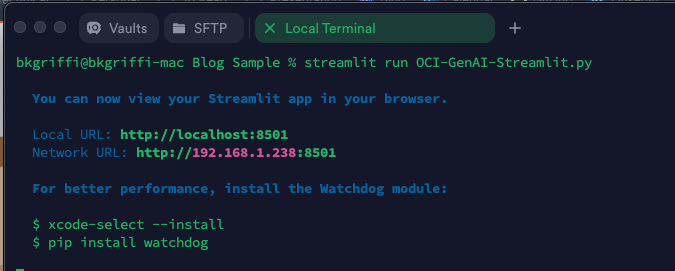
It will then automatically launch a browser and show the web app in action 🖥️

This basic example can easily be updated to meet your requirements, the Streamlit documentation is very comprehensive and easy to follow with some useful examples – https://docs.streamlit.io/.
 Brendan's Tech Ramblings
Leave a comment