
OCI Object Storage has an Amazon S3 compatible API, which got me thinking that I could likely connect to it using a GUI client, such as S3 Browser. After lots of trial and error I finally managed to configure S3 Browser to connect to OCI Object Storage.
Below are the steps that I took to get this working:
Step 1 – Obtain the Object Storage Namespace for the tenancy 🪣
The Object Storage Namespace is required to figure out the REST endpoint URL to connect to OCI Object Storage and can be obtained via the Cloud Console > Governance & Administration > Tenancy Details
My namespace is below and begins with lrdkvq

Step 2 – Create a secret key 🔑
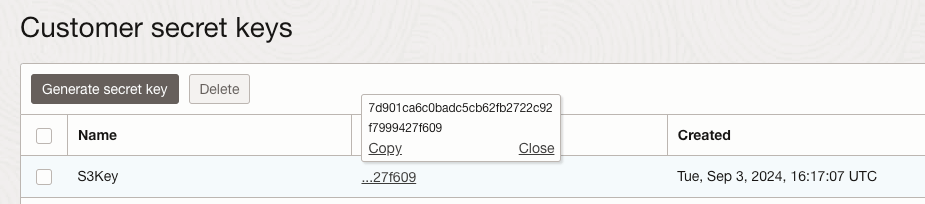
I then needed to create a secret key, this is used to autheticate to OCI Object Storage, a secret key can be created using the Cloud Console via Profile (icon in the top right) > My Profile > Customer secrey keys > Generate secret key.
Give the secret key a memorable name and remember to copy the key before closing the window as it will not be shown again.

In the list of secret keys, hover over the Access Key section for the secret key that you have just created and copy this too.
Step 3 – Configuring S3 Browser ⚙️
Launch S3 Browser and add a new account, select S3 Compatible Storage from the Account type dropdown.
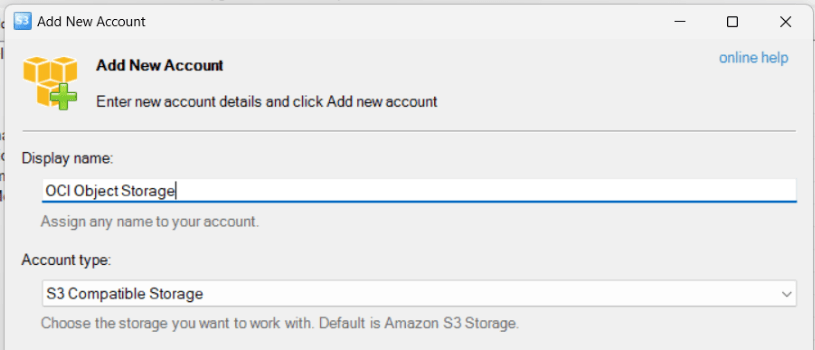
This then unlocks some additional options:

For the REST Endpoint take the namespace that you obtained in Step 1 and use this as the first part of the URL, follow this with compat.objectstorage.REGION CODE.oraclecloud.com, for example my URL looks like this:
lrdkvqz1i7g9.compat.objectstorage.uk-london-1.oraclecloud.com
To obtain the region code for your OCI tenancy, use this reference.
Then enter the Access Key ID and Secret Access Key obtained in Step 2. Secret Access Key is the key that is only displated once and Access Key ID is the Access Key obtained from the list of customer secret keys.
Step 4 – Connect 🔌
I then saved this configuration and connected 😀.
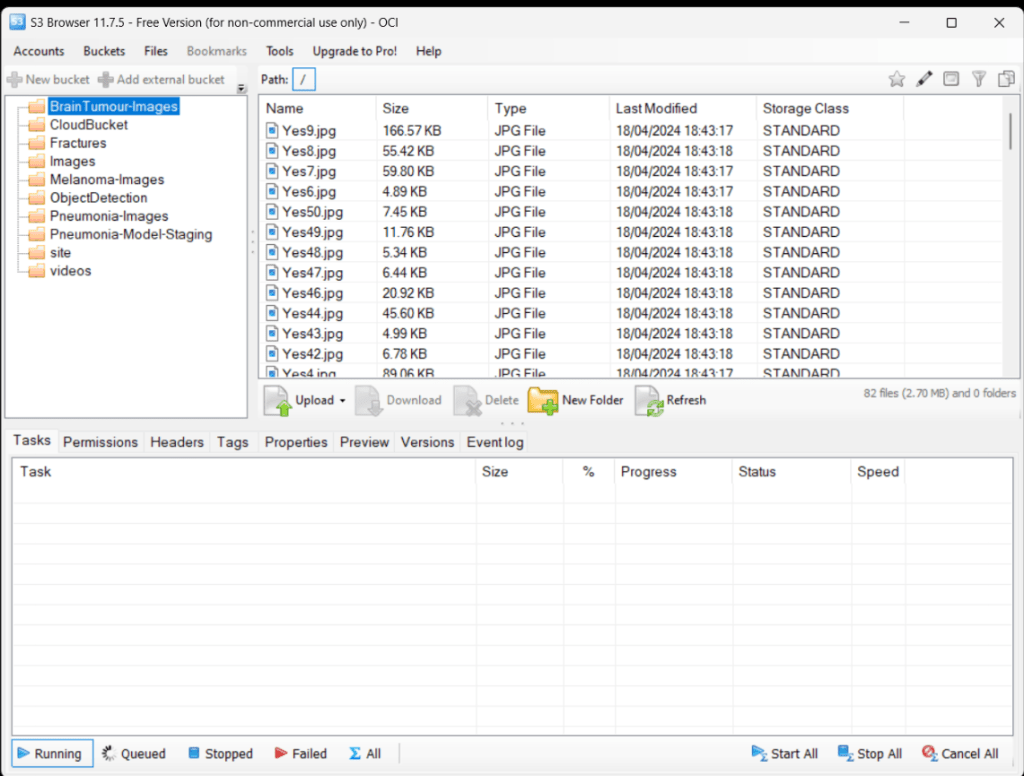
This is a nice (and a little more user-friendly) way to interact with Object Storage without having to use the OCI Console / APIs.
 Brendan's Tech Ramblings
Leave a comment