
With my new focus on all things Oracle Cloud Infrastructure (OCI) I’ve not been giving PowerShell much love recently.
I knew that PowerShell modules for OCI were available, however hadn’t had an excuse to use them until somebody asked me how they could use PowerShell with OCI Object Storage 🪣.
Fortunately, the OCI Modules for PowerShell are feature-rich and well documented 💪.
To get started you can run the following to install all of the modules (as I did):
Install-Module OCI.PSModules
If you’d prefer to only install the specific modules that you need, this can be done by running the following – replacing ServiceName with the name of the service whose module you’d like to install, the ServiceName for each service can be found within the Cmdlet reference.
Install-Module OCI.PSModules.<ServiceName>
Before you use the PowerShell modules, you’ll need to ensure that you have an OCI configuration file (which is used for authentication), instructions on creating one can be found here.
In my first example, I’m going to use the OCI PowerShell Module for Object Storage to upload a file to a storage bucket, prior to running this command I need to know the Namespace for Object Storage within my tenant as the Cmdlet requires this. This is listed within the details page for each storage bucket (as highlighted below):

Once I had this, I ran the following to upload the file named DemoObject.rtf to the bucket named data, within the namespace I obtained above.
Write-OCIObjectstorageObject -bucketname "data" -NamespaceName "lrdkvqz1i7f7" -ObjectName "DemoObject.rtf" -PutObjectBodyFromFile "/Users/bkgriffi/Downloads/DemoObject.rtf"
One point to note is that I’m running this on a Mac, if you are running on Windows you’ll need to use the correct file path format.
Once I’d ran the command I could see it uploaded within the OCI Console:

In the more advanced example below, the script loops through a speific folder (set by the $Folder variable) and uploads all files within it to the data bucket.
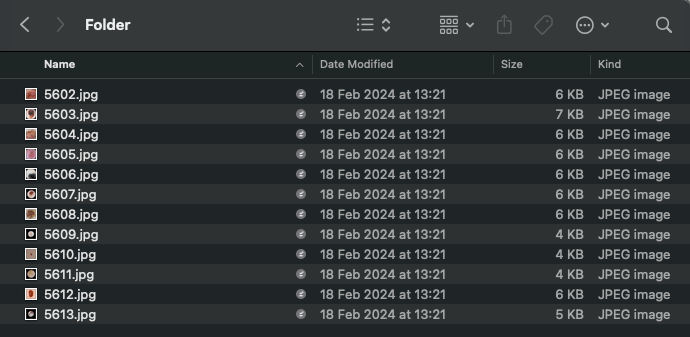
$Folder = "/Users/bkgriffi/OneDrive/Development/Folder"
$Files = Get-ChildItem -Path $Folder

Foreach ($File in $Files) {
    Write-OCIObjectstorageObject -bucketname "data" -NamespaceName "lrdkvqz1i7f7" `
    -ObjectName $File.Name -PutObjectBodyFromFile ($Folder + "/" + $File.Name)
}
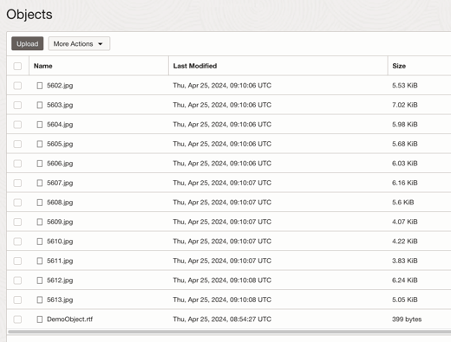
If your configuration file isn’t in the default location, you will also need to specify
-ConfigFile and the pass to the file within the command.
A Full reference for the Cmdlet used (Write-OCIObjectstorageObject) can be found here.
 Brendan's Tech Ramblings
Leave a comment