
In my continued journey to play around with the AI services within OCI (you can read about them here), next up on my list is OCI Speech 🎤.
Here is a high-level overview of what it offers (taken from https://www.oracle.com/uk/artificial-intelligence/speech/):
OCI Speech is an AI service that applies automatic speech recognition technology to transform audio-based content into text. Developers can easily make API calls to integrate OCI Speech’s pretrained models into their applications. OCI Speech can be used for accurate, text-normalized, time-stamped transcription via the console and REST APIs as well as command-line interfaces or SDKs. You can also use OCI Speech in an OCI Data Science notebook session. With OCI Speech, you can filter profanities, get confidence scores for both single words and complete transcriptions, and more.
As an experiment I took one of my recent YouTube videos and submitted this to OCI Speech for transcription, the high-levels steps to do this were:
- Upload the video to an OCI Object Storage bucket
- Within the OCI Console, navigate to Analytics & AI > Speech > Create Job, I then entered the following:

This created a transcripton job named IdentityFederationYouTube, configured it to use the Object Storage bucket named videos and to store the transcription output in the same bucket – on the next screen we’ll select the video to transcribe from the bucket.
I left all other settings as default, one really interesting feature is the ability to detect profanity, if you select Add filter, you can configure the transcription job to detect and act upon profanity by either masking, removing or simply tagging it within the output transcription. I didn’t bother using this although I’m sure that I’ll have a lot of fun playing with it in the future 😆.

On the next screen I chose the video to transcribe and selected Submit.

NOTE: As my Object Storage bucket contained a single video file this was the only option that I had, it is possible to submit multiple videos within a single transcription job.
In under 2 minutes the transcription job was complete, for reference the video that was transcribed was 7 minutes long:
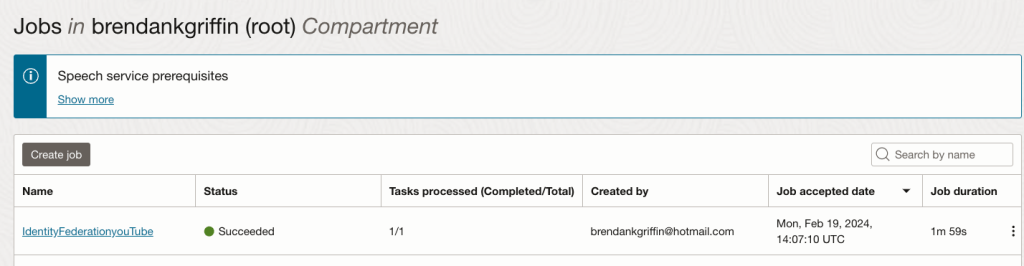
Clicking into the job provides additional details, I did this and scrolled down to the Tasks section, from here it was possible to download the transcription, which is in JSON format directly (Download JSON). I could also have gone directly to the Object Storage bucket, it was a nice touch that I could do it here though, far less clicking around 😀.

I downloaded the JSON file and fired up Visual Studio Code to analyse the JSON using Python.
First things first, I wanted to see the transcription itself so I could see how good a job it had done with my Yorkshire accent.
To do this I ran the following Python:
import json
# Open the transcription JSON output file
filepath = "/users/bkgriffi/Downloads/transcript.json" # Location of the transcription output JSON file
transcriptsource = open(filepath)
# Read the transcription
transcriptJSON = json.load(transcriptsource)
transcriptJSON["transcriptions"][0]["transcription"] # This is looking at the output of the first transciption within the output, denoted by 0. If transcribing multiple videos within a single job, this would need to be updated accordingly.
for word in transcriptJSON["transcriptions"][0]["tokens"]:
    if word["confidence"] < '0.70':
        if word["token"] not in ('.',','):
            print(word["token"] + " - " + "Confidence: " + word["confidence"] + " at: " + word["startTime"])
It didn’t do too bad a job at all!

I opened the JSON directly and could see some other really useful information, in addition to the transcription it also provides it’s confidence of each word detected. I put together the following script that outputs all of the words that were detected that had a confidence level of less than 70% and the timestamp that they occurred within the video.
for word in transcriptJSON["transcriptions"][0]["tokens"]:
    if word["confidence"] < '0.70': # Only display words with a detection confidence of less than 70%
        if word["token"] not in ('.',','): # Exclude full stops and commas
            print(word["token"] + " - " + "Confidence: " + word["confidence"] + " at: " + word["startTime"])
Looking at the output, it appears to have mostly been confident! There’s only a couple of words that I can see there that appear to have been detected incorrectly.

The script I wrote can be found on GitHub here.
 Brendan's Tech Ramblings
Leave a comment