
Azure continues to amaze me, I’ve been playing around with Azure Web Apps recently and was astounded at the simplicity of creating a new Web App and deploying code to it 😲.
Using the one-liner below I was able to create a new Azure Web App (with all of the necessary pre-req’s such as a resource group and App Service plan) AND deploy my code!

I used the Azure CLI to do this running on my Windows 11 machine, to install the Azure CLI I used the following winget command within PowerShell.
winget install -e --id Microsoft.AzureCLI
Once this had been installed, I used az login to login to my Azure subscription and then ran the command below to provision the Web App and deploy the code (which is a Python Flask application). This command was run directly from the folder that contained the code for my Web App (which displays the video games within my collection) and did the following:
- Creates a Resource Group (with an auto-generated name)
- Creates an App Service Plan (with an auto-generated name)
- Create a Web App with the name specified by -n (GamesWebApp)
- All of these resources were created within the UK South region, denoted by -l
- Uses the free (F1) SKU for Azure App Service
az webapp up --sku F1 -n "GamesWebApp" -l uksouth
Once the command completed the following was output:

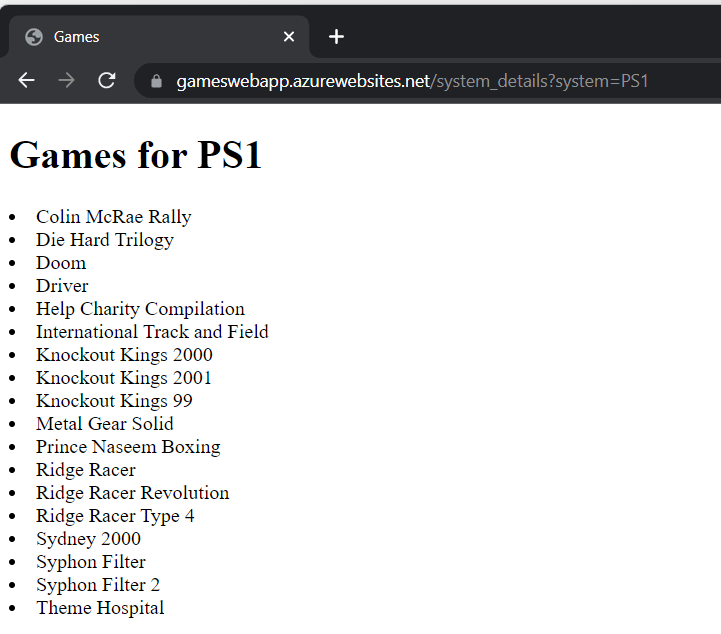
I browsed to https://gameswebapp.azurewebsites.net to see my Web App in action (as you can see, I’m no front-end dev 😂)

Just in case you are interested, here are the PS1 games in my collection.


Leave a comment