
I’m in the process of writing a Python (Flask) web app that will list all of the games in my retro gaming collection (and also allow me to add/edit them too) 🕹️.
My list of games are stored within Azure Table storage (I really love to over-engineer things!), so I needed to figure out how to add/query data within Azure Table storage using Python 🐍.
Step 1 – Install the Python module for Azure Table storage
First things, first – I needed to install the Python module for Azure Table storage, I did this using the following command from a terminal:
pip install azure-data-tables
Step 2 – Connecting to the Storage Account
I then needed to connect to my Azure Storage account, I used the following to do this:
accountname = "brendgstorage"
key = "KEY"
endpoint = "https://brendgstorage.table.core.windows.net"
credential = AzureNamedKeyCredential(accountname,key)
The key thing is to not specify the name of the table as part of the endpoint URL, when I did it would allow me to add entries to the table, but I was unable to query the table and received a cryptic error (which I wasted a lot of time figuring out).
To keep things simple I used an access key to connect to the storage account, I copied the key directly from the Azure Portal.

I also retrieved the endpoint URL from the portal.

Step 3 – Add an entry to the Azure table “games”
I firstly needed to connect to the table “games”, I did this with the following commands:
service = TableServiceClient(endpoint=endpoint, credential=credential)
gamestable = service.get_table_client("games")
I then defined the game (entity) to add to the table:
entity = {
    'PartitionKey': '1',
    'RowKey': 'Super Mario Land',
    'System': 'GB',
}
As this isn’t going to be a large table (<1000 rows), I opted to use a single PartitionKey, the RowKey is the name of the game and I defined a new field named System which is used to define the system that the game is for. In the example above this was Super Mario Land on the Nintendo Game Boy.
I could then add the game (entity) to the table using the following:
gamestable.create_entity(entity)
Step 4 – Verify that the game was added
I then wrote a query to return all games within the table to verify that the game had been successfully added to the table:
games = gamestable.query_entities(query_filter="PartitionKey eq '1'")
for game in games:
    print(game["RowKey"])
This outputs the RowKey (game name) for every game listed in Partition 1 – as I only have a single partition this would return everything:

Step 5 – Querying for all games from a specific system
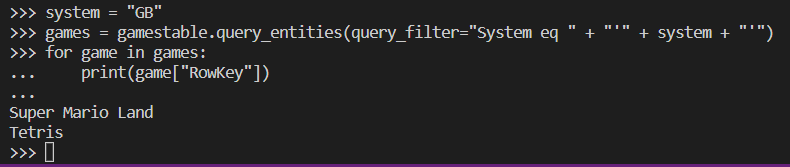
Here is an alternative query that lists all games from a specific system.
system = "GB"
games = gamestable.query_entities(query_filter="System eq " + "'" + system + "'")
for game in games:
    print(game["RowKey"])
The name of the system to query is held within the system variable.
Next step for me is to write a script that takes the Excel file that contains a list of all my games and automagically add them to the table.
The snippets above can be found on GitHub.


Leave a comment